Table of Contents
- Quick answer: install, sign in and test
- Check your device and login details
- Choose an app that fits the device
- Install on an Android phone or tablet
- Install on Android TV or Google TV
- When the developer supplies an APK
- Add your subscription
- Finish with a short playback check
- Set up the programme guide
- If setup fails
- Frequently asked questions
- Keep a secure record of your setup
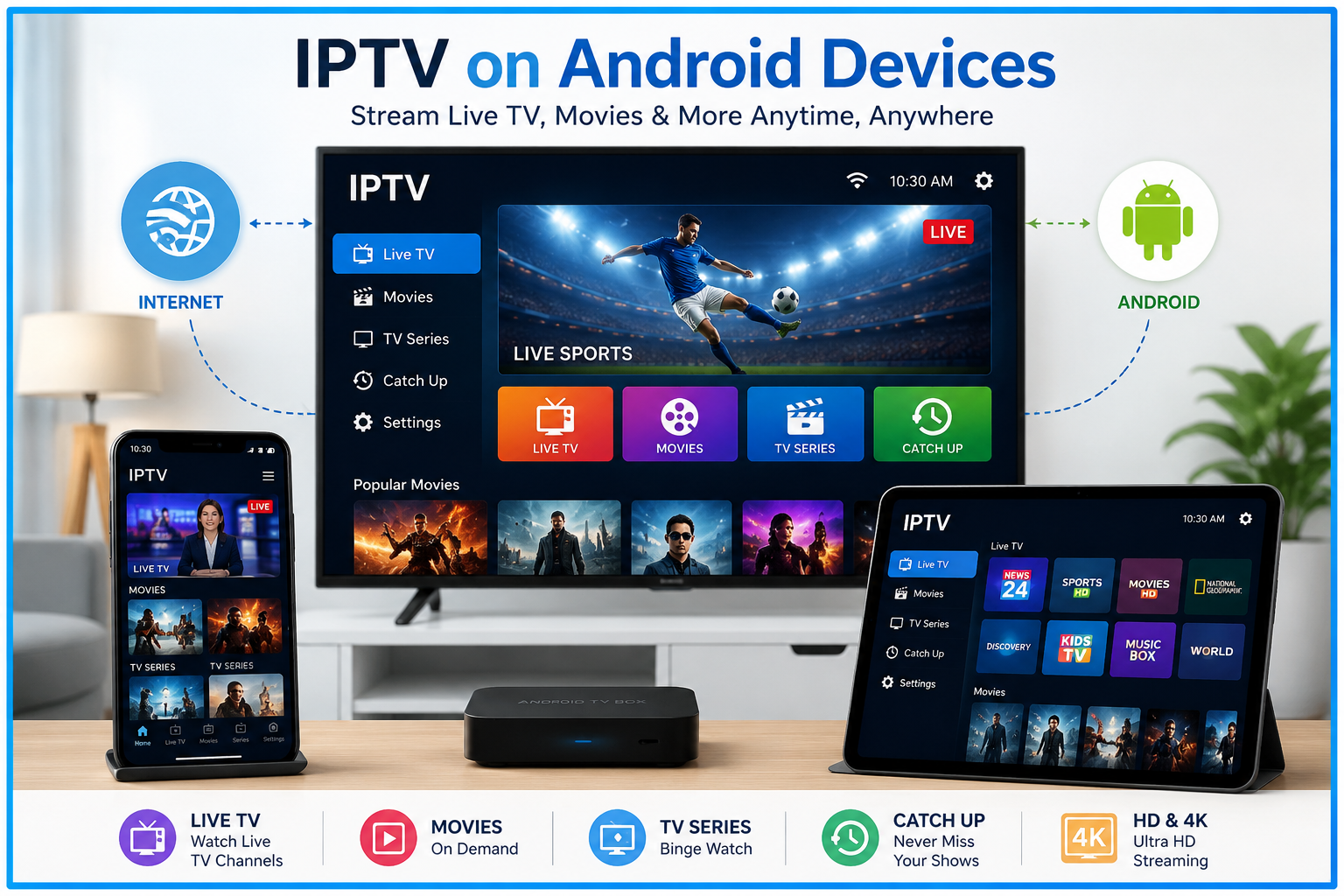
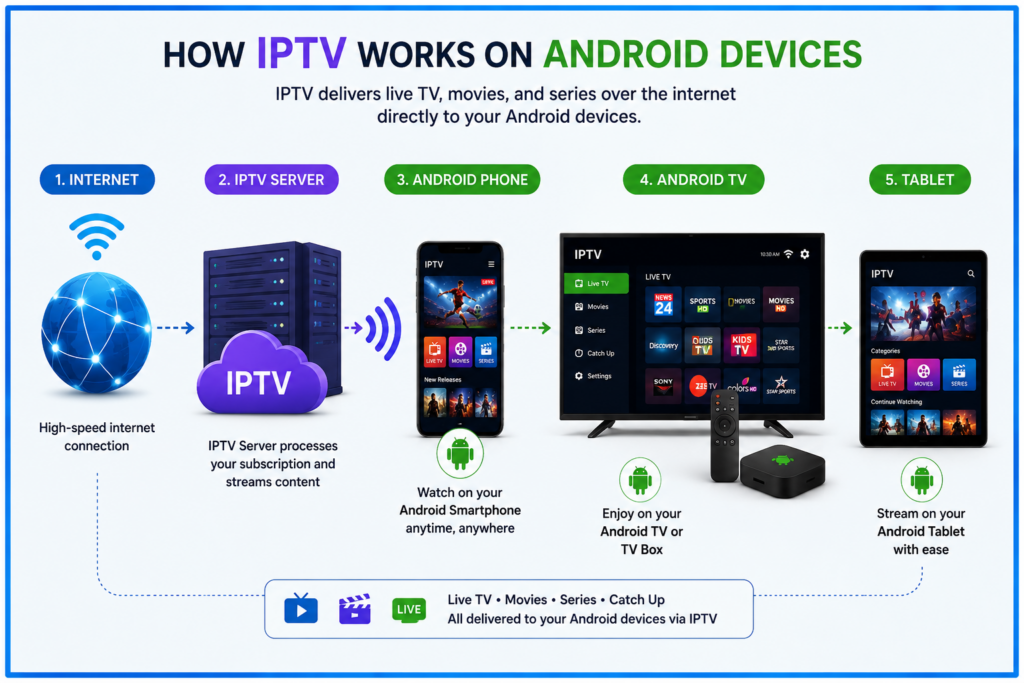
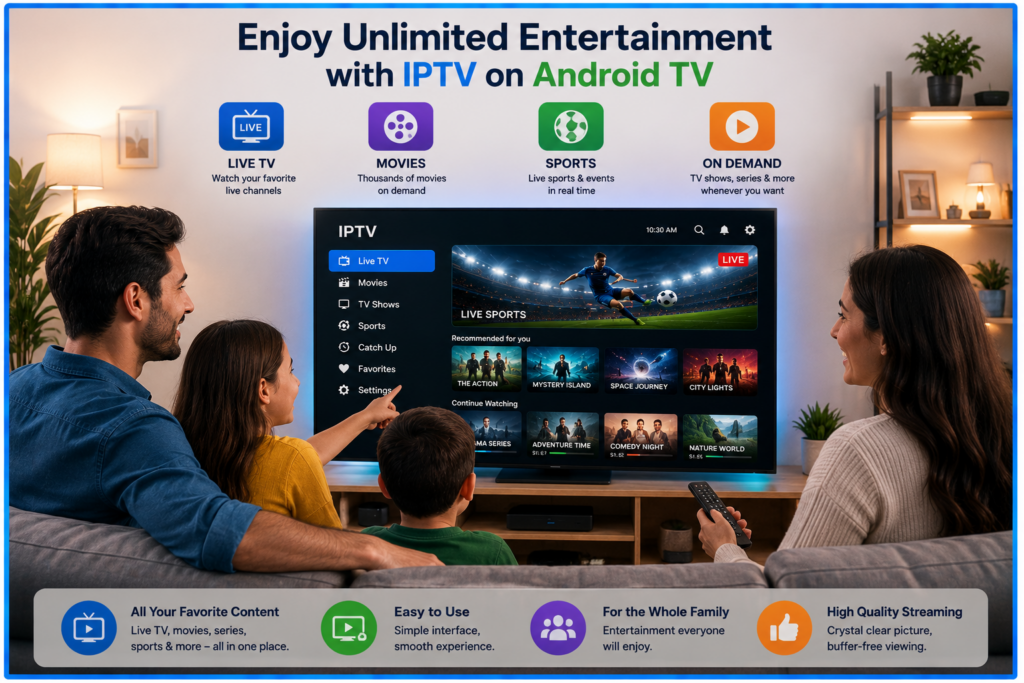
IPTV on Android starts with a compatible player and the correct account details. This guide covers installation on phones, tablets, Android TV and Google TV, with separate steps for touch screens and TV remotes.
Quick answer: install, sign in and test
For Smartiflix, use the player instructions supplied with your order and confirm that the app supports your exact device. Install the verified app, choose M3U or Xtream Codes according to your account details and test one stream before adjusting other settings. Check our Smartiflix plan and device guide before paying for a separate player licence.
Check your device and login details
Find your Android version in the device settings and compare it with the app’s requirements. Phones, tablets and TV boxes do not necessarily support the same app interface. A television player should work with a remote; a phone player should work with touch controls.
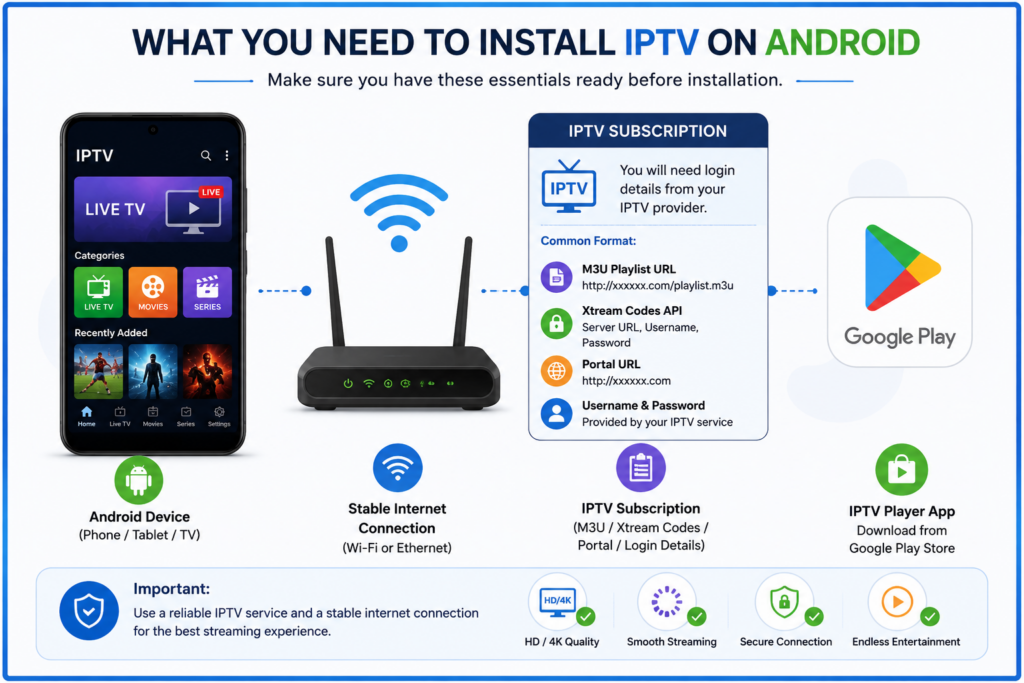
Have your streaming credentials ready. An M3U account uses a full playlist URL or file. Xtream Codes usually uses a server address, username and password in separate fields. A portal account requires a player that supports its particular system. Your website password may differ from your streaming password.
The player and content subscription can have separate fees. A free download may include paid features, and buying a player does not automatically activate a provider account. Check what each payment includes.
Choose an app that fits the device
Use the exact developer name and verified store link supplied by the developer or provider. Check compatibility, supported login formats, recent updates and any extra charges. Do not assume every similarly named Smarters app is the same product or that every Android TV app works on a phone.
If your device has no Google Play Store, check the manufacturer’s supported installation route. A box advertised as Android does not guarantee Google certification or a particular app’s compatibility.
Install on an Android phone or tablet
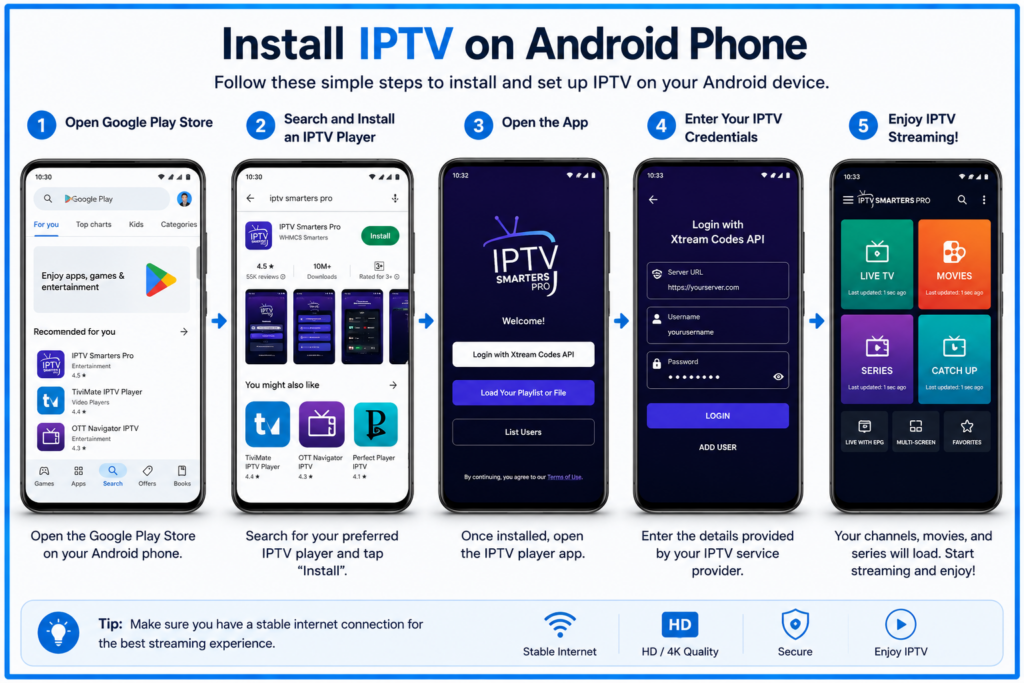
Open Google Play, follow the verified app listing and tap Install. Once installed, open the player and review the permissions it requests. Allow access when it is needed for a feature you intend to use, such as choosing a local playlist file; do not approve unrelated requests automatically.
Install on Android TV or Google TV
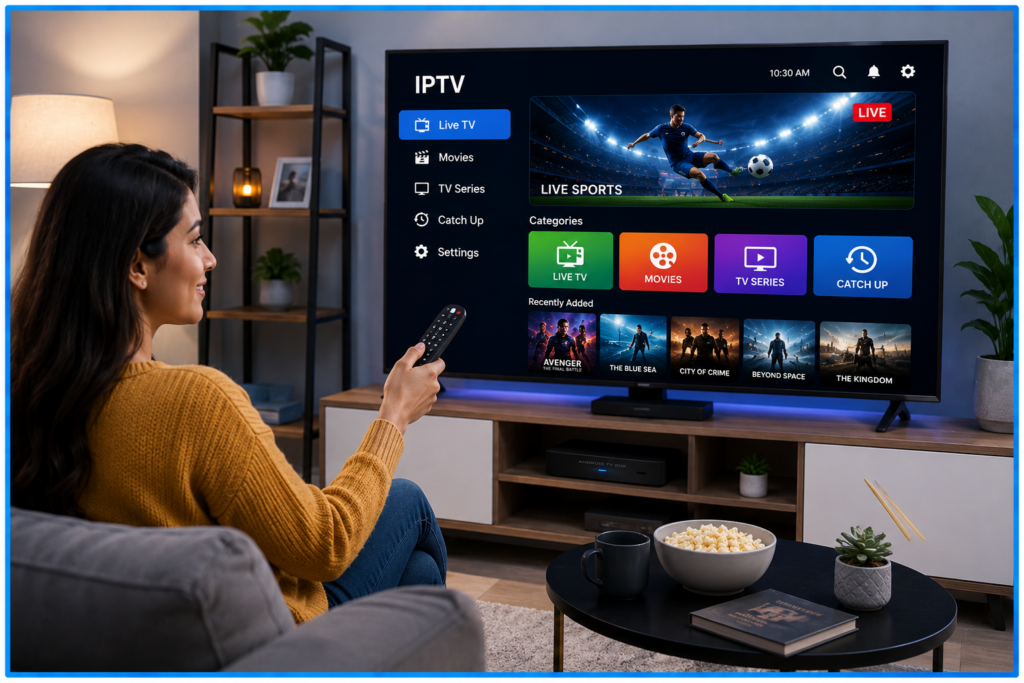
On Google TV, use the Apps area or search to find the verified player and select Install. On Android TV, use the device’s Play Store interface where available. Google provides official Google TV installation instructions. Menu labels vary by device.
Open the player with the remote and confirm that you can move between fields and select buttons. If a sideloaded phone interface requires touch input, choose a television-compatible app instead of assuming the remote is faulty.
When the developer supplies an APK
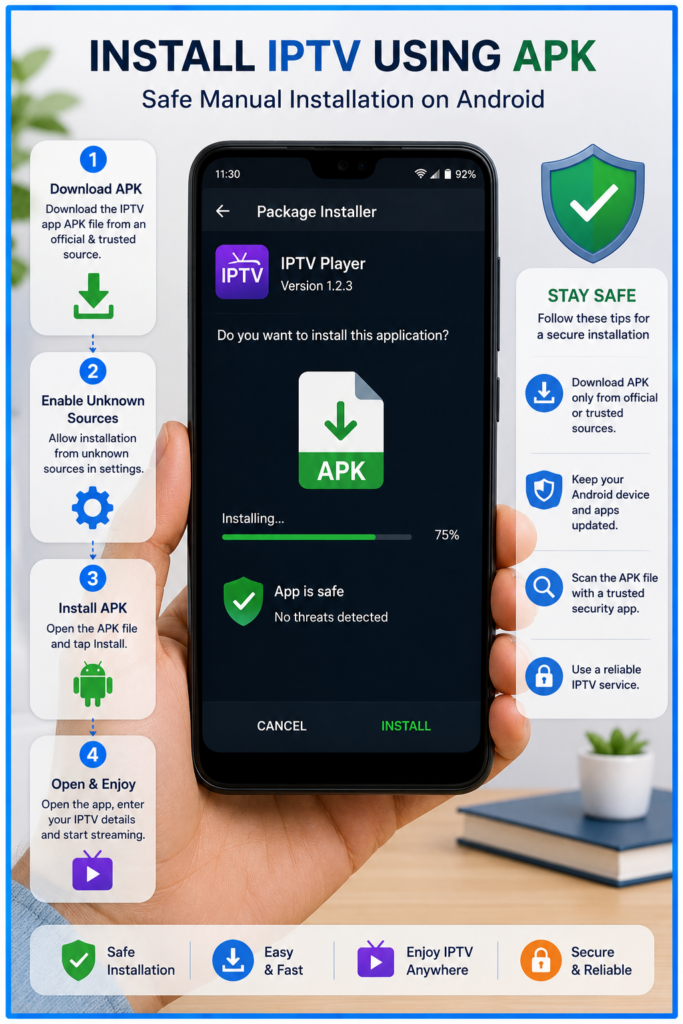
Check that the developer supports your model and Android version, then use its verified download and installation instructions. Android may request permission for the particular browser or file manager to install an app. Keep Play Protect enabled and read any warning before continuing. Google explains the available routes in its Android app download guide.
An app missing from Google Play can be incompatible, region-limited or unavailable for another reason. Do not assume that downloading a random APK will fix it. Ask the developer for a supported alternative when compatibility is unclear.
Add your subscription
M3U playlist
Choose Add Playlist or the equivalent M3U option. Enter a name and paste the complete URL, keeping its parameters intact and removing accidental spaces. Use file import only if your player supports local M3U files. Save and allow the list to load.
Xtream Codes
Choose a supported Xtream Codes option. Enter the server address, username and password separately, preserving the supplied http or https prefix and any port number. Do not put a full M3U URL in the server field. Save the account and test an item.
Portal login
Follow the provider’s instructions for the supported portal player. If device registration is required, confirm which identifier to supply. A portal URL cannot simply replace a playlist URL.
Finish with a short playback check
Play one live item and an on-demand title if your account includes one. Check sound, picture and subtitles before organising favourites. Stop playback elsewhere while testing a plan with one simultaneous connection.
Playlist import loads information about available sources; it does not download an entire library for offline viewing. Catch-up, recording and programme-guide coverage depend on the provider, plan and player.
Set up the programme guide
If the player supports an external guide, add the provider’s guide URL to its EPG field. Confirm the required format, refresh the data and check the device’s time zone. A guide URL and a video playlist URL serve different purposes.
If setup fails
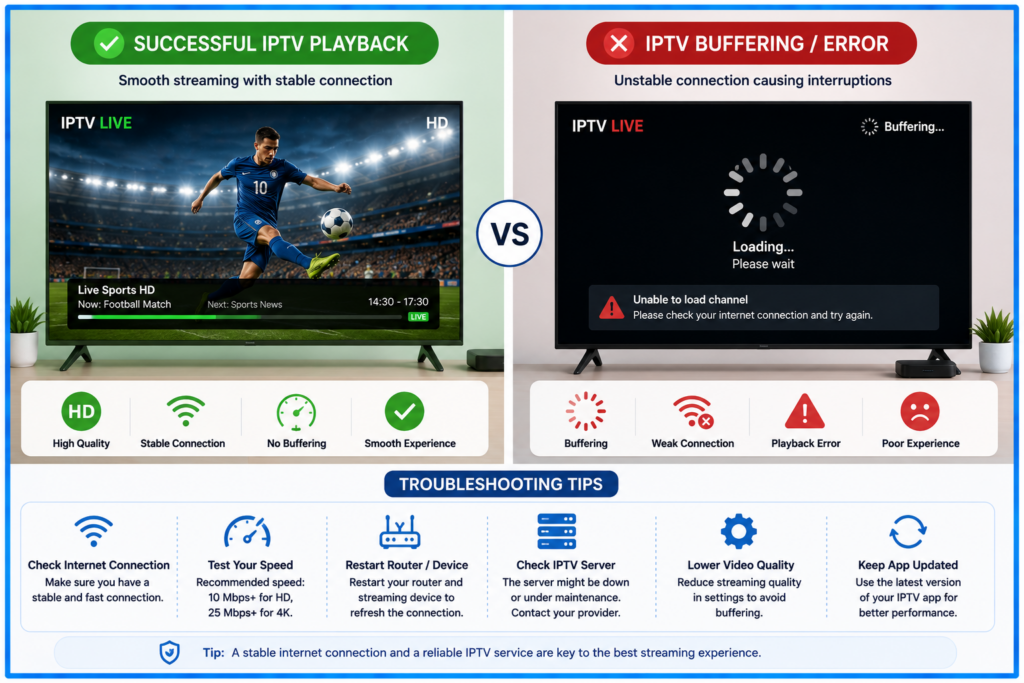
Check the login format and activation status first. For playback problems, compare several items and another working video app on the same device. If the app crashes, update it and try clearing its cache before clearing storage or reinstalling, which may remove saved accounts.
Use our separate Android IPTV troubleshooting guide for installation errors, buffering, login failures and missing guide data.
Frequently asked questions
Will any Android device work?
Check the exact app requirements, Android version and device type. Support varies across older phones, uncertified boxes and television interfaces.
How fast should the internet be?
The required capacity depends on bitrate, encoding and other network traffic. Test your intended stream where you will watch, and compare a lower-bitrate option when available. A speed-test result alone cannot guarantee playback.
Can I watch on a phone and TV at once?
Only if your plan permits the simultaneous connections. The number of devices where an app can be installed is separate from the number of streams your account allows.
Do I need to buy an app before testing?
Check whether the compatible player offers free playback or a trial, and read its terms. Confirm the login format with your provider before paying.
Keep a secure record of your setup
Save the player name, developer, login format and support details privately. Hide full playlist URLs and passwords in screenshots. Before subscribing, confirm the provider’s content availability and distribution rights for your location.

Last updated on September 26, 2026 at 7:49 am