Table of Contents
- Quick answer: what should you check first?
- Find the failure before changing settings
- The app will not install or is missing from Google Play
- Login failed: check the format before the password
- The playlist loads but nothing plays
- Buffering: separate connection problems from source problems
- Audio plays but the picture is black
- The app crashes or freezes
- The programme guide is blank or the times are wrong
- The app works on a phone but not on Android TV
- Frequently asked questions
- What to send support
IPTV not working on Android can mean several different things: the app will not install, your account will not log in, the playlist is empty or video keeps stopping. Identify the point where it fails before deleting the app or paying for another subscription.
This guide covers troubleshooting on Android phones, tablets and compatible TV devices. For a first-time installation, follow our Android IPTV setup guide. The checks below help when setup or playback has gone wrong.
Quick answer: what should you check first?
Note the exact error, confirm that your subscription is active and try a known working video in another app on the same device. If all video apps struggle, start with the connection. If only your IPTV app fails, check its login format, compatibility and updates. Smartiflix customers should compare their entries with the streaming details supplied with the order.
Find the failure before changing settings
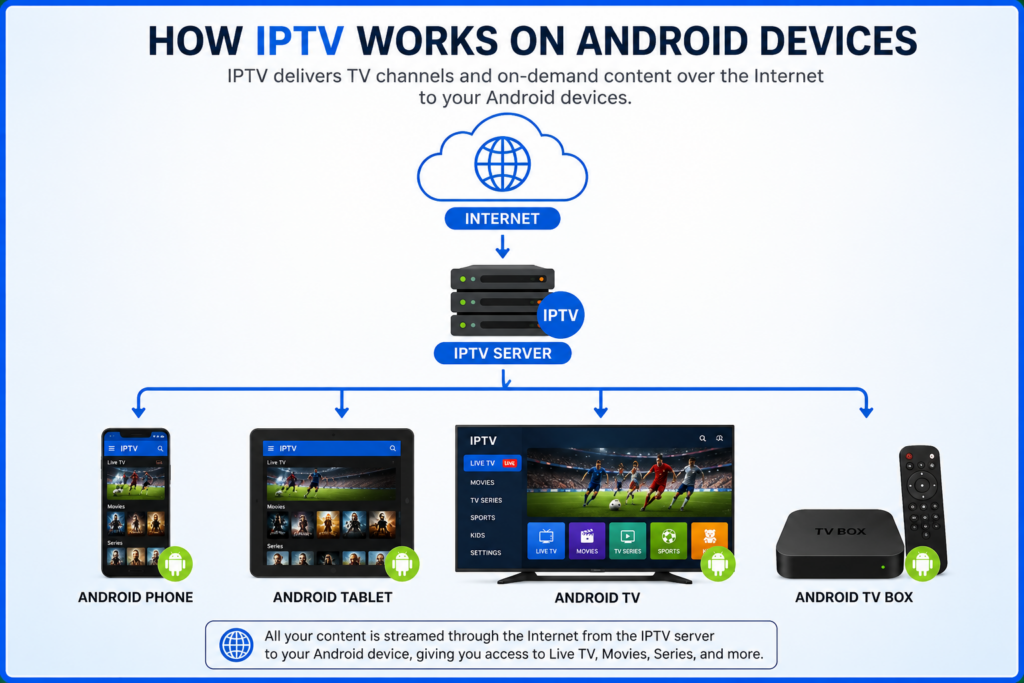
Installation fails: check the app’s requirements, download source and available storage. Login fails: check the account format and credentials. The playlist loads but playback fails: test several items and check the connection allowance. Only the guide is empty: investigate guide data separately.
Change one thing at a time and retry the same item. Note whether the problem affects every source or just one, and whether it happens all day or at particular times. Those details are more useful than repeatedly reinstalling the player.
The app will not install or is missing from Google Play
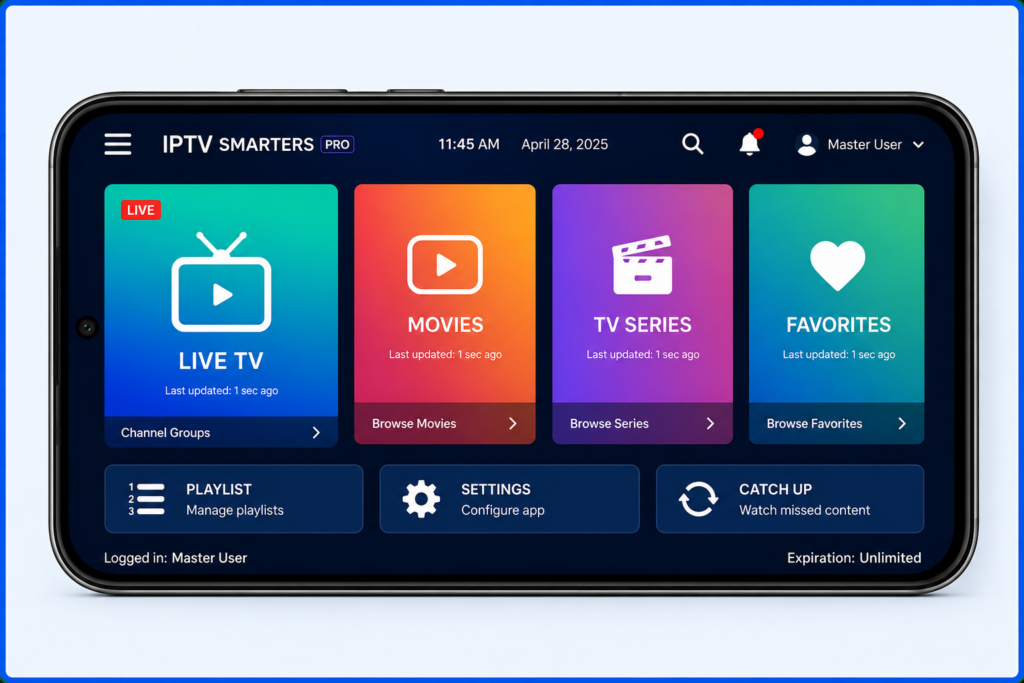
Check the exact developer and minimum Android version in the app listing. Confirm that it supports your device type: a phone app may depend on touch controls, while an Android TV app needs remote-friendly navigation. An older box may not meet an app’s requirements even when it runs Android.
If several downloads fail, check the connection and storage before blaming the IPTV player. If only one app is unavailable, ask its developer about device and regional availability. Installing a different app with a similar name can create a new problem.
For an APK distributed by the developer, use its verified source and device-specific instructions. Read any installation or Play Protect warning instead of disabling protection as a routine fix. Google’s Android app download guidance explains the available installation routes.
On a box that reports it is not Play Protect certified, turning off Play Protect does not repair certification. These are separate checks. Consult the manufacturer and Google’s certification guidance before trying more installers.
Login failed: check the format before the password
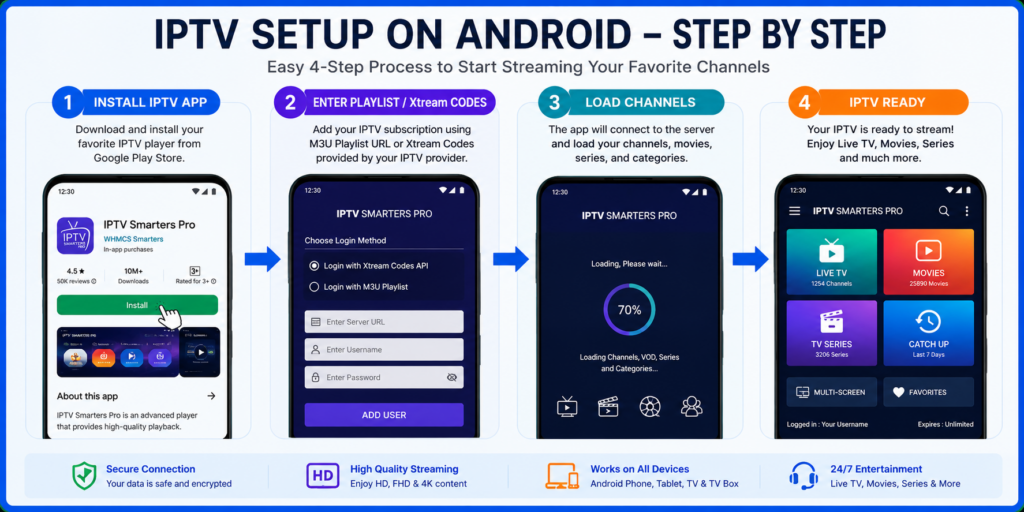
If you received an M3U playlist
Use the player’s M3U or playlist-URL option and paste the complete address. Keep the query parameters intact, with no extra spaces or line breaks. A playlist can contain account credentials inside its URL, so do not post it publicly or submit it to an unknown online checker.
If you received Xtream Codes details
Use a supported Xtream Codes option and enter the server address, username and password separately. Preserve the original http or https prefix and any port number. Do not paste a complete M3U URL into the server field. The streaming password may differ from your website account password.
If you received a portal address
Confirm that the player supports that portal system and ask the provider whether registration of a device identifier is required. A portal address is not interchangeable with an M3U URL. Guessing another login option will not repair a mismatch.
After checking the format, confirm activation, expiry and simultaneous connection limits. Stop playback on another device during the test. If previously working details fail, ask the provider whether the endpoint has changed before repeatedly resetting passwords.
The playlist loads but nothing plays
Try several entries and an on-demand item if your plan includes one. Check category filters and refresh the playlist. If only one source fails, report that item; if every source fails, investigate the account, connection and player compatibility.
Compare a known working video in another app on the same device. Where the provider permits it, compare the same source in another supported player, stopping the first player beforehand. A failure confined to one app points towards a different investigation from a source that fails everywhere.
Buffering: separate connection problems from source problems
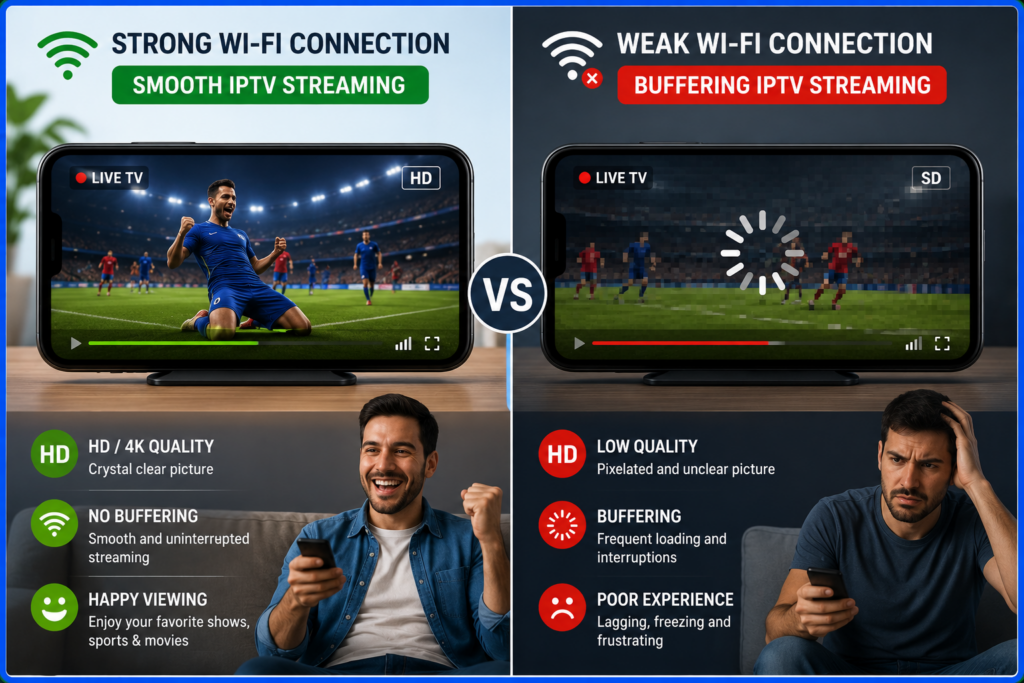
Test close to the router and pause large downloads or cloud uploads. On a compatible TV box, compare Ethernet with Wi-Fi if available. Do not assume 5 GHz is always stronger through walls; test where the device normally sits.
Try a lower-bitrate version if the service offers one. There is no single internet speed that guarantees every HD or 4K stream. A speed test measures one connection path and cannot prove that the particular video server is performing well.
On a phone, compare Wi-Fi with mobile data only if your data allowance and provider rules permit it. A stream that works on one connection but not another gives support useful evidence; it does not by itself prove the reason for the difference.
Audio plays but the picture is black
Update the player and test a different source. Note whether the issue follows a particular format or affects all video. If the app offers a documented decoder setting, change one option and retest, restoring it if playback gets worse. Obtain app updates from the verified developer or store.
The app crashes or freezes
Restart the affected app and device, then check for player and supported system updates. If the problem continues, use the device’s app settings to clear the player’s cache. Settings labels vary across phones and TV boxes.
Clear Cache and Clear Storage/Data are different actions. Clearing storage or uninstalling can remove saved accounts and settings. Keep your login details securely before taking those steps. Google’s app troubleshooting guide recommends checking after each step and contacting the developer when only one app remains affected.
Avoid a factory reset as an early response to one player failing. If the whole device crashes, or several unrelated apps fail, seek device-specific help from the manufacturer.
The programme guide is blank or the times are wrong
Check that your player supports the guide format supplied by the provider. Put an XMLTV or other supported guide URL into the EPG field, refresh the data and verify the device’s time zone. Some playlist entries may have no matching guide data.
Guide failure and video failure are separate symptoms. If playback works, repeatedly re-entering streaming credentials may not fix missing schedules. Ask the provider whether data is available for the affected entries.
The app works on a phone but not on Android TV
Check that the developer offers a television-compatible version and that your box meets its requirements. A sideloaded mobile interface may require touch input and may not respond correctly to a remote. A box marketed as Android is not proof that every Android TV app is supported.
Amazon Fire TV also needs its own compatibility checks. Use the Fire TV setup guide if that is your device.
Frequently asked questions
Will buying another player stop buffering?
Not necessarily. A player change may help a compatibility problem, but it cannot fix every network or provider fault. Compare a supported alternative before paying, and check whether the problem affects all sources or only one.
Should I delete the app when login fails?
First check the login format, complete credentials, account status and connection allowance. Deleting the app can remove saved settings without changing the underlying account issue.
Why did IPTV stop working after an update?
Record the app version and the first failing step. Check the developer’s release notes or support guidance and verify that your source still works in another supported setup. Do not install an unknown older APK simply because it promises to reverse the update.
Why does one device work while another fails?
Possible differences include simultaneous stream limits, supported formats, app version, device compatibility and network connection. Stop the working stream and test the second device on its own to check the connection allowance.
What to send support
Include your device model, Android version, player name and version, login method, exact error, affected items and time of failure. Explain the comparisons you tried. Hide passwords, full playlist URLs and account tokens in screenshots.
For Smartiflix account issues, use the support details in your order or the published Smartiflix service guide. For an app that crashes with multiple working sources, contact the player developer. This helps your request reach the party able to investigate it.

Last updated on September 26, 2026 at 7:50 am