Table of Contents
- Before you start
- Check model and regional availability
- Choose the player before the subscription
- Install the player from Samsung Apps
- Add your subscription using the correct method
- Check the first playback
- Internet connection and picture quality
- Troubleshoot one symptom at a time
- Samsung IPTV setup questions
IPTV setup on Samsung Smart TV starts with confirming a compatible player for your exact television. Check the model and regional app store before paying for a subscription or an app licence.
Quick answer: connect the TV to the internet, sign in to your Samsung account, find a supported player in Apps, and follow that player's instructions for adding your provider account. The login method varies by app; it is not always an Xtream login screen.
Before you start
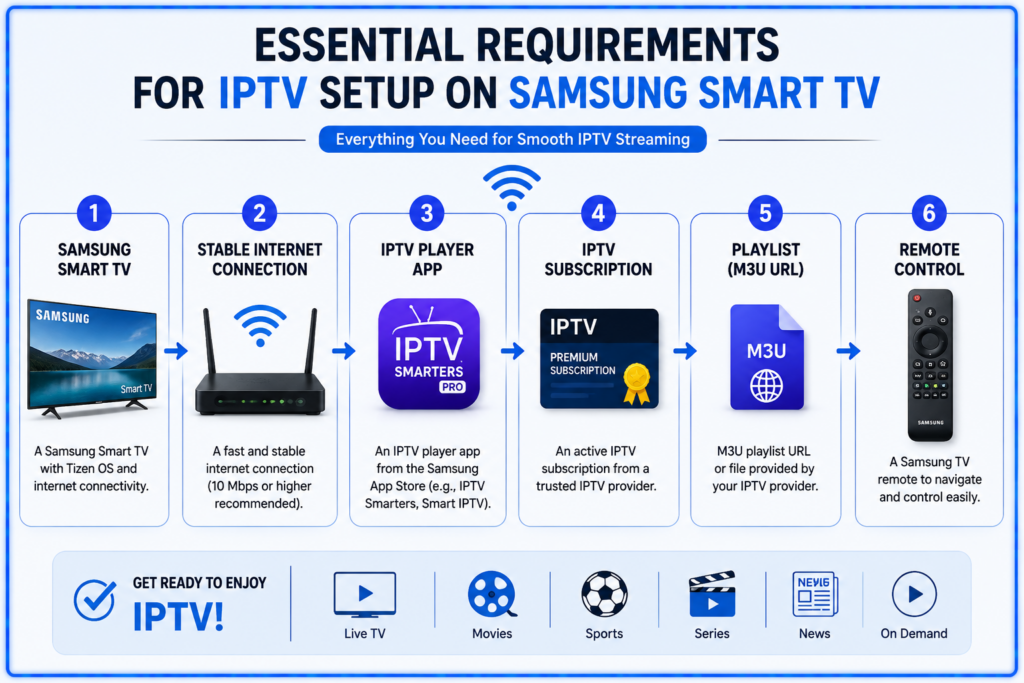
Have your TV model number, software version, Samsung account and provider activation details ready. Ask the provider which player supports your model and which login format your account uses. Keep any playlist URL or password private.
A player and a content subscription are separate purchases unless the offer explicitly includes both. Check any app fee, trial period and activation terms. Use content you are authorized to access.
Check model and regional availability
Samsung explains that menus and features vary by TV model, software and region. The app you see on someone else's television may not appear on yours. Find the model information in your TV's support settings or on its label, and consult the manual for your model if menu names differ.
Use Samsung's app installation instructions as the starting point. Confirm the app's exact name and developer so you do not buy an unrelated player with a similar name.
Choose the player before the subscription
Check that the player accepts your provider's login format and offers the features you need: guide data, subtitles, audio selection, favourites and parental controls. Do not rely on an old list of app names as proof of current availability.
If a suitable player is absent from your TV's store, ask the developer about support for your model. Consider a compatible external streaming device only after confirming its app requirements. For provider and plan questions, see the Smart TV buying guide.
Install the player from Samsung Apps
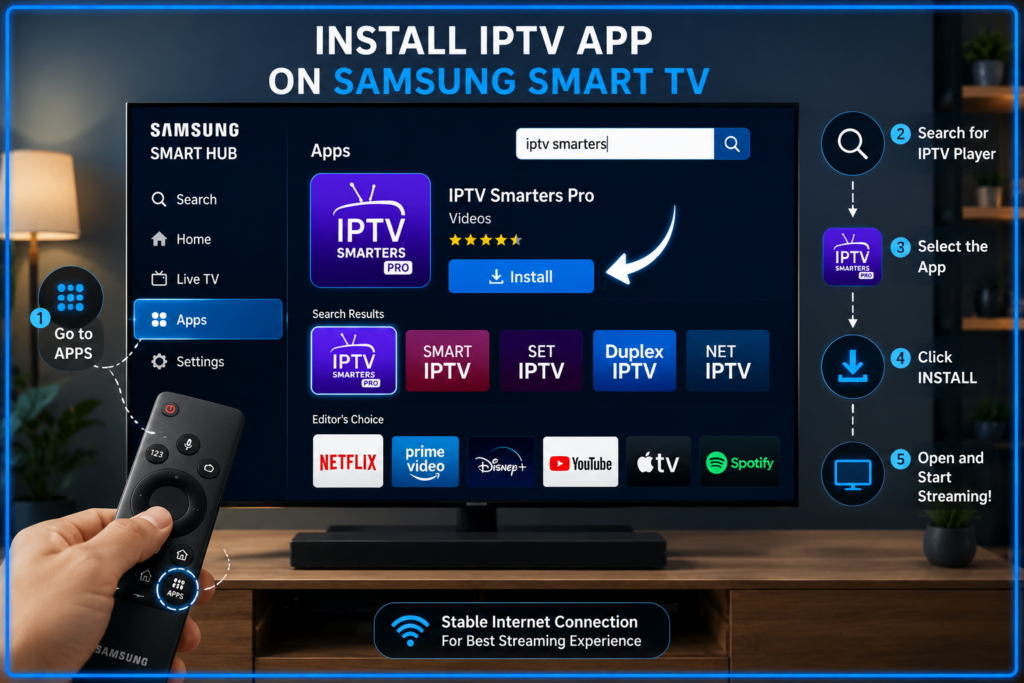
On supported models, press Home, open Apps, search for the confirmed player, select it and choose Install. Sign in to your Samsung account if prompted. Open the installed app and read its setup screen before entering account details. Samsung's menu names can differ across models.
If installation fails, check the TV's internet connection, available storage and software updates. Follow the TV's update instructions and let an update finish before trying again.
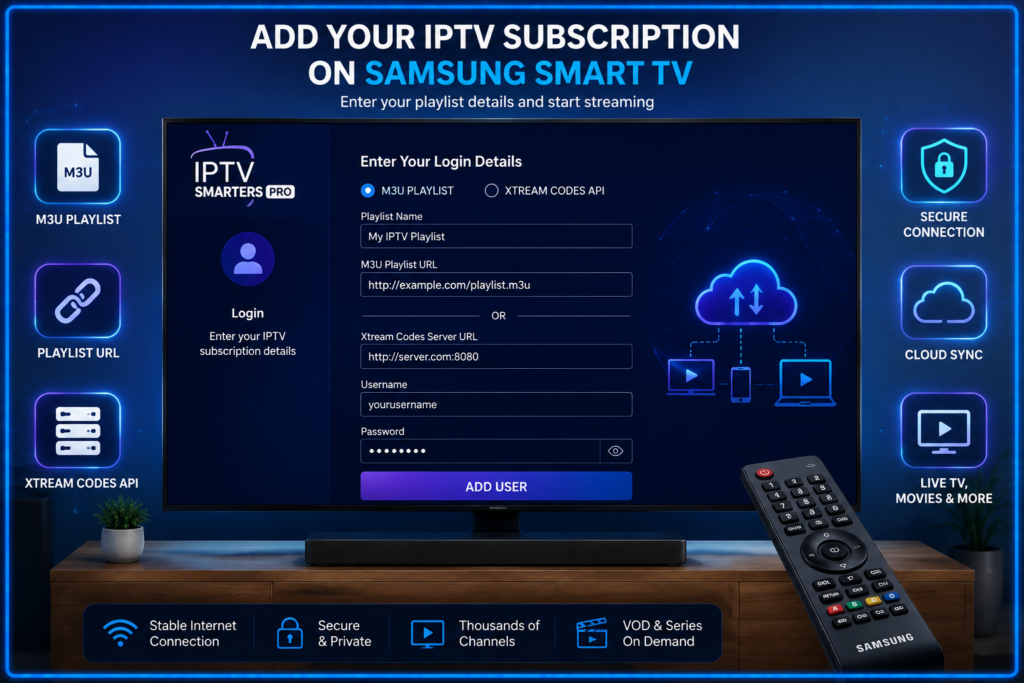
Add your subscription using the correct method
M3U playlist URL
Use the full playlist address supplied by your provider if the app accepts M3U URLs. Some players accept it on the television; others use a developer-operated upload page linked from the app. Follow the exact instructions for your player rather than a generic upload website.
Server address, username and password
If the player offers Xtream login and your provider supplies matching credentials, enter each value in its corresponding field. A server address by itself is not necessarily a complete M3U playlist URL. Preserve capitalization and avoid adding spaces when copying details.
Portal, device identifier or playlist file
Some setups require a portal or a device identifier shown by the player. Other apps can import a playlist file. Use these methods only when the provider and player both support them; they are not interchangeable with the methods above.
Check the first playback
Allow the account to load, then test an item you know is included. Check audio, subtitles, programme-guide times and favourites. A separate guide address may be needed depending on the player. Confirm the correct timezone if schedules are shifted.
Try your normal viewing routine before buying a longer plan. Additional viewers must stay within the subscription's simultaneous-stream limit. For Smartiflix activation details, see how to use Smartiflix.
Internet connection and picture quality
There is no universal speed threshold that guarantees playback for every IPTV stream. Requirements depend on bitrate, compression, quality and other activity on your network. Ask the provider about the intended stream and leave headroom for other viewers.
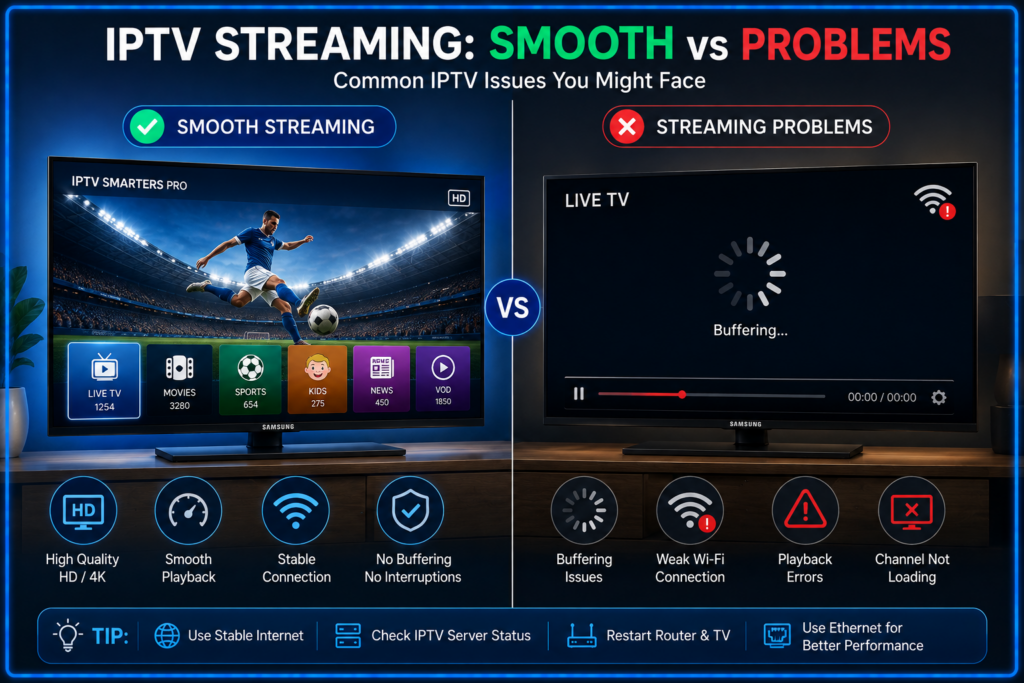
Where supported, comparing Ethernet with Wi-Fi can help isolate a wireless problem. A faster connection cannot fix an unavailable source or an incompatible app. A 4K-capable TV also does not make every stream 4K.
Troubleshoot one symptom at a time
The app is missing
Check the exact app name, TV model and regional availability with the developer. A Samsung account does not make every app compatible with every television. Confirm another supported player or device before purchasing.
Login fails or the playlist is empty
Check account activation, expiry and the input format. Re-enter the supplied details carefully. If the player needs a developer upload page, use the address shown in its official instructions. Ask support to confirm that the account and content package are active.
One item fails but others work
Record the affected item and time, then contact the provider. One source failure does not mean you need to reset the TV or replace your internet plan.
Most items buffer
Check other network activity and compare another supported source or app. If possible, compare wired and wireless playback. Confirm that nobody has exceeded the account's concurrent-stream allowance. Change one variable at a time so you can identify what helped.
The app crashes
Restart the app and TV, then check app and TV updates. Before reinstalling, save your activation details and check whether the app can still be downloaded for your model. Reinstallation may remove saved settings.
For support, include the TV model, software version, app name, error and time of occurrence. Hide passwords, account URLs and personal information in screenshots.
Samsung IPTV setup questions
Do I need an extra streaming box?
Only if your TV cannot run a suitable player or the built-in setup does not meet your needs. Check the TV first, then confirm the requirements of any external device you are considering.
Does paying for the player activate my subscription?
Not necessarily. An app licence and a provider subscription can be separate. Confirm what each payment includes before buying.
Do I need both M3U and Xtream details?
Usually you need the format supported by your selected setup, not every format. Ask the provider which option to choose in your specific player.
Can I watch in 4K?
Only when the source, app, television and connection support the required format. Check an actual included item rather than relying on a 4K label in an advertisement.
Where can I compare plans?
Read the Samsung and LG provider guide or the Smartiflix plan review. This setup guide is published by Smartiflix; confirm device support and subscription terms before ordering.
Updated 26 September 2026. App availability and menus may change by model, software and region.

Last updated on September 26, 2026 at 7:50 am