Table of Contents
- Quick answer: check the TV before choosing the player
- Find the model, system and region
- Separate the player fee from the subscription
- Samsung Smart TV setup
- LG webOS setup
- Android TV and Google TV setup
- Match the login method to the player
- Check the picture, sound and guide
- Resolve problems before buying new hardware
- Frequently asked questions
- Keep your setup details ready
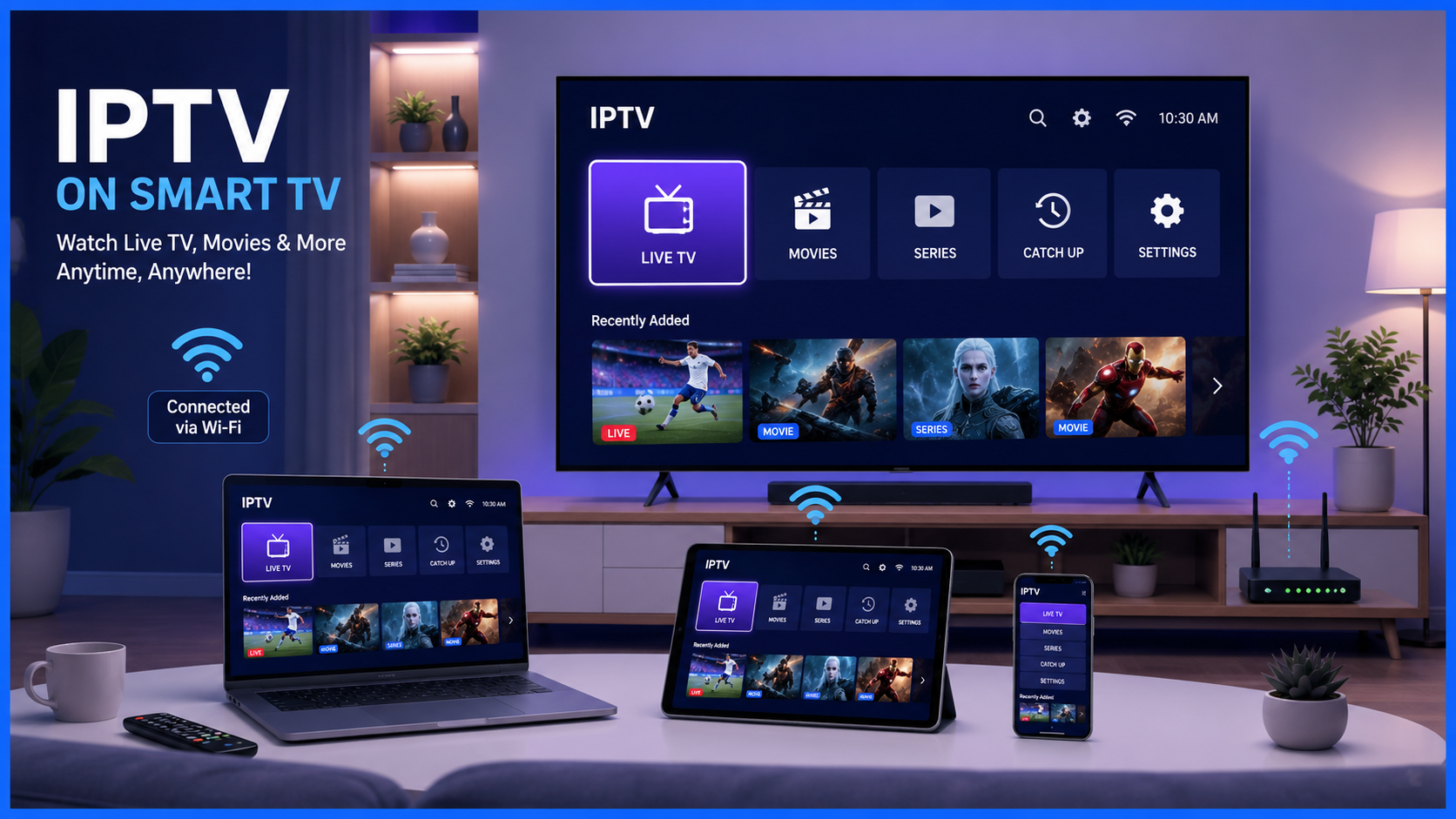
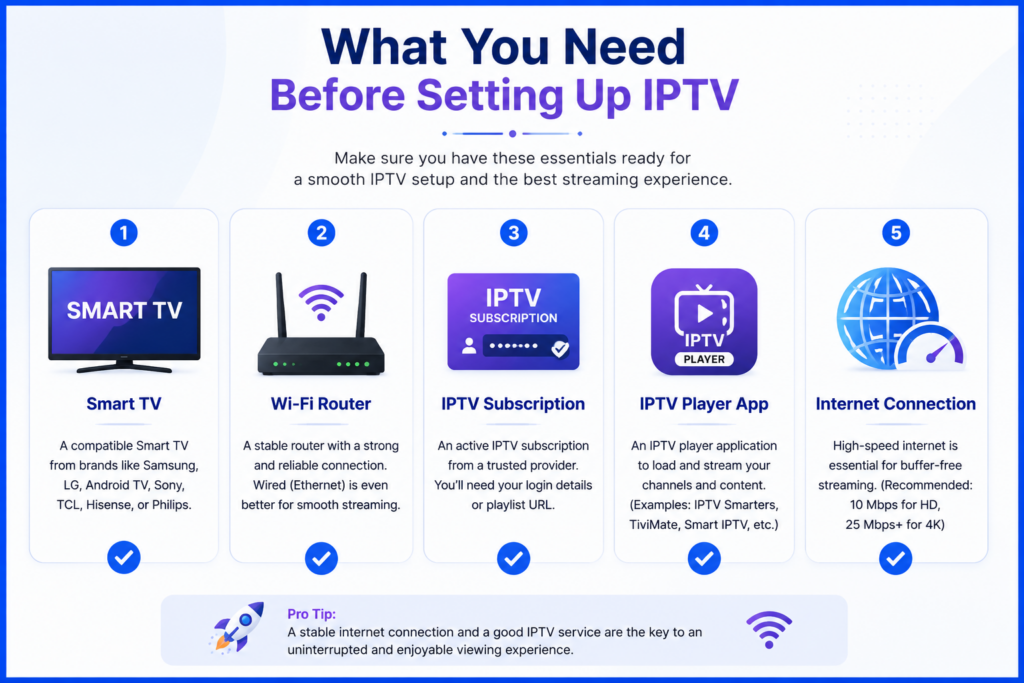
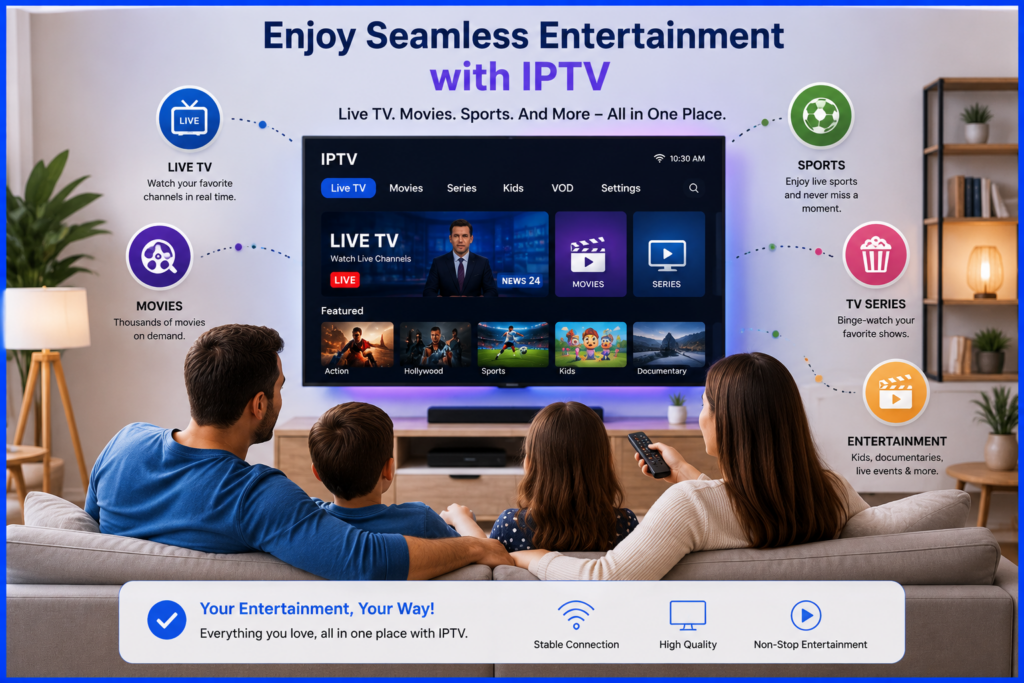
IPTV on Smart TV starts with identifying the television’s operating system. Samsung, LG, Android TV and Google TV do not share one universal app catalogue, so check the model and available player before buying a subscription or app licence.
This guide helps you choose the right setup route, match your account to the player and complete a first viewing check. Use the linked device guides when you need more detailed instructions.
Quick answer: check the TV before choosing the player
For Smartiflix, confirm the supported app and login format for your exact TV model through your order instructions. Install the verified player from the TV’s supported store, add the account and test playback. Our Smart TV app and plan guide covers the buying checks.
Find the model, system and region
Look in the TV’s About, Support or System Information menu, or on its product label, for the full model code. Check the operating system and software version. The brand alone is not enough: manufacturers can sell televisions with different systems across their ranges and markets.
Samsung Tizen and LG webOS use their own app stores. Android TV and Google TV use compatible Android television apps. Other systems need their own supported app route. An Android APK is not an installer for Tizen or webOS.
Separate the player fee from the subscription
A player may charge for activation or premium features without including television content. Your provider account is a separate service unless the offer explicitly bundles both. Check the complete cost before activating a paid app.
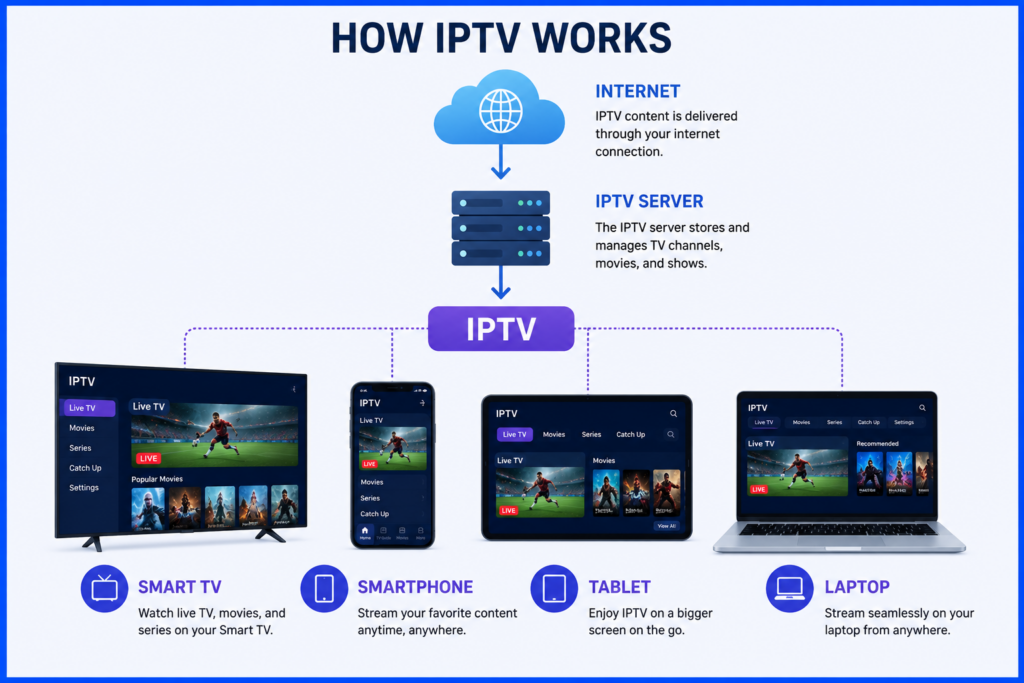
Confirm whether you receive M3U, Xtream Codes or portal access, and whether the selected player accepts it. Also check simultaneous streams, guide support and the source formats your TV can play. A player appearing in the store does not guarantee support for every provider.
Samsung Smart TV setup
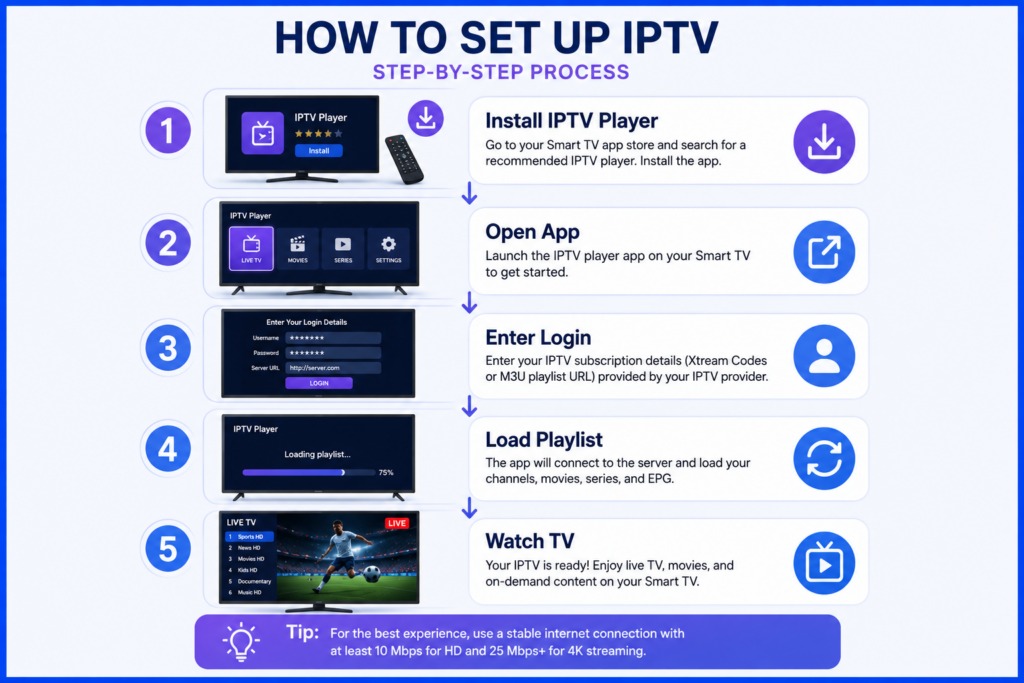
On a compatible Samsung model, open Home and the Apps area, then search for the verified player. Confirm the developer, availability and any account requirement, install it and follow that player’s login instructions. Menu wording and available apps vary by model and region.
Some TV players take credentials on screen; others direct you to a developer website to associate a playlist with the identifier shown in the app. Follow the exact app’s instructions. See our Samsung IPTV setup guide for the detailed checks.
LG webOS setup
Open the TV’s Apps area or LG Content Store, depending on its webOS version. Find the player and check availability for your model and region before installation. LG explains that supported apps vary in its Content Store guidance.
If an app will not install, check the internet connection, storage and LG account requirements. Keep the service-country setting consistent with your actual location. If the player is unavailable for the model, ask its developer about supported alternatives instead of downloading an Android APK.
Android TV and Google TV setup
Search for the verified television-compatible player through the TV’s Apps or Play Store interface, install it and open it with the remote. Google provides Google TV installation instructions. A phone app with touch-only controls may not suit a television.
Follow our Android setup guide for device checks and account entry. For an Amazon Fire TV device, use the separate Fire TV guide, which covers Fire OS and Vega compatibility.
Match the login method to the player
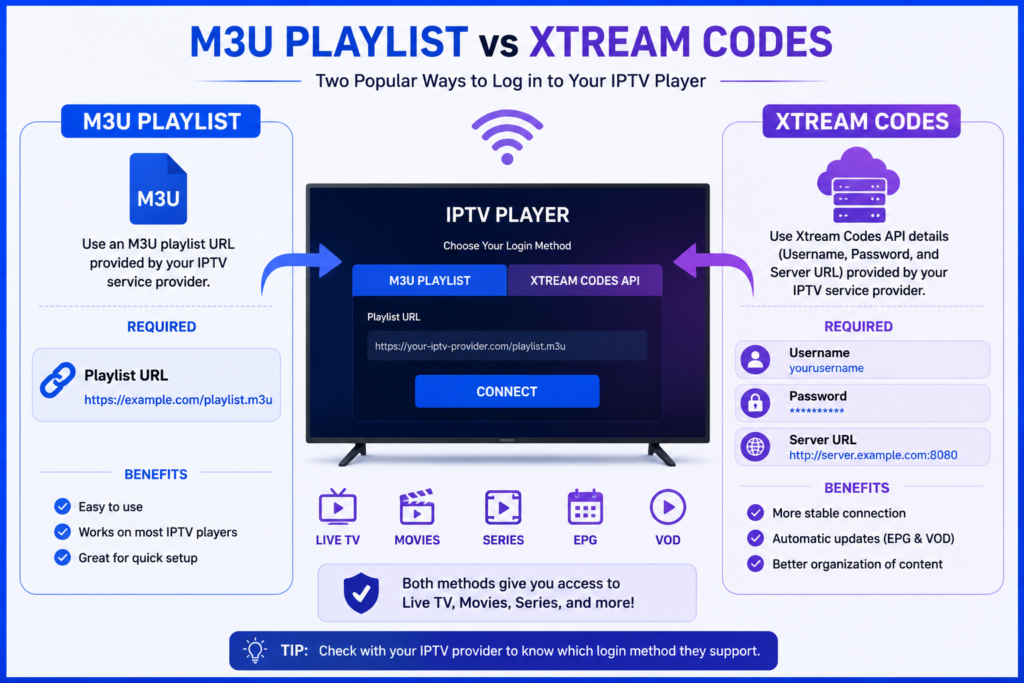
M3U playlist
Paste the entire provider-supplied URL into the playlist field, including any parameters. Remove accidental spaces. A local playlist file requires a player with file import and may need replacing when the provider updates it.
Xtream Codes
Use a supported Xtream Codes option and enter the server address, username and password separately. Keep the supplied prefix and port number. A full M3U URL does not belong in the server field.
Portal or device activation
Confirm that the app supports the portal system or activation method supplied. If it shows a device identifier, use that identifier according to the developer’s instructions; do not substitute the TV’s network address without confirmation.
Use only the developer’s verified activation website when associating a playlist. App activation does not necessarily activate a provider subscription.
Check the picture, sound and guide
Start one stream, then a second item and an on-demand title if your plan includes one. Check sound, subtitles and remote navigation. Stop other streams while testing an account with a single connection allowance.
For an external programme guide, add the provider’s supported EPG URL to the guide field and refresh it. Confirm the time zone. An empty guide does not necessarily mean the video account is broken; some sources have no schedule data.
Resolve problems before buying new hardware
The app is unavailable
Check the full model code, operating system and region with the app developer. If the TV has no suitable player, a compatible external streaming device may be an option, but verify its app support before buying.
Login fails
Recheck the login format, activation status and credentials. Streaming details can differ from the website account login. Ask the provider whether the server address changed if previously working credentials stop working.
Video buffers
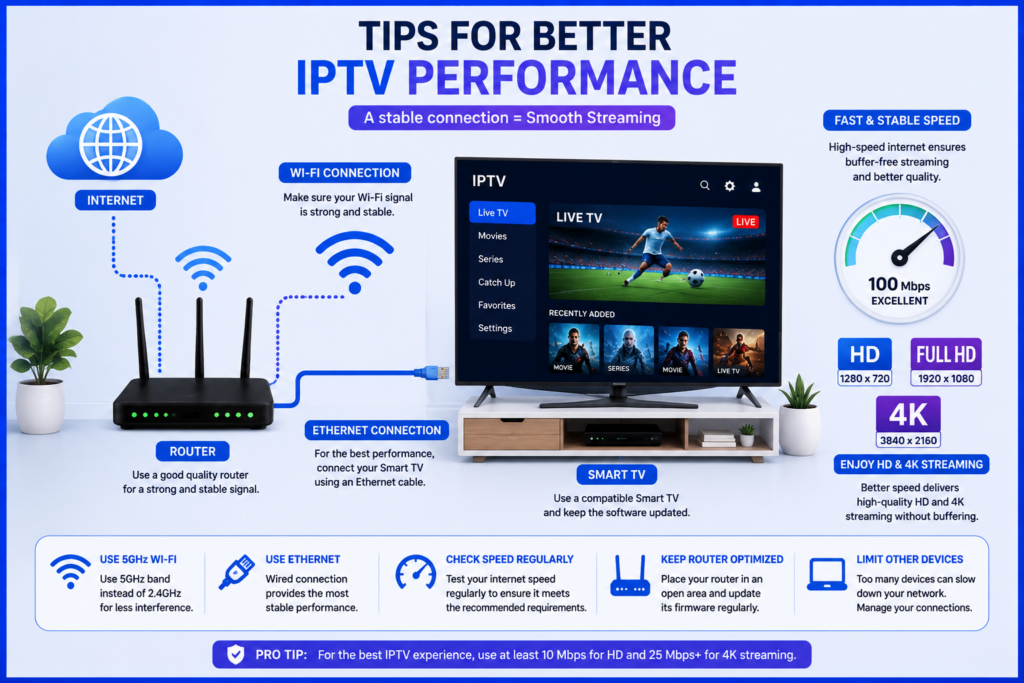
Compare several sources and a known working video in another app on the same TV. Pause large downloads and compare Ethernet with Wi-Fi where supported. Try a lower-bitrate stream if available. A high speed-test result alone cannot rule out a provider or source problem.
The app crashes
Update the player and TV software and restart the app. Keep credentials securely before clearing app data or reinstalling, because saved accounts and settings may be removed. Use the TV manufacturer’s instructions for your model.
Frequently asked questions
Can any Smart TV run an IPTV player?
No universal guarantee applies. The exact model, store availability, app requirements and source format determine compatibility.
Do I need a streaming box?
Not if a compatible app on your TV handles the account and playback you need. Check that first before spending money on extra equipment.
Does a 4K TV guarantee 4K IPTV?
No. The source, player, video format and connection must also support it. A 4K label in a playlist is not proof of native 4K quality.
Can I watch on two TVs at once?
Check the provider’s simultaneous connection allowance and the player’s activation terms. Installing software on two televisions does not automatically include two streams.
Keep your setup details ready
Record your TV model, software version, player and login format. If support is needed, include the exact error and the items affected, with credentials hidden. Before subscribing, ask about content availability and distribution rights for your location.

Last updated on September 26, 2026 at 7:49 am