Table of Contents
- Quick answer: the simplest Windows setup
- Check Windows and your connection first
- Choose a Windows player by the features you need
- Method 1: open an M3U playlist in VLC
- Method 2: use an Xtream Codes account
- What if you received a portal address?
- Add a programme guide
- Run a practical playback test
- Fix common IPTV problems on Windows
- Frequently asked questions
- Keep account details private when asking for help
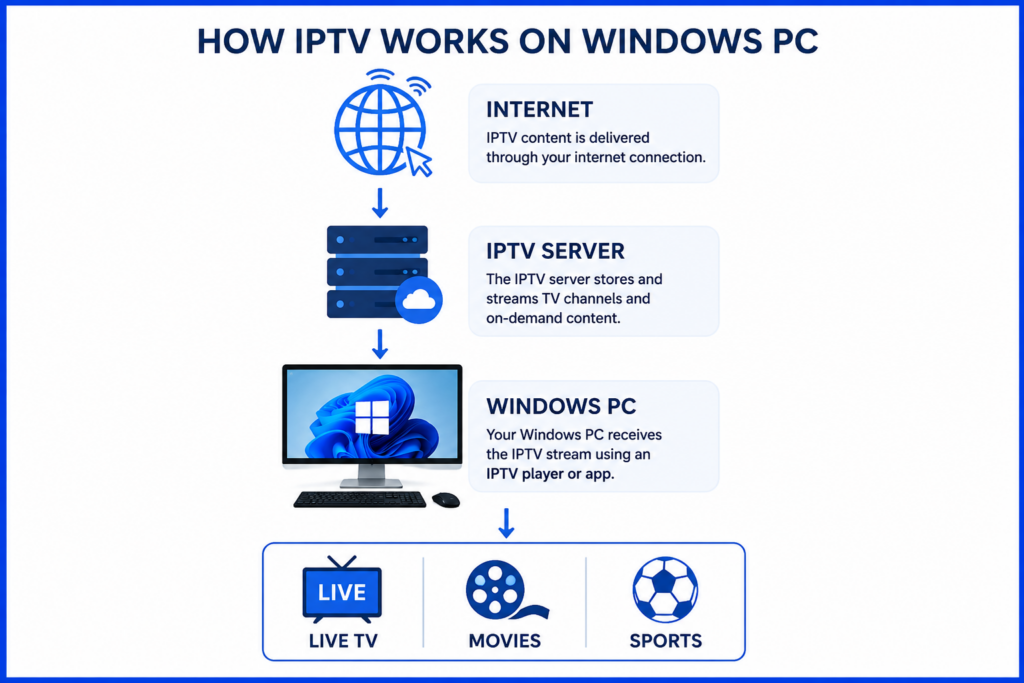
IPTV on Windows PC starts with the right player and the login format supplied by your provider. You do not need to install several apps or buy a codec pack to begin. First check your Windows version, confirm your account details and test one stream.
This guide covers M3U playlists in VLC and account setup in a Windows player that supports Xtream Codes. It also explains how to identify common login, picture, sound and programme-guide problems.
Quick answer: the simplest Windows setup
For Smartiflix, use the Windows instructions supplied with your order and confirm the supported app before paying for player software. If you have a complete M3U URL, VLC offers a free way to test playback. If you have a server address, username and password, choose a player that explicitly supports Xtream Codes. See our Smartiflix plan and device guide for the published service information.
Check Windows and your connection first
Open Settings > System > About to check your Windows edition and system type. Match these to the app’s current requirements, especially on an Arm-based PC. A download labelled for Windows is not a guarantee that every computer or Windows version is supported.
Standard support for Windows 10 ended on October 14, 2025. A player may still run, but that is separate from operating-system security support. If you still use Windows 10, check your edition and Extended Security Updates eligibility in Microsoft’s support guidance, or move to a supported system.
Test the internet connection where you will watch. There is no single minimum speed for every HD or 4K stream: bitrate, encoding, other household traffic and connection stability matter. If Wi-Fi struggles, compare it with Ethernet before deciding that you need a more expensive broadband plan.
Choose a Windows player by the features you need
VLC for an M3U playlist or stream URL
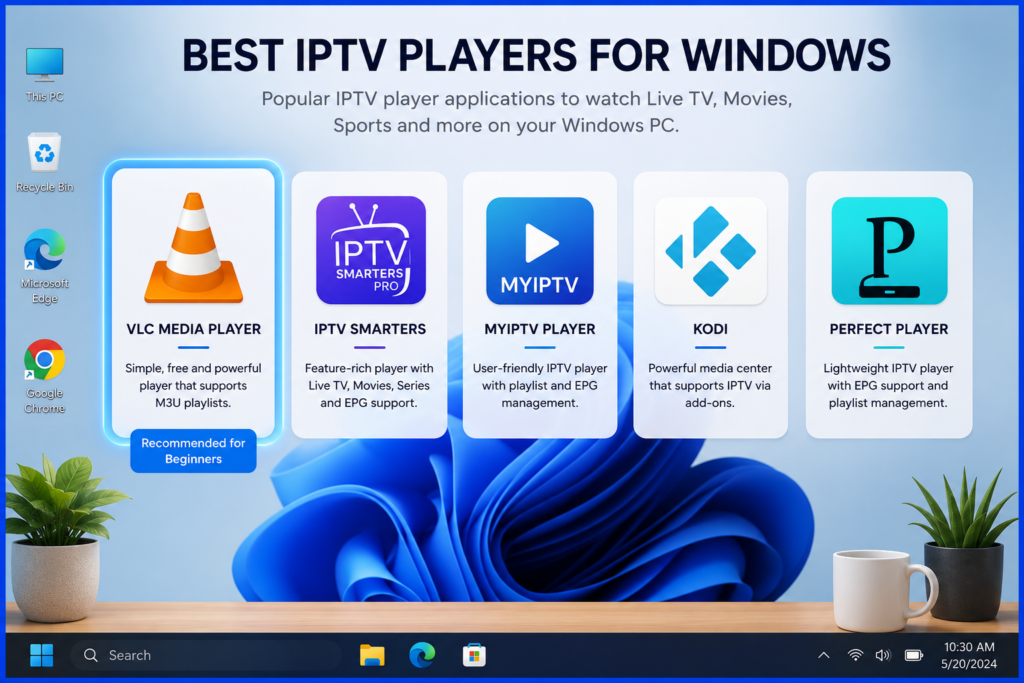
VLC is free and open source, and supports network playback. Download it from VideoLAN’s official website. It is a useful starting point for a provider-supplied M3U playlist, but does not offer a dedicated Xtream Codes account screen. VideoLAN states that most codecs work without separate codec packs.
A dedicated IPTV player for account and guide features
For a library interface, favourites or Xtream Codes login, check the exact Windows app and developer recommended by your provider. Read its current requirements, supported formats and charges. Similar names such as Smarters can refer to different products; do not assume that an Android or mobile listing supplies a Windows installer.
A player purchase normally pays for software, not the provider’s content subscription. Confirm both costs and check the features you need before purchasing. Avoid choosing an abandoned installer solely because an older guide recommends it.
Method 1: open an M3U playlist in VLC
Install VLC from VideoLAN, launch it and choose Media > Open Network Stream. Paste the complete M3U URL from your provider, then click Play. Use View > Playlist to browse the imported entries if needed. Menu labels may differ by language or version.
For a local M3U file, choose Media > Open File instead. A downloaded playlist is a list of sources, not a download of every programme. It may also need replacing when the provider changes its entries.
Keep the URL intact, including its parameters, and remove accidental spaces or line breaks. A programme-guide URL belongs in an EPG field in a player that supports it; it cannot replace the video playlist. Test several entries before concluding that the whole account has failed.
Method 2: use an Xtream Codes account
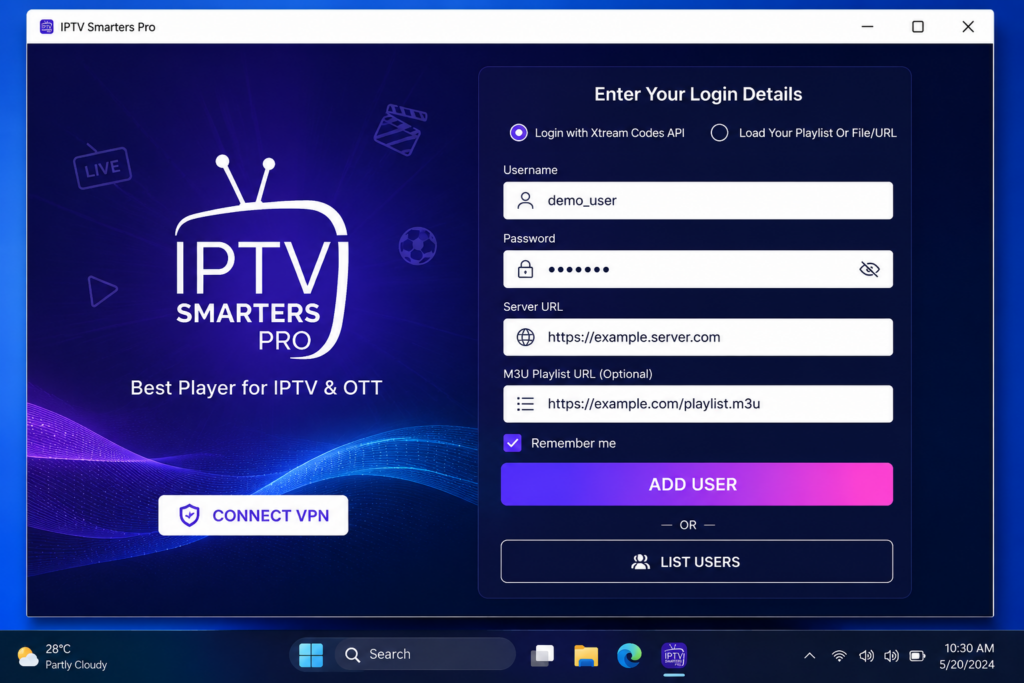
These steps apply only to a Windows player that explicitly supports Xtream Codes. Open its account screen and select that login type. Enter the server address, username and password in their separate fields, then save or add the account. Follow the selected developer’s instructions where its labels differ.
Preserve the supplied http or https prefix and any port number. Do not paste a full M3U playlist into the server-address field. Your streaming password may differ from the password you use to sign into the provider’s website.
After the categories load, test one item. An imported library does not guarantee that every feature is included: catch-up, guide data and simultaneous streams depend on the provider, plan and player.
What if you received a portal address?
A portal login is a separate setup method. Ask your provider for a supported Windows app and its exact registration steps. If a player displays a device identifier, confirm which identifier the provider needs; do not assume it means your PC’s network-adapter MAC address.
Add a programme guide
In a player that supports an external EPG source, put the provider’s guide URL in its EPG or programme-guide settings, then refresh the data. Check the required format, such as XMLTV, and verify the time zone. Some entries can play correctly while having no schedule information.
Run a practical playback test
Try one live item, another unrelated item and an on-demand title if your account includes one. Check picture, sound, subtitles and full-screen playback. Stop playback on other devices while testing a plan with one simultaneous connection.
Pause large downloads or cloud uploads during the test. If an external display has no sound, check Windows’ selected sound output and the player volume. Record which step fails before reinstalling anything; this gives support a more useful starting point.
Fix common IPTV problems on Windows
Login fails or the playlist is empty
Confirm activation and expiry, recopy the credentials, and check that the chosen login method matches what you received. Look for extra spaces and missing URL parameters. Check the connection allowance and any category filters. Ask the provider whether the server address has changed if previously working details stop loading.
There is audio but no picture
Update the player through its official source and try a different stream. VLC already includes support for most codecs, so downloading a random codec pack is not the appropriate default fix. If the problem affects several videos, check graphics-driver updates through Windows Update or your PC or graphics manufacturer.
Compare the same authorised source in another supported player where possible. If it fails only in one player, report the app version and format to its developer; if only one source fails everywhere, report that source to the provider.
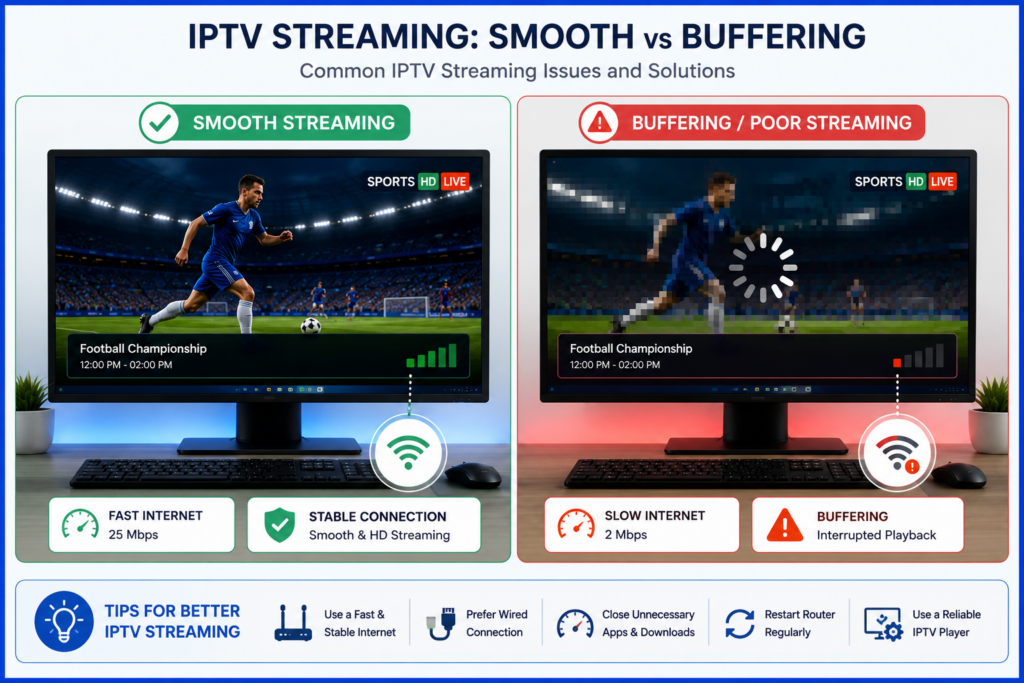
Video buffers or freezes
Compare a known working video in another app on the same PC. If both struggle, investigate Wi-Fi, competing downloads and the local connection. If only IPTV struggles, try another item and a lower-bitrate option where available. Record the affected items and times instead of repeatedly changing several settings.
The app is blocked or will not install
Check the publisher, system requirements and the exact Windows message. Obtain the installer from the verified developer or Microsoft Store listing. Do not disable antivirus or the firewall as a blanket streaming fix. If you use a managed work PC, installation may require your organisation’s administrator.
The programme guide is missing
Confirm that your player supports the supplied guide format and that the URL is in the guide field. Refresh it and check the time zone. Missing source data cannot be repaired simply by reinstalling the player; ask the provider about the affected entries.
Frequently asked questions
Can I watch IPTV on Windows 11?
Yes, with a compatible app or supported provider web player. Check the exact app’s Windows and processor requirements rather than assuming that every player works on every PC.
Can I watch in a browser without installing an app?
If your provider offers a web player compatible with your browser, use its verified address. Do not enter playlist credentials into an unknown online player. Browser support and available features can differ from a desktop app.
Do I need a gaming PC for 4K?
Not necessarily, but the codec, graphics hardware, player, display and actual stream all matter. Test the supplied source on your own PC. A 4K playlist label alone does not establish native 4K picture quality.
Can I use the same account on a PC and a TV?
Check the plan’s device rules and simultaneous connection allowance. Saving credentials on two devices does not necessarily allow both to play at once.
Does installing a player include content?
A player supplies playback software. Confirm what your provider includes and whether it has distribution rights for your location. The presence of an app in a store does not verify a separate provider’s content rights.
Keep account details private when asking for help
Send support your Windows version, player name and version, login format and exact error. Explain whether all items fail or only a few. Hide passwords and playlist tokens in screenshots because a playlist URL can contain account credentials.
Using an Apple computer instead? Follow our Mac setup guide, where app compatibility and menu paths differ.

Last updated on September 26, 2026 at 7:50 am