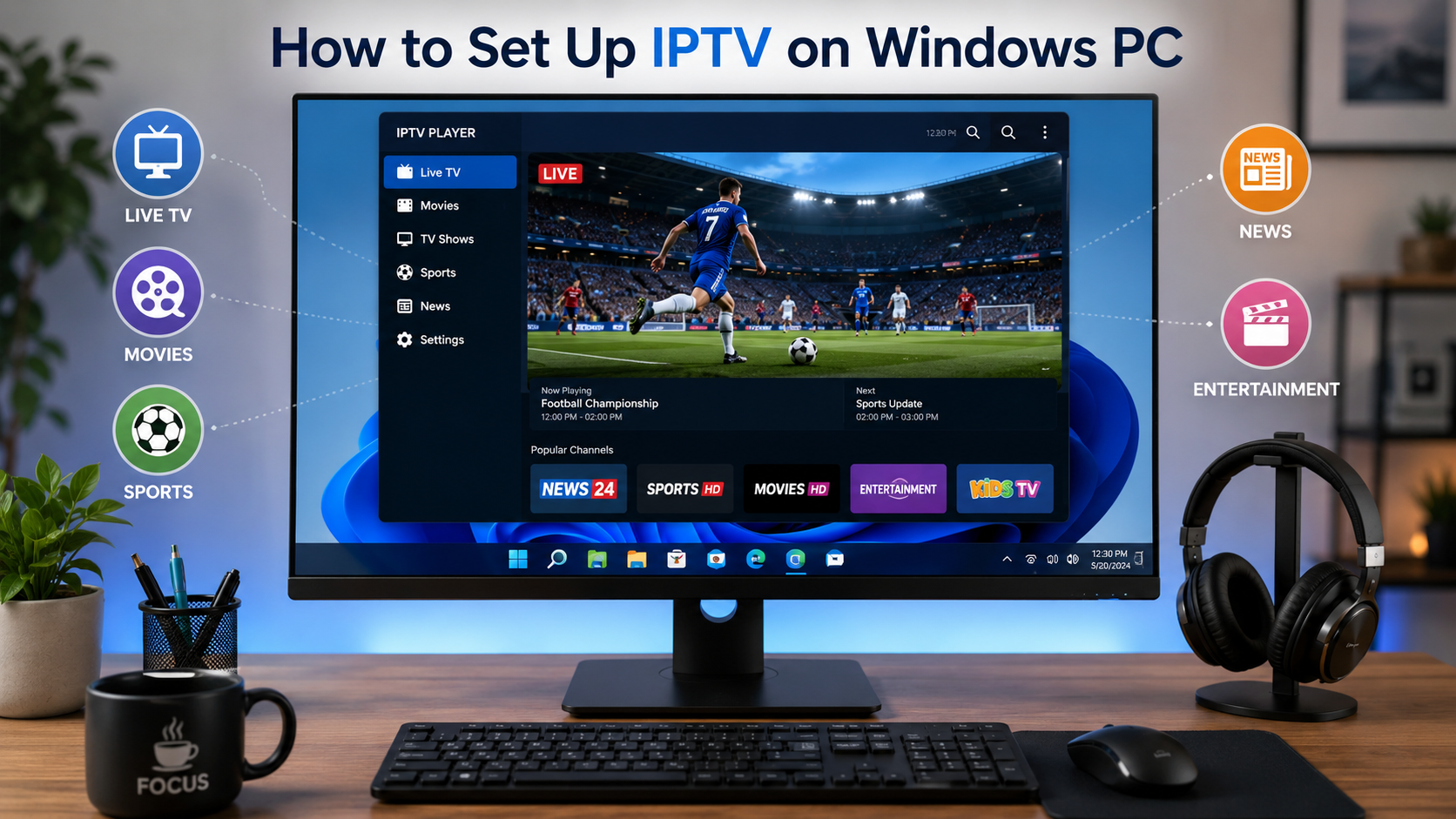
Watching television has evolved dramatically over the past decade. Instead of relying on cable or satellite connections, many people now prefer Internet Protocol Television (IPTV) because it offers greater flexibility, more channels, and on-demand entertainment.
If you own a Windows computer, setting up IPTV is surprisingly simple. Whether you're using Windows 10 or Windows 11, you can start streaming live TV, movies, sports, and video-on-demand content within minutes using a compatible IPTV player.
This beginner-friendly guide explains everything you need to know about setting up IPTV on a Windows PC safely and correctly.
What Is IPTV?
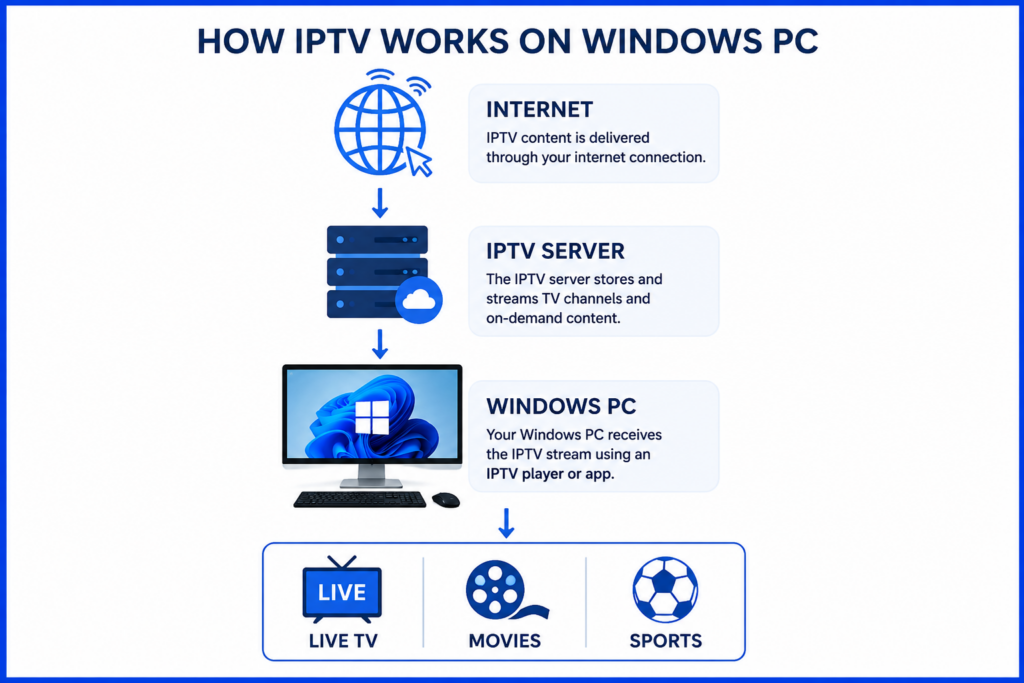
IPTV (Internet Protocol Television) is a technology that delivers television content through an internet connection instead of traditional cable or satellite services.
Unlike conventional TV broadcasting, IPTV streams media over the internet, allowing users to access:
- Live TV channels
- Movies
- TV series
- Sports events
- Video on Demand (VOD)
- Catch-up TV (if supported)
All you need is:
- A Windows PC
- A stable internet connection
- An IPTV player
- A valid IPTV subscription
Why Watch IPTV on a Windows PC?
Many users prefer Windows computers because they offer a larger display, better processing power, and greater flexibility than mobile devices.
Some advantages include:
- Larger screen for better viewing
- Easy multitasking
- Support for high-definition and 4K streaming
- Keyboard and mouse navigation
- Ability to connect to external monitors or TVs
- Simple playlist management
Whether you're working from home or relaxing after work, Windows provides an excellent IPTV viewing experience.
What You'll Need Before Setting Up IPTV
Before starting, make sure you have the following:
1. A Windows Computer
Compatible with:
- Windows 10
- Windows 11
2. Stable Internet Connection
Recommended speeds:
| Streaming Quality | Minimum Speed |
| SD | 5 Mbps |
| HD | 10 Mbps |
| Full HD | 20 Mbps |
| 4K UHD | 30–50 Mbps |
A wired Ethernet connection generally provides better stability than Wi-Fi.
3. IPTV Subscription
You'll need access details from your IPTV provider.
These usually include one of the following:
- M3U Playlist URL
- Xtream Codes API
- Username
- Password
- Server URL
4. IPTV Player
Windows does not include built-in IPTV software, so you'll need an IPTV player.
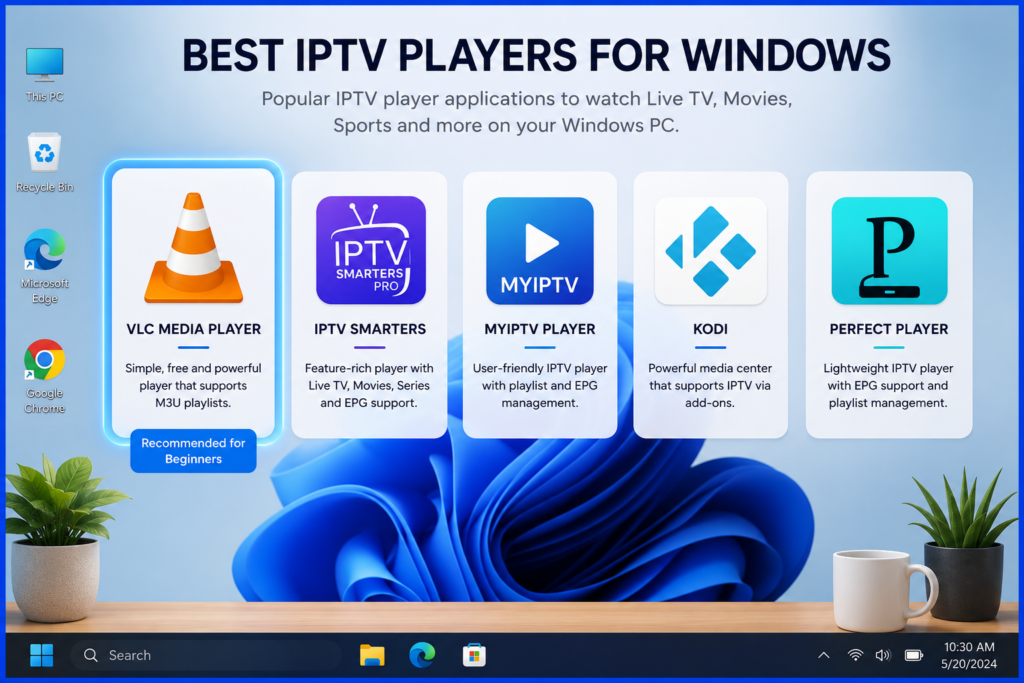
Best IPTV Players for Windows PC
Here are some popular IPTV players:
VLC Media Player
Pros:
- Free
- Lightweight
- Easy to use
- Supports M3U playlists
Best for beginners.
IPTV Smarters
Features:
- Modern interface
- Live TV
- Movies
- Series
- EPG support
- Multiple playlists
Ideal for regular IPTV users.
MyIPTV Player
Features:
- Available through Microsoft Store
- Playlist management
- EPG support
- User-friendly interface
Kodi
Kodi is a powerful multimedia platform that supports IPTV through compatible add-ons.
Best for advanced users who want extensive customization.
Perfect Player
Known for:
- Clean interface
- Playlist organization
- Electronic Program Guide (EPG)
- Smooth playback
Method 1: Set Up IPTV Using VLC Media Player
VLC is one of the easiest ways to start watching IPTV.
Step 1
Download and install VLC Media Player.
Step 2
Open VLC.
Step 3
Select:
Media → Open Network Stream
Step 4
Paste your IPTV M3U playlist URL.
Step 5
Click Play.
VLC will load available channels automatically.
Method 2: Set Up IPTV Using IPTV Smarters
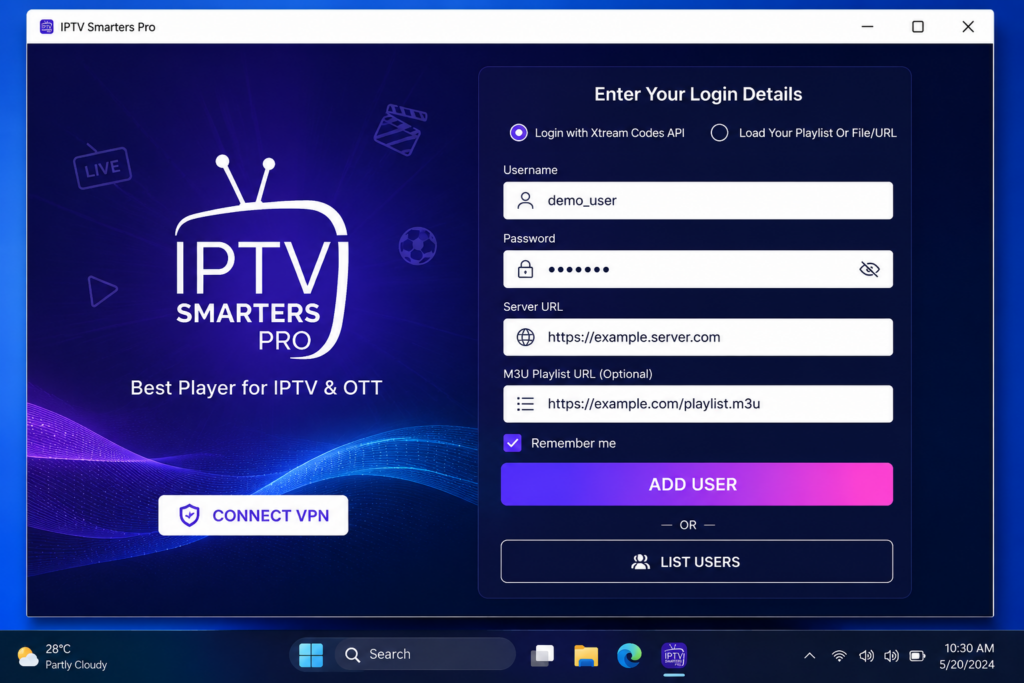
Many IPTV providers recommend IPTV Smarters.
Step 1
Install IPTV Smarters on your Windows PC.
Step 2
Launch the application.
Step 3
Accept the terms if prompted.
Step 4
Choose:
Login with Xtream Codes API
or
Load Your Playlist (M3U URL)
Step 5
Enter your IPTV details:
- Username
- Password
- Server URL
or
Paste your M3U URL.
Step 6
Click Add User.
Step 7
Wait while the channels load.
Once complete, you'll have access to:
- Live TV
- Movies
- TV Shows
- Catch-up TV (if available)
Method 3: Set Up IPTV Using MyIPTV Player
Another beginner-friendly option.
Step 1
Install MyIPTV Player.
Step 2
Open Settings.
Step 3
Choose:
Add New Playlist
Step 4
Paste your M3U playlist.
Step 5
Save the playlist.
Step 6
Return to the main menu.
Step 7
Select your playlist and begin streaming.
Understanding IPTV Login Methods
Different IPTV providers use different login systems.
M3U Playlist
A playlist file containing all channel links.
Example:
- Playlist URL
- Local M3U file
Xtream Codes API
Requires:
- Username
- Password
- Server URL
Usually easier because channels organize automatically.
MAC Address Portal
Some IPTV services require portal login using your device's MAC address.
This method is less common on Windows PCs.
How to Add an Electronic Program Guide (EPG)
Many IPTV players support an Electronic Program Guide.
EPG allows you to view:
- Current programs
- Upcoming shows
- TV schedules
- Channel information
Simply paste the EPG URL provided by your IPTV service into your IPTV player.
Tips for Better IPTV Performance on Windows
Improve streaming quality by following these recommendations:
- Use Ethernet instead of Wi-Fi.
- Close unnecessary applications.
- Restart your router occasionally.
- Keep Windows updated.
- Update your IPTV player regularly.
- Avoid downloading large files while streaming.
- Choose servers recommended by your IPTV provider.
Common IPTV Problems and Solutions
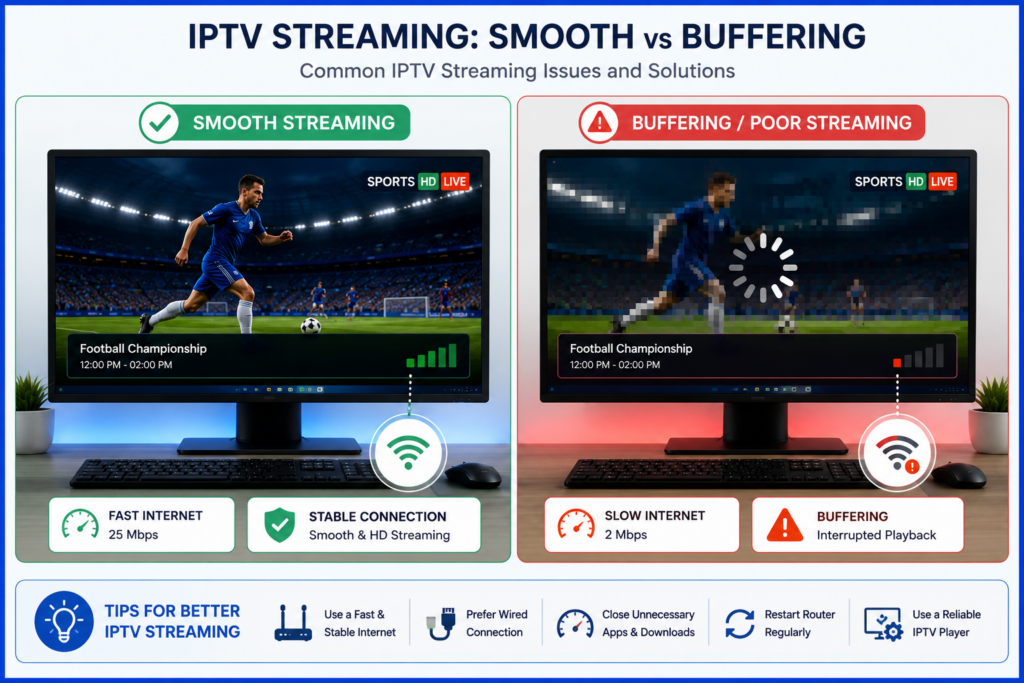
Buffering
Possible causes:
- Slow internet
- Busy network
- Server congestion
Solutions:
- Restart your router.
- Reduce other internet usage.
- Use Ethernet.
- Contact your IPTV provider if the issue persists.
Playlist Not Loading
Possible reasons:
- Incorrect M3U URL
- Expired subscription
- Typing mistakes
Double-check your playlist details.
No Channels Appearing
Try:
- Refreshing the playlist
- Restarting the player
- Logging in again
Audio But No Video
Possible fixes:
- Update VLC codecs.
- Restart the application.
- Try another IPTV player.
Login Failed
Check:
- Username
- Password
- Server URL
- Subscription status
Is IPTV Legal?
IPTV technology itself is legal. However, legality depends on whether the service provider has the proper rights to distribute the content.
To stay on the safe side:
- Choose reputable IPTV providers.
- Respect your country's copyright laws.
- Avoid unauthorized or pirated streams.
Frequently Asked Questions
Can I watch IPTV on Windows 11?
Yes. Most IPTV players work perfectly on Windows 11.
Can I use VLC for IPTV?
Yes. VLC supports M3U playlists and is one of the easiest IPTV players for beginners.
Do I need a powerful PC?
No. Most modern Windows computers can stream IPTV smoothly.
Can I watch IPTV in 4K?
Yes, provided that:
- Your IPTV provider offers 4K content.
- Your internet connection is fast enough.
- Your computer supports 4K playback.
Is IPTV free?
Some IPTV playlists are freely available, while many premium services require a subscription for access to live TV and on-demand content.
Which IPTV player is best for Windows?
Popular choices include:
- VLC Media Player
- IPTV Smarters
- MyIPTV Player
- Kodi
- Perfect Player
The best option depends on your preferred features and interface.
Final Thoughts
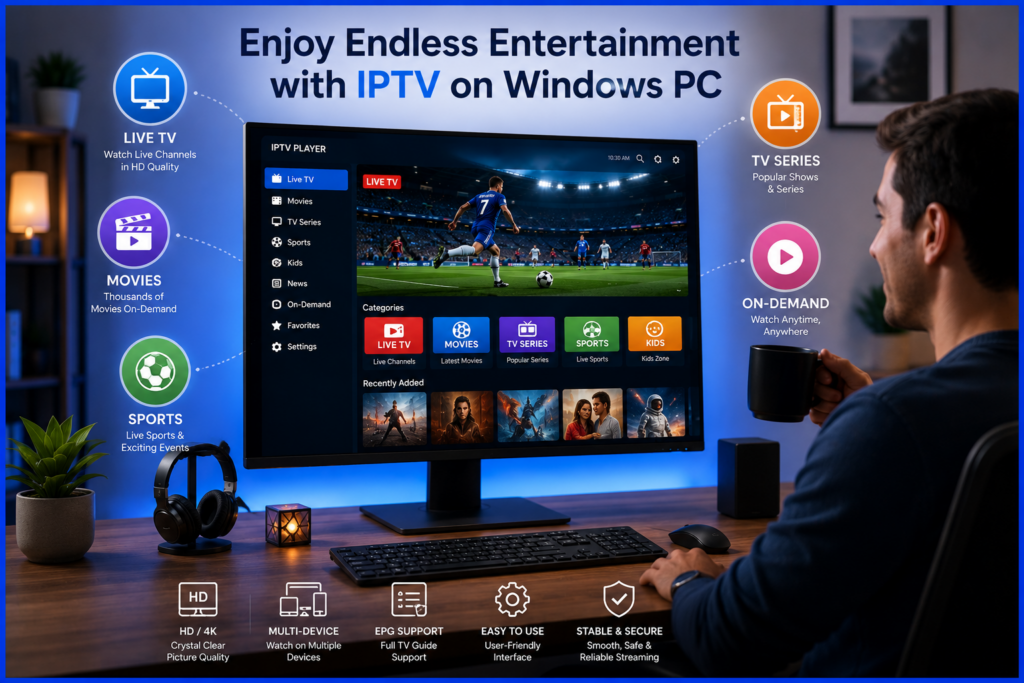
Setting up IPTV on a Windows PC is quick and straightforward once you have the right tools. With a reliable internet connection, a compatible IPTV player, and a valid subscription, you can enjoy live television, movies, sports, and on-demand content directly from your computer.
For beginners, VLC Media Player is an excellent starting point due to its simplicity. If you want a more feature-rich experience with organized content, IPTV Smarters or MyIPTV Player are strong alternatives. No matter which player you choose, keeping your software updated and using a stable internet connection will help ensure smooth, high-quality streaming.