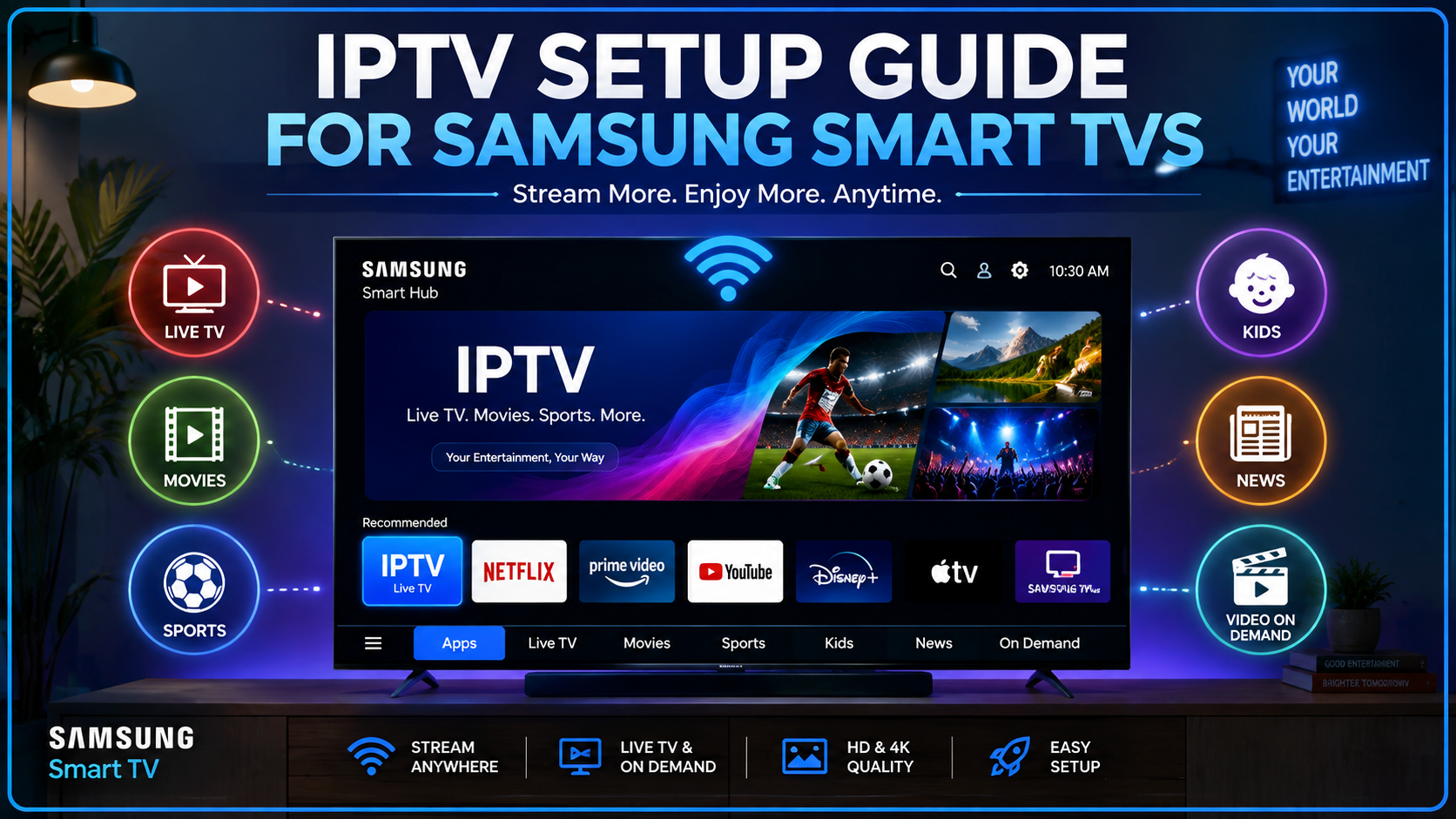
IPTV Setup Guide for Samsung Smart TVs
Samsung Smart TVs offer an excellent platform for streaming live TV, movies, sports, and on-demand content. With the right IPTV application and a stable internet connection, you can enjoy thousands of channels directly on your television without needing additional streaming devices.
This beginner-friendly guide explains everything you need to know about setting up IPTV on a Samsung Smart TV, from checking compatibility to installing an IPTV player and solving common streaming issues.
Disclaimer: IPTV players are legal applications. Always use IPTV services that have the necessary rights to distribute the content you watch and comply with your local laws.
What Is IPTV?
IPTV (Internet Protocol Television) is a technology that delivers television content over an internet connection instead of traditional cable or satellite networks.
Unlike conventional TV services, IPTV allows users to stream:
- Live TV channels
- Movies
- TV series
- Sports events
- News
- Kids' content
- On-demand entertainment
Samsung Smart TVs can easily access IPTV content through compatible IPTV player applications.
Why Use IPTV on a Samsung Smart TV?
There are several advantages to watching IPTV directly on your Samsung Smart TV.
Large Screen Experience
Enjoy your favorite content on a high-resolution display with excellent picture quality.
No Extra Hardware Required
Most modern Samsung Smart TVs support IPTV applications directly, eliminating the need for external streaming devices.
Easy Navigation
Samsung's Smart Hub provides a simple interface for accessing IPTV apps and switching between channels.
Multiple Content Categories
Many IPTV services provide access to:
- Live television
- Sports
- Movies
- Documentaries
- International channels
- Kids' programming
Better Streaming Quality
With a stable internet connection, Samsung TVs can stream HD, Full HD, and even 4K IPTV content smoothly.
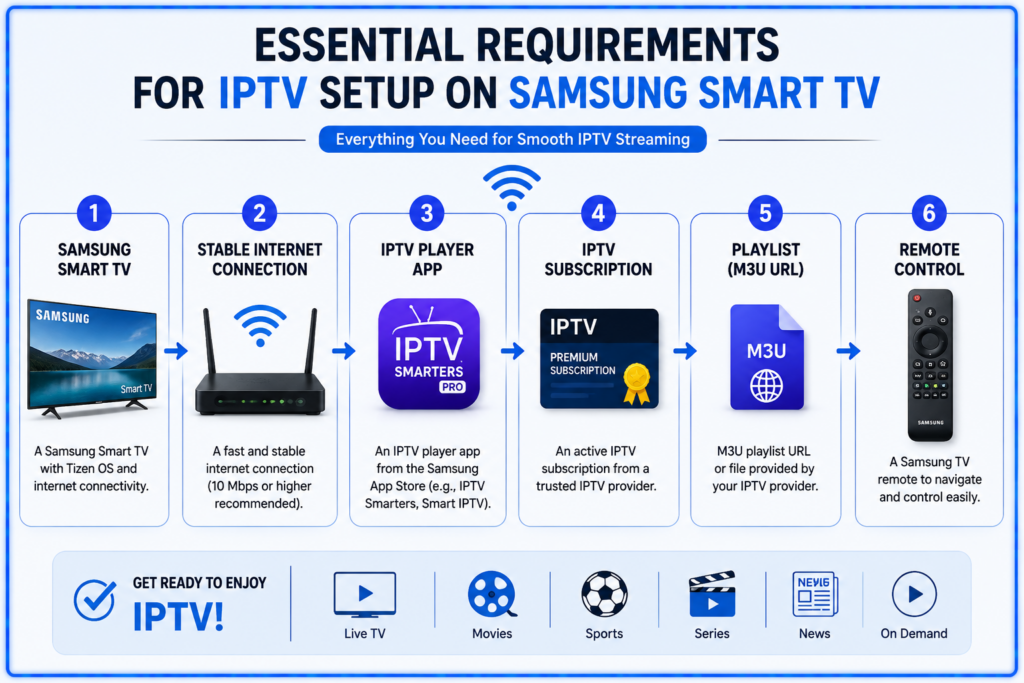
Requirements Before Setting Up IPTV
Before starting, ensure you have the following:
- A Samsung Smart TV
- Stable broadband internet connection
- Active IPTV subscription
- IPTV playlist (M3U URL or playlist file)
- Xtream Codes login (if supported)
- Compatible IPTV player application
Check Your Samsung Smart TV Compatibility
Samsung Smart TVs running the Tizen operating system generally support IPTV applications.
To check your TV:
- Press the Home button.
- Open Settings.
- Select Support.
- Choose About This TV.
If your TV supports Samsung Apps, you can usually install IPTV player applications directly.
Best IPTV Players for Samsung Smart TVs
Several IPTV players are available for Samsung Smart TVs.
Some popular options include:
- IPTV Smarters Player
- Smart IPTV
- Smart STB
- IBO Player
- Flix IPTV
- SET IPTV
- Duplex IPTV
- Net IPTV
Remember that these applications are media players. They do not include TV channels or IPTV subscriptions.
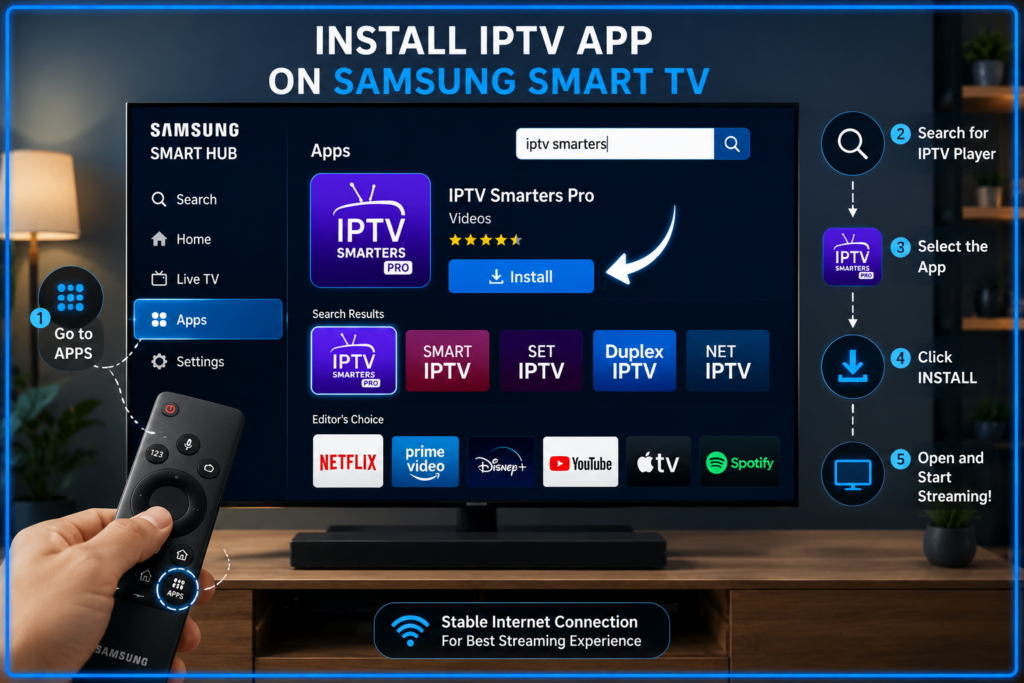
How to Install an IPTV App on Samsung Smart TV
Follow these simple steps.
Step 1: Open Smart Hub
Press the Home button on your Samsung remote.
Open the Apps section.
Step 2: Search for an IPTV Player
Use the search icon to find your preferred IPTV application.
Examples include:
- IPTV Smarters
- Smart IPTV
- IBO Player
- Smart STB
Step 3: Install the Application
Select the application.
Click Install.
Wait for the installation to complete.
Step 4: Launch the App
Open the IPTV player from the Apps menu.
The app will display setup options.
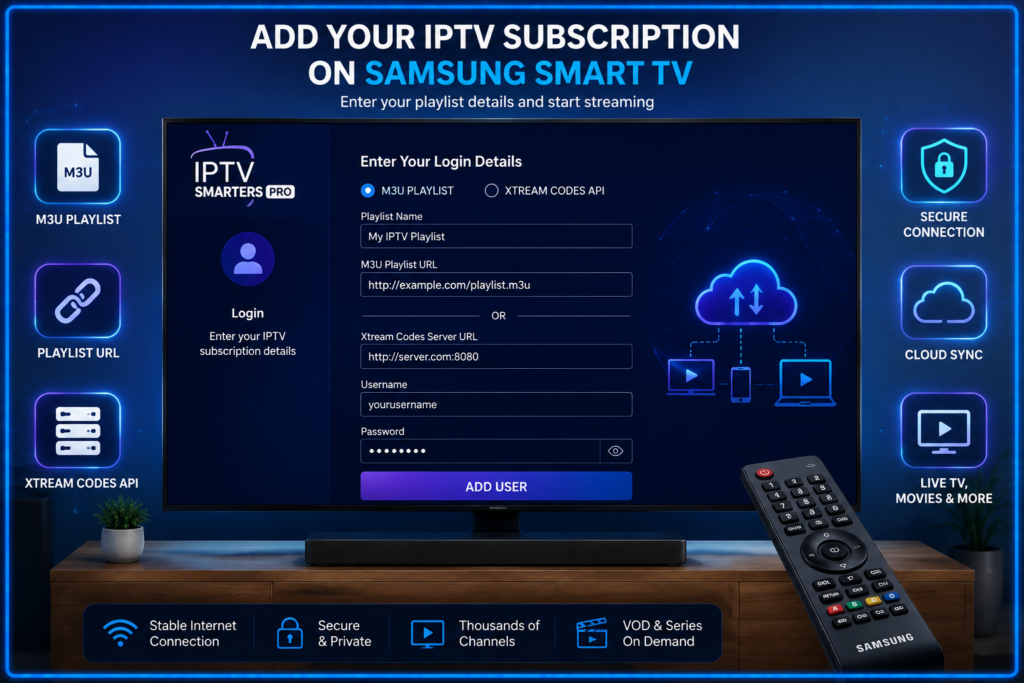
How to Add Your IPTV Subscription
Depending on your IPTV provider, you may receive one of the following:
Option 1: M3U Playlist URL
Paste the playlist URL into the IPTV application.
The app will automatically load available channels.
Option 2: Xtream Codes API
Enter:
- Server URL
- Username
- Password
The application will synchronize your content automatically.
Option 3: Playlist File
Some providers send an M3U playlist file.
Upload or import the file if supported by your IPTV application.
Organizing Your IPTV Channels
Many IPTV players let you customize your viewing experience.
You can:
- Create favorites
- Hide unwanted channels
- Organize categories
- Sort channels alphabetically
- Continue recently watched content
Best Internet Speed for IPTV
Smooth streaming depends on your internet connection.
Recommended speeds:
| Streaming Quality | Minimum Speed |
| SD | 5 Mbps |
| HD | 10 Mbps |
| Full HD | 20 Mbps |
| 4K UHD | 30–50 Mbps |
If multiple people stream simultaneously, consider higher internet speeds.
Tips for Better IPTV Performance
Improve your streaming experience with these suggestions.
Use a Fast Internet Connection
Fiber broadband generally provides the most reliable IPTV performance.
Connect via Ethernet
A wired connection is usually more stable than Wi-Fi.
Keep Your TV Updated
Install the latest Samsung firmware updates.
Close Background Apps
Closing unused apps can improve performance.
Restart Occasionally
Restart your TV occasionally to clear temporary memory.
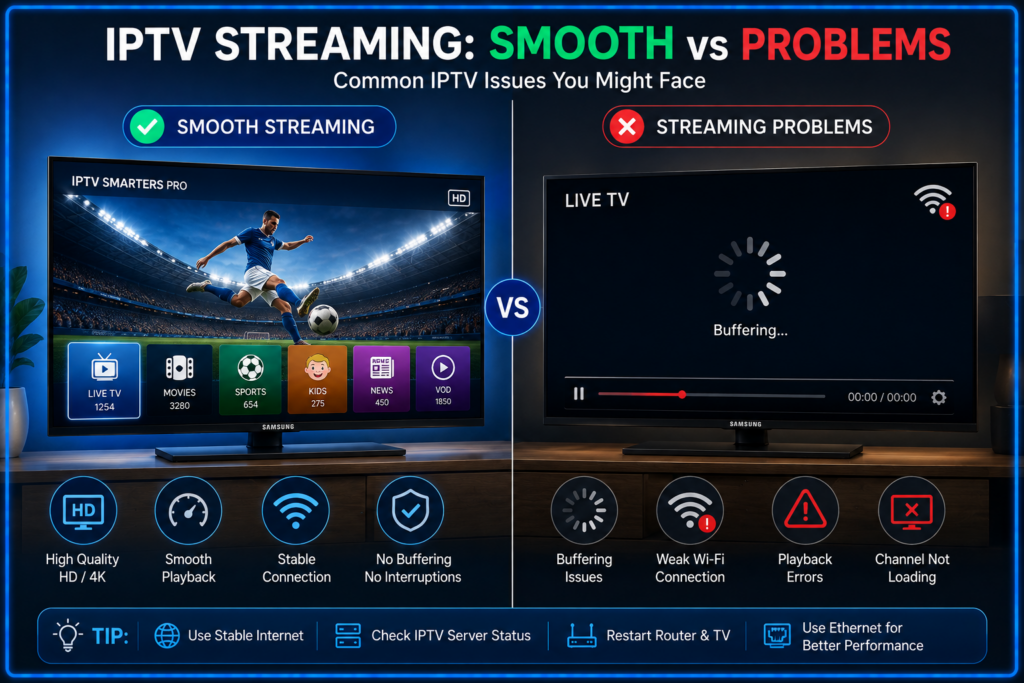
Common IPTV Problems and Solutions
IPTV Keeps Buffering
Possible causes:
- Slow internet
- Weak Wi-Fi signal
- Busy IPTV server
Solutions:
- Restart your router.
- Use Ethernet.
- Reduce other network activity.
Channels Not Loading
Possible reasons:
- Incorrect playlist
- Expired subscription
- Server outage
Solutions:
- Verify your login details.
- Contact your IPTV provider.
- Refresh your playlist.
App Crashes
Try these steps:
- Restart the TV.
- Clear the app cache (if available).
- Reinstall the application.
- Update the TV software.
Audio and Video Out of Sync
Restart the stream.
If the issue continues:
- Restart the application.
- Restart your TV.
- Try another channel.
Is IPTV Legal on Samsung Smart TVs?
Samsung Smart TVs simply run IPTV player applications.
The legality depends on the IPTV service you choose.
Always use IPTV providers that have permission to distribute the content they offer and follow the copyright laws in your country.
Frequently Asked Questions
Can I install IPTV without an external streaming device?
Yes. Most Samsung Smart TVs allow compatible IPTV players to be installed directly from the Samsung App Store.
Do IPTV players include TV channels?
No.
IPTV players only play content provided through your IPTV subscription.
Can I use free IPTV playlists?
Some free playlists are available, but they may be unreliable, outdated, or unavailable without notice.
Does IPTV support 4K on Samsung TVs?
Yes.
If your TV, IPTV provider, application, and internet connection all support 4K streaming, you can watch compatible content in Ultra HD.
Do I need a Samsung account?
A Samsung account is often required to download applications from the Samsung App Store.
Final Thoughts
Setting up IPTV on a Samsung Smart TV is a straightforward process that requires only a compatible IPTV player, a reliable internet connection, and a valid IPTV subscription. Once configured, you can enjoy live television, sports, movies, and on-demand entertainment from the comfort of your living room without additional hardware.
For the best experience, choose a reputable IPTV provider, keep your Samsung Smart TV updated, and use a fast, stable internet connection. With the right setup, your Samsung Smart TV can become a powerful entertainment hub offering smooth, high-quality streaming for the whole family.