Table of Contents
- Quick answer: where should you start?
- Identify your Fire TV Stick and operating system
- What you need before installing anything
- Install a compatible player
- Add your IPTV account
- Check playback before organising the library
- Improve the connection where the TV sits
- Troubleshoot IPTV on Fire TV Stick
- Frequently asked questions
- Get useful help without exposing your credentials
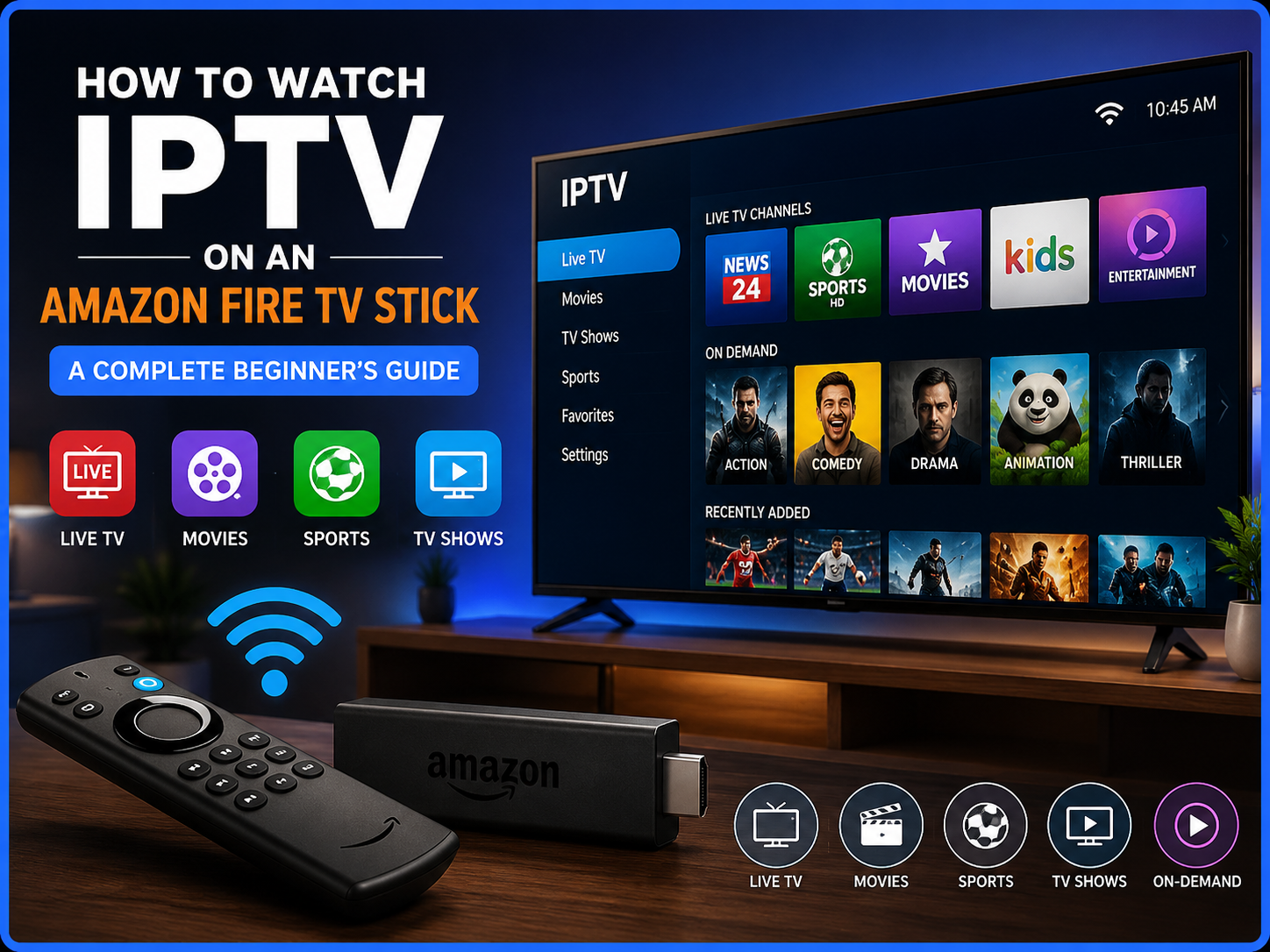
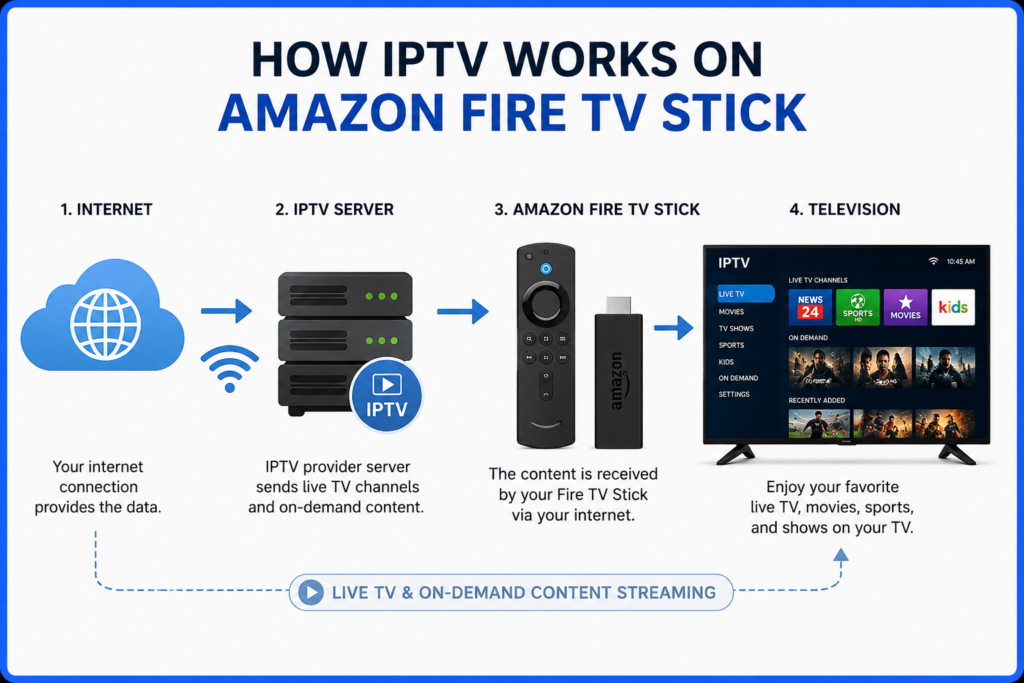
IPTV on Fire TV Stick needs an app that supports your exact device and the login format supplied by your provider. Check the model before following an installation tutorial: Fire OS and Vega OS do not use the same app packages.
This guide takes you from that compatibility check to your first playback test, with separate instructions for M3U, Xtream Codes and portal accounts.
Quick answer: where should you start?
For Smartiflix, check your order instructions and confirm the supported player for your Fire TV model before buying an app. Install the verified player, select the login format you received and test one stream. Our Firestick app and plan guide covers the buying checks; this page focuses on setup.
Identify your Fire TV Stick and operating system
Look in Settings under My Fire TV or Device & Software, then About. Menu names vary by device. Note the exact model and software version rather than relying on the shape of the stick or remote.
Amazon lists the Fire TV Stick 4K Select (2025) as a Vega OS device. Other models run Fire OS. Check your model against Amazon’s device list. A newer model does not automatically run the same apps as the one in an older tutorial.
Android APK instructions apply only to compatible Fire OS devices. Vega uses different app packages, so an Android APK is not a native Vega installer. Amazon documents the distinction in its app compatibility guidance. For a Vega device, confirm availability in its Appstore or obtain explicit compatibility information from the developer.
What you need before installing anything
Have your active account details, the exact player name and developer, and a working internet connection ready. An app licence and a content subscription can be separate purchases. Check both costs before paying.
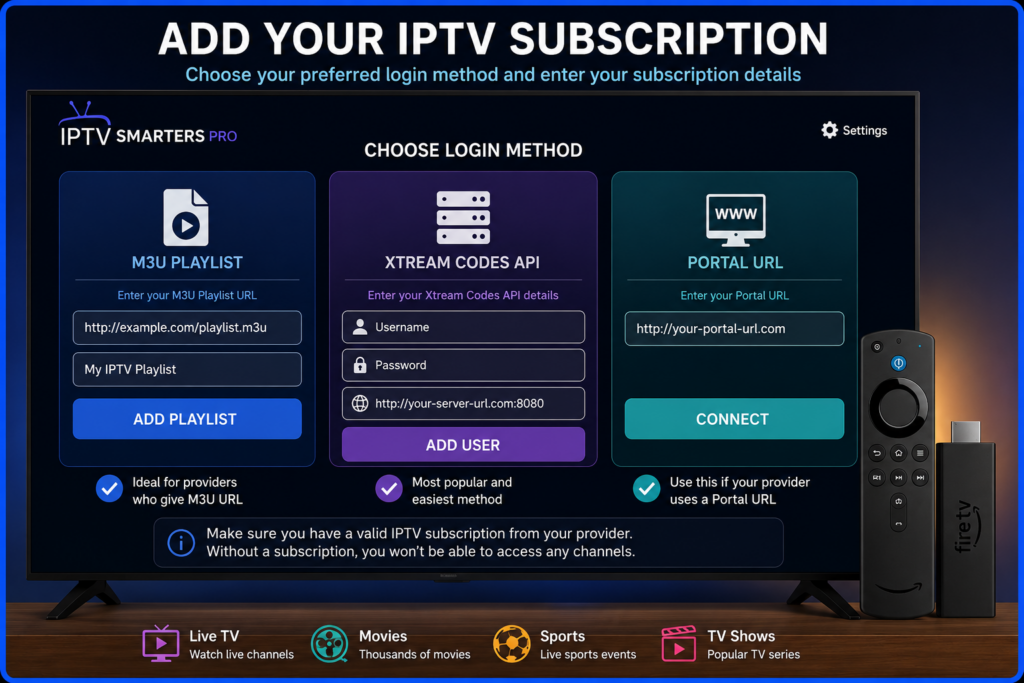
Identify which credentials you received: a complete M3U playlist URL, a server address with username and password for Xtream Codes, or a portal address with its registration instructions. These are separate setup methods. A player must support the format you intend to use.
Check the app’s current device requirements and whether its interface works with the Fire TV remote. Do not assume that a mobile Android app will work well on a television.
Install a compatible player
Use the Appstore when the app is available
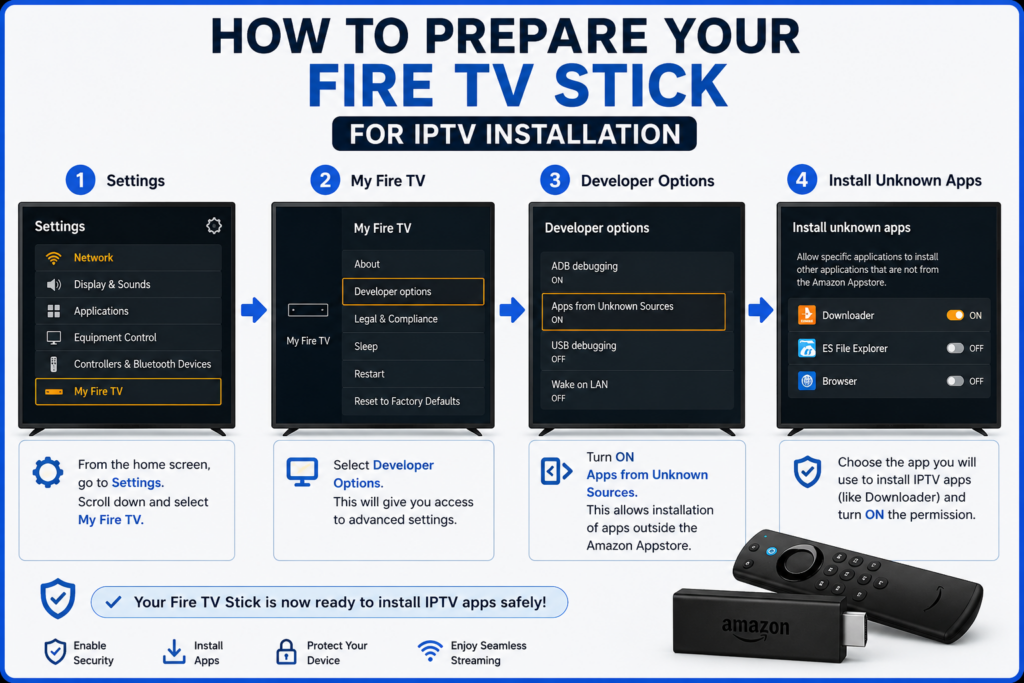
Open the Appstore or search on your Fire TV, find the exact player and verify the developer. Check compatibility and any charges, then select Get or Download and open the app. Availability can vary by device and country. A similarly named app may be a different product.
If the developer supplies an external installer
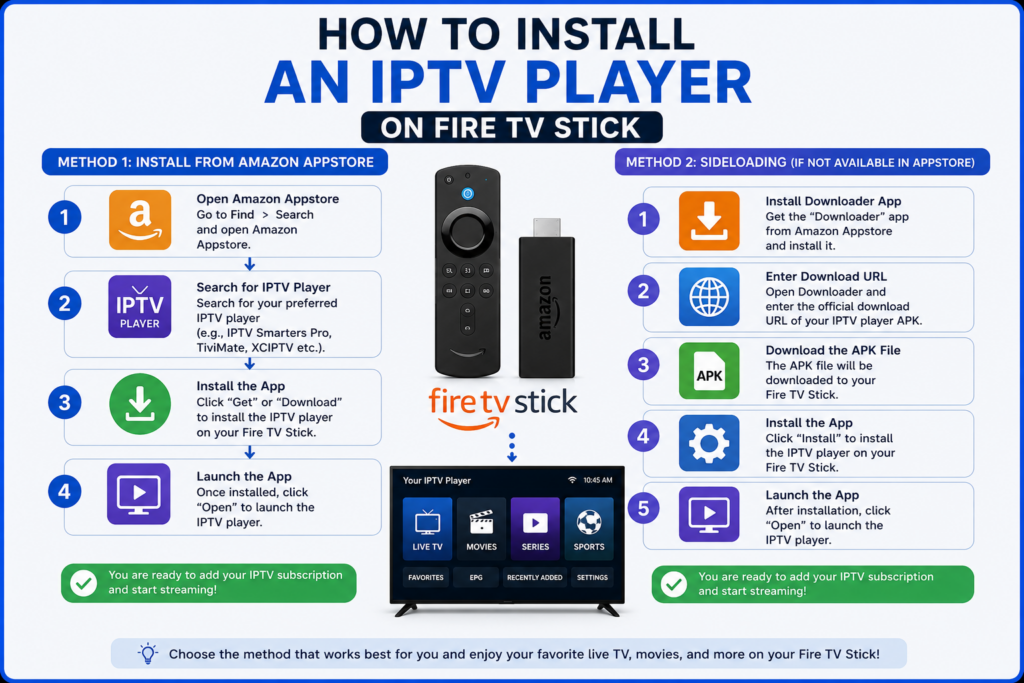
First confirm that the developer supports your exact Fire OS device and supplies the download itself. Follow its current installation instructions, including any installer-specific permission the device requires. Do not treat Developer Options or an unknown download code as a required first step for every Fire TV.
On Vega OS, use a compatible distribution method confirmed by the developer or the device’s Appstore. Repeatedly downloading an Android APK will not turn it into a Vega application. If your chosen player is unavailable, ask the provider for a compatible alternative before changing devices.
Add your IPTV account
M3U playlist URL
Choose the player’s playlist or M3U option. Enter a recognisable name and the complete URL supplied by the provider, then save or import it. Keep every parameter intact and remove accidental spaces. A guide URL belongs in the EPG settings, not the playlist field.
Xtream Codes login
Select this option only if the app supports it. Put the server address, username and password in their separate fields. Preserve the supplied http or https prefix and any port number. Your streaming password may differ from your website login. Save the account and allow the categories to load.
Portal account
Use a player that explicitly supports the provider’s portal system. Follow its registration instructions; some setups need a device identifier as well as the portal URL. Confirm the identifier with the provider rather than assuming it is your Fire TV’s network MAC address.
Check playback before organising the library
Test one live item, another item and an on-demand title if your plan includes one. Check picture, sound and remote navigation. Stop playback on other devices while testing an account with one simultaneous connection.
Once playback works, set favourites and category filters if available. Add the provider’s programme-guide source in a compatible app, refresh it and check the time zone. Guide coverage, catch-up and subtitles depend on the source and app; importing a playlist does not guarantee these features.
Improve the connection where the TV sits
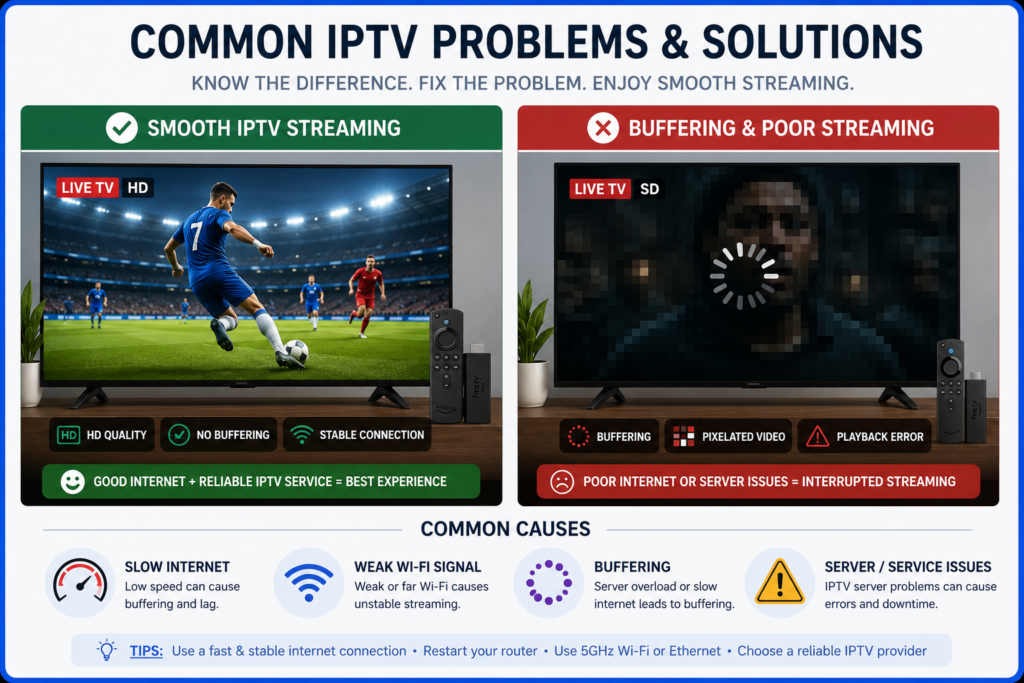
A streaming stick behind a television can have a different Wi-Fi experience from a phone elsewhere in the room. Compare the available Wi-Fi bands where you watch; 5 GHz is not automatically better through several walls. If your model supports a suitable Ethernet adapter, a wired comparison can help identify a Wi-Fi problem.
Pause large downloads during testing and try a lower-bitrate stream if available. There is no universal speed requirement for every HD or 4K source. Keep the device and player updated and change one setting at a time so you can identify what helps.
Troubleshoot IPTV on Fire TV Stick
The app is missing or will not install
Recheck the exact model, operating system, region and app requirements. An installer for Fire OS may not work on Vega, and not every app supports every device. Use the developer’s verified download or the device’s Appstore instead of trying unrelated installers with similar names.
Login fails or no entries appear
Check activation, expiry, login format and every field. Remove spaces introduced while typing with the remote. Confirm that the provider has not changed its server address and that another device is not using the account’s connection allowance. Check category filters before assuming content is missing.
Playback buffers
Try more than one item and compare another working video app on the same Fire TV. If both struggle, investigate the local connection first. If only particular sources fail, note which ones and when. Test a lower-bitrate option where available and send those results to the provider.
The app crashes or freezes
Restart the player or Fire TV and check for updates. On Fire OS devices, look under Settings > Applications > Manage Installed Applications, choose the player and try Clear Cache where available. Cache clearing and Clear Data are different actions: clearing data can remove your saved account and settings.
Keep a secure copy of your login details before clearing data or reinstalling. Menu paths can differ on other models. A factory reset is not a sensible first response to a problem affecting one app.
Sound and picture are out of sync
Restart playback and try another item. If only one source is affected, report it to the provider. If multiple apps show the same delay, check the TV or sound-system setup. Change an audio-delay setting only when you can test its effect and restore it if needed.
Frequently asked questions
Does every Fire TV Stick support the same IPTV apps?
No. The exact model, Fire OS or Vega OS version, region and developer support matter. Check compatibility before purchasing a player or following an APK tutorial.
Do I need to enable Developer Options?
Not to install an available compatible Appstore app. External installation requirements depend on the device and developer’s supported method. Do not change these settings merely because a generic guide lists them.
Is a free player the same as a free subscription?
No. A free player may only play a source you supply, and some features may cost extra. Check the app’s terms separately from the provider’s plan.
Can I use the same account on two televisions?
Check the plan’s permitted devices and simultaneous streams. Installing the player on two devices does not establish permission to watch on both at once.
Can my Fire TV Stick display 4K?
Only if the particular model, television, app and source support the required format. The account’s 4K label alone does not establish the resolution of every stream.
Get useful help without exposing your credentials
When contacting support, include your Fire TV model, software version, player name, login format and exact error. Explain whether all items fail or just some. Hide passwords and playlist tokens in screenshots.
Before subscribing, confirm the provider’s content availability and distribution rights for your location. This installation guide does not verify those rights. For Smartiflix’s published plans and device information, see our Smartiflix guide.

Last updated on September 26, 2026 at 7:50 am