Table of Contents
- What you need before setting up IPTV
- How to choose an IPTV app for iPhone or iPad
- Install the player and add your account
- Set up favourites and the programme guide
- Watch on mobile data without surprises
- Use AirPlay with a compatible TV
- Troubleshoot IPTV on iPhone and iPad
- Protect your account details
- Frequently asked questions
- Your first playback check
IPTV on iPhone and iPad starts with a compatible player, a working internet connection and the correct login details from your provider. This guide explains how to choose an app, add an M3U playlist or Xtream Codes account, manage mobile data and troubleshoot playback.
Before paying for a player, check that it supports your device and the login format your provider supplies. A player purchase and a content subscription are separate purchases unless the offer explicitly says otherwise.
What you need before setting up IPTV
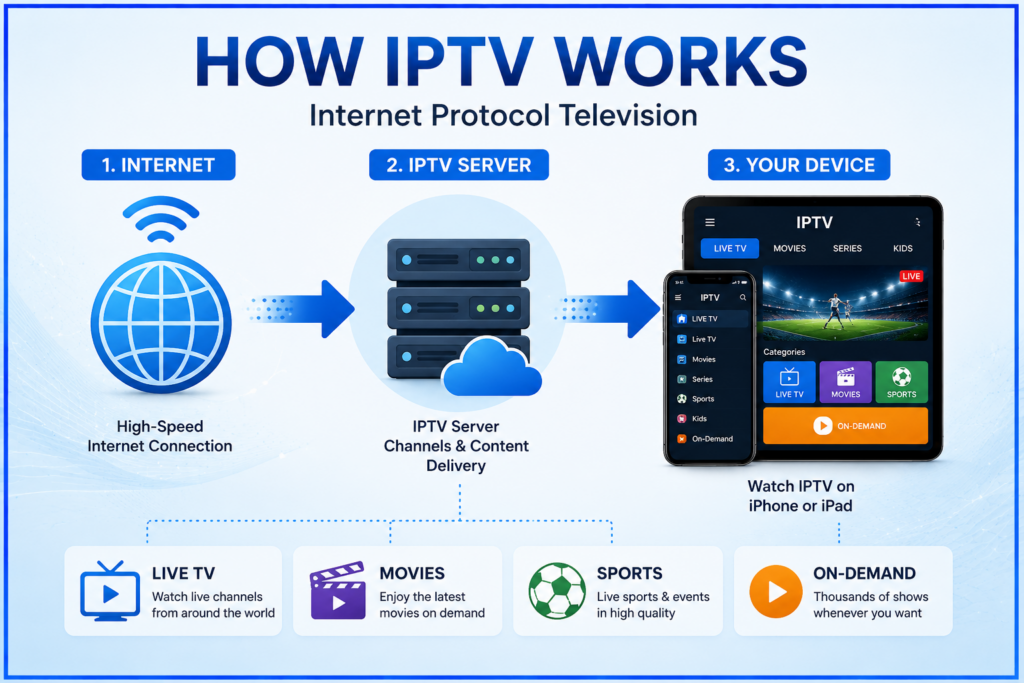
IPTV delivers television over an internet connection. Some services use their own app; others supply credentials for a separate player. This guide covers the latter. For Smartiflix, check your order instructions first; our Smartiflix plan and device guide explains the published options.
Check your iPhone or iPad
Find your software version under Settings > General > About. Compare it with the app’s Compatibility section in the App Store. An app listed for iPhone is not automatically available for Apple TV, and older devices may not support the required software version.
Confirm the login format
An M3U playlist is a complete playlist URL or file. An Xtream Codes login normally uses three separate fields: server address, username and password. A portal address is another format and may require a different player. These formats are not interchangeable; ask your provider which one your selected app supports.
Test the connection where you will watch
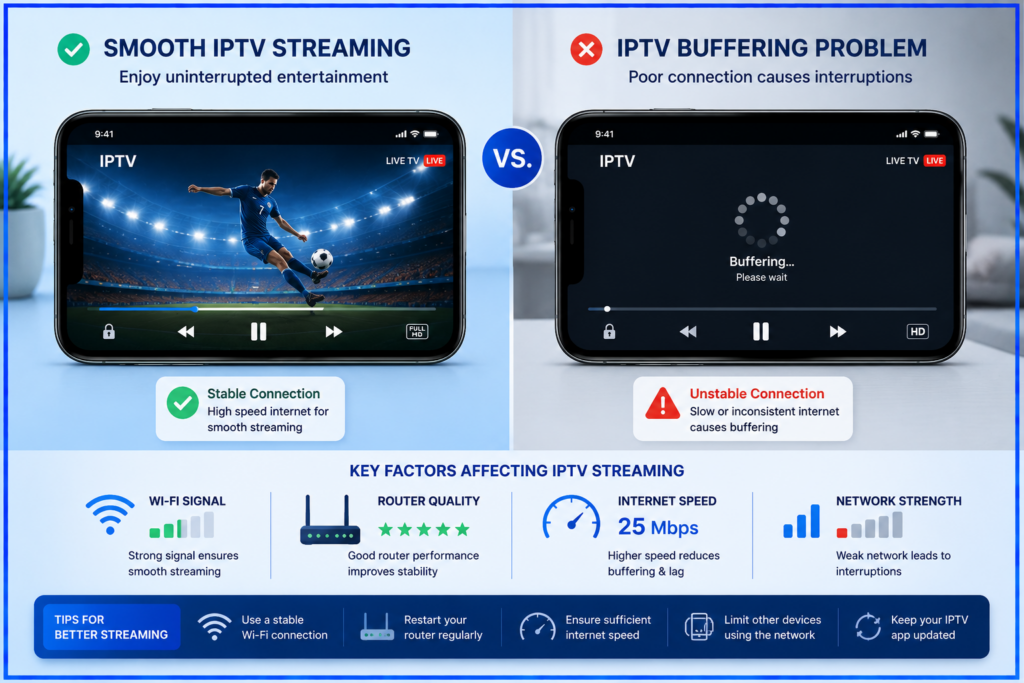
There is no single internet-speed requirement for every HD or 4K stream. Bitrate, encoding, other devices and connection stability all matter. Start on reliable Wi-Fi, test a stream and leave capacity for other household traffic. A high speed-test result alone does not rule out a provider or playback problem.
How to choose an IPTV app for iPhone or iPad
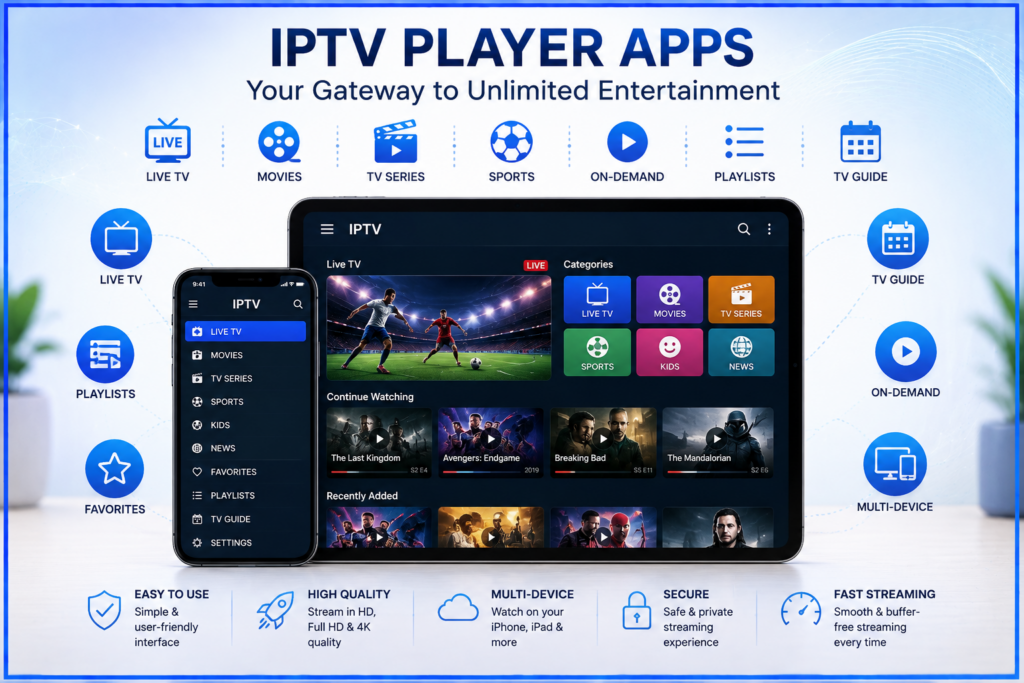
Use the exact App Store link and developer name supplied by the app developer or your provider. Similar app names can refer to different products. Check supported login formats, device compatibility, recent updates, privacy information and any separate subscription or in-app purchase.
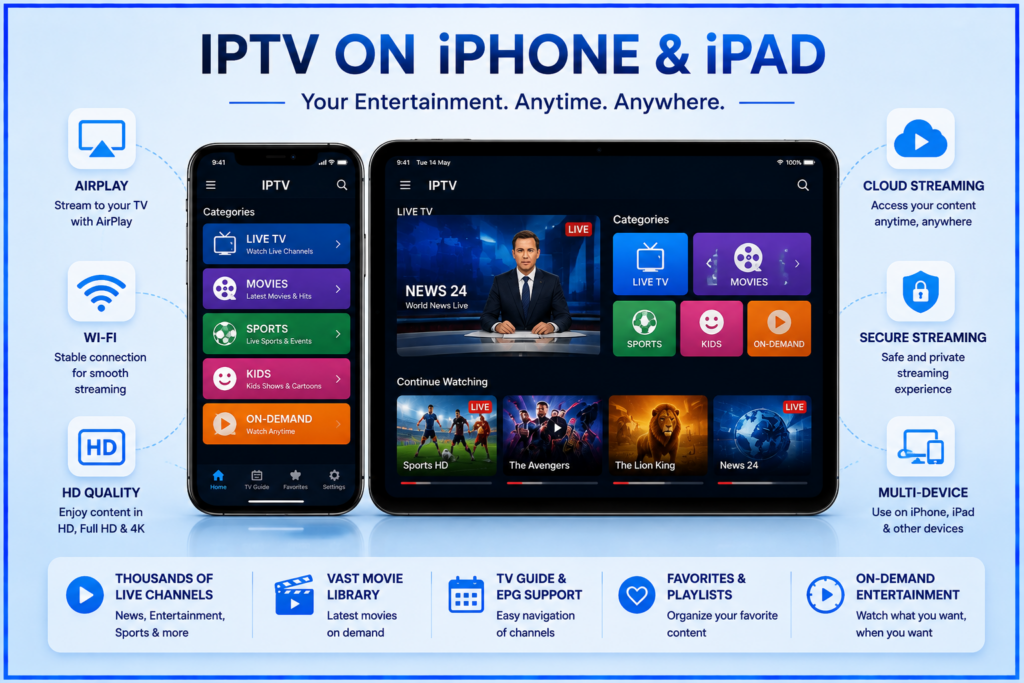
Choose based on the features you actually need: playlist import, programme guide support, subtitles, audio selection and AirPlay. Confirm each feature in the current listing or developer documentation. Availability and pricing can differ by country, and a free download does not guarantee that every feature is free.
Install the player and add your account
Open the verified App Store listing, confirm the developer and compatibility, then tap Get or the displayed price. Complete the download and open the app. The menu labels below are examples; follow your player’s own instructions where they differ.
Option 1: add an M3U playlist
Choose the option for a playlist URL, often called Add Playlist. Enter a name you will recognise, then paste the complete M3U URL supplied by your provider. Keep all parameters intact and remove accidental spaces. Save or import it, allow the playlist to load, then test one item.
If your provider gives you a playlist file instead, use a player that supports file import. A downloaded file may not update automatically. A separate programme-guide URL, often XMLTV, belongs in the app’s guide field rather than its playlist field.
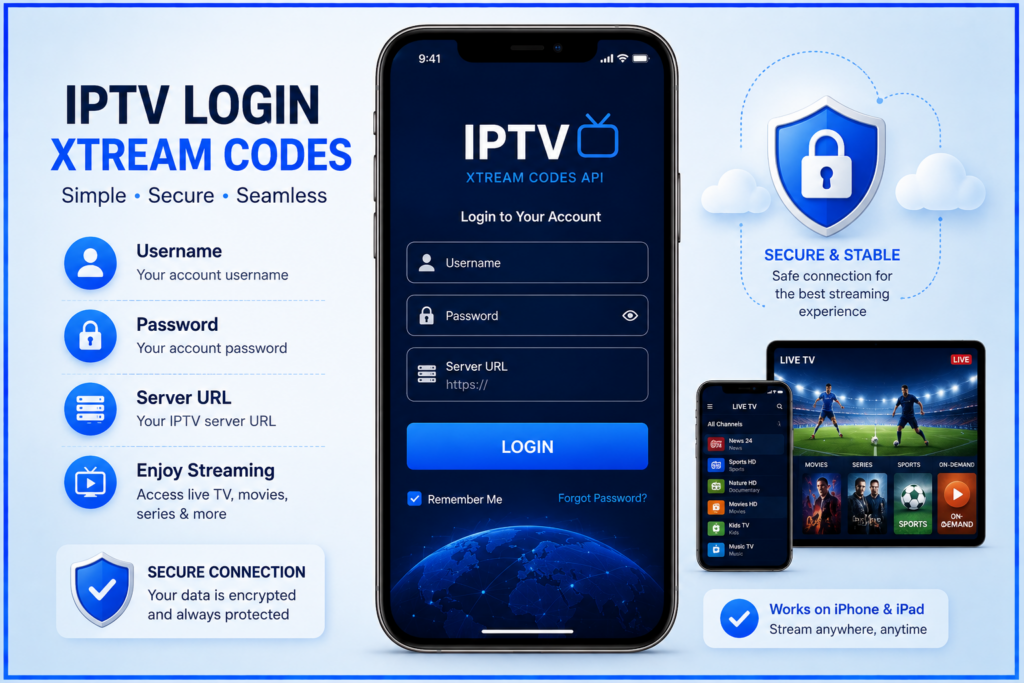
Option 2: use an Xtream Codes login
Only choose this option if both the provider and the player support it. Paste the server address, username and password into their separate fields. Keep any supplied port number and the original http or https prefix. Do not put a complete M3U playlist URL into the server field.
Save the account and test playback. Your website account password may differ from the streaming password. If details are missing, request them through the provider’s official support rather than guessing a server address.
Set up favourites and the programme guide
After playback works, use favourites and search if your player provides them. For an empty or inaccurate guide, confirm the guide source, refresh it and check the device’s time zone. A populated playlist does not guarantee that programme information is available for every entry.
Watch on mobile data without surprises
An iPhone can use its active cellular plan. An iPad needs a Wi-Fi + Cellular model and an active data plan for a direct mobile connection; a Wi-Fi-only iPad can instead connect to Wi-Fi or a phone’s hotspot. Check your carrier’s data allowance and the provider’s location restrictions before travelling.
In Settings > Cellular or Mobile Data, find the player to check usage or disable its cellular access. On iPad, the setting may be labelled Cellular Data. Apple explains these controls in its cellular data guide. Your carrier’s records are the best reference for billing.
As an illustrative calculation, a constant 8 Mbps stream uses about 3.6 GB per hour before overhead. Actual usage varies with bitrate and viewing time. If the app offers a lower-quality stream, test it when you need to conserve data.
Use AirPlay with a compatible TV
AirPlay depends on the app, the video and the receiving device. For Apple’s standard setup, connect the iPhone or iPad and the compatible TV, Apple TV or Mac to the same Wi-Fi network. Start playback, tap the app’s AirPlay button and select the receiver.
Some video apps do not support AirPlay. Screen Mirroring is a separate Control Center option and may not resolve an app’s playback restrictions. See Apple’s AirPlay instructions, or our Apple TV app and setup guide for watching directly on that device.
Troubleshoot IPTV on iPhone and iPad
The account will not log in
Confirm the subscription is active and that you chose the correct login type. Recopy the details without extra spaces. Check whether another device is using your plan’s simultaneous connection allowance. If login still fails, send support the app name, software version and exact error, with passwords and playlist tokens hidden.
The playlist loads but video does not play
Try several items to distinguish one unavailable stream from an account-wide problem. Confirm that a known working video plays in another app on the same connection. If only this player fails, update it and check its supported formats. If the same stream fails across supported players, report it to the provider.
Playback buffers or stops
Move closer to the router, pause large downloads and test a lower-bitrate stream if one is available. Compare Wi-Fi with another permitted connection, keeping mobile data costs in mind. If the problem occurs only at particular times or on particular streams, record those details for support. Repeatedly closing unrelated apps is not a substitute for isolating the cause.
The playlist or guide will not refresh
Use the player’s refresh option and confirm that the source URL is still valid. Check category filters before assuming content is missing. Keep a secure copy of your login details before removing an account or reinstalling the player, as either action may erase local settings.
Protect your account details
Treat playlist URLs like passwords because they can contain account credentials. Do not publish them in screenshots or paste them into unknown online playlist checkers. Use the developer’s verified installation instructions and avoid installing a configuration profile merely because an unknown setup page requests it.
A player listing does not establish a provider’s rights to distribute content. Before subscribing, ask the provider about content availability and distribution rights for your location. This setup guide does not verify those rights.
Frequently asked questions
Can I use one subscription on my iPhone and iPad?
Check both the permitted devices and simultaneous streams. Being able to save an account on two devices does not necessarily mean you can watch on both at once. Player purchases may also have their own device or account conditions.
Do I need to jailbreak my device?
No jailbreak is needed for a compatible App Store player. Check the current device and software requirements before installing.
Does buying an IPTV player include a subscription?
Do not assume it does. Many players only organise and play a source you supply. Read the listing and provider offer separately to understand what each payment includes.
What should I check before contacting support?
Note your device model, iOS or iPadOS version, player name, login format, connection type and exact error. Explain whether every stream fails or only some, and when it happens. Never include your password in a public support message.
Your first playback check
Start with the provider’s verified app instructions, import the correct login format and test one stream on stable Wi-Fi. Then check favourites, guide information and any AirPlay or mobile-data features you plan to use. This makes it easier to identify a specific problem before changing several settings at once.

Last updated on September 26, 2026 at 7:50 am