Introduction
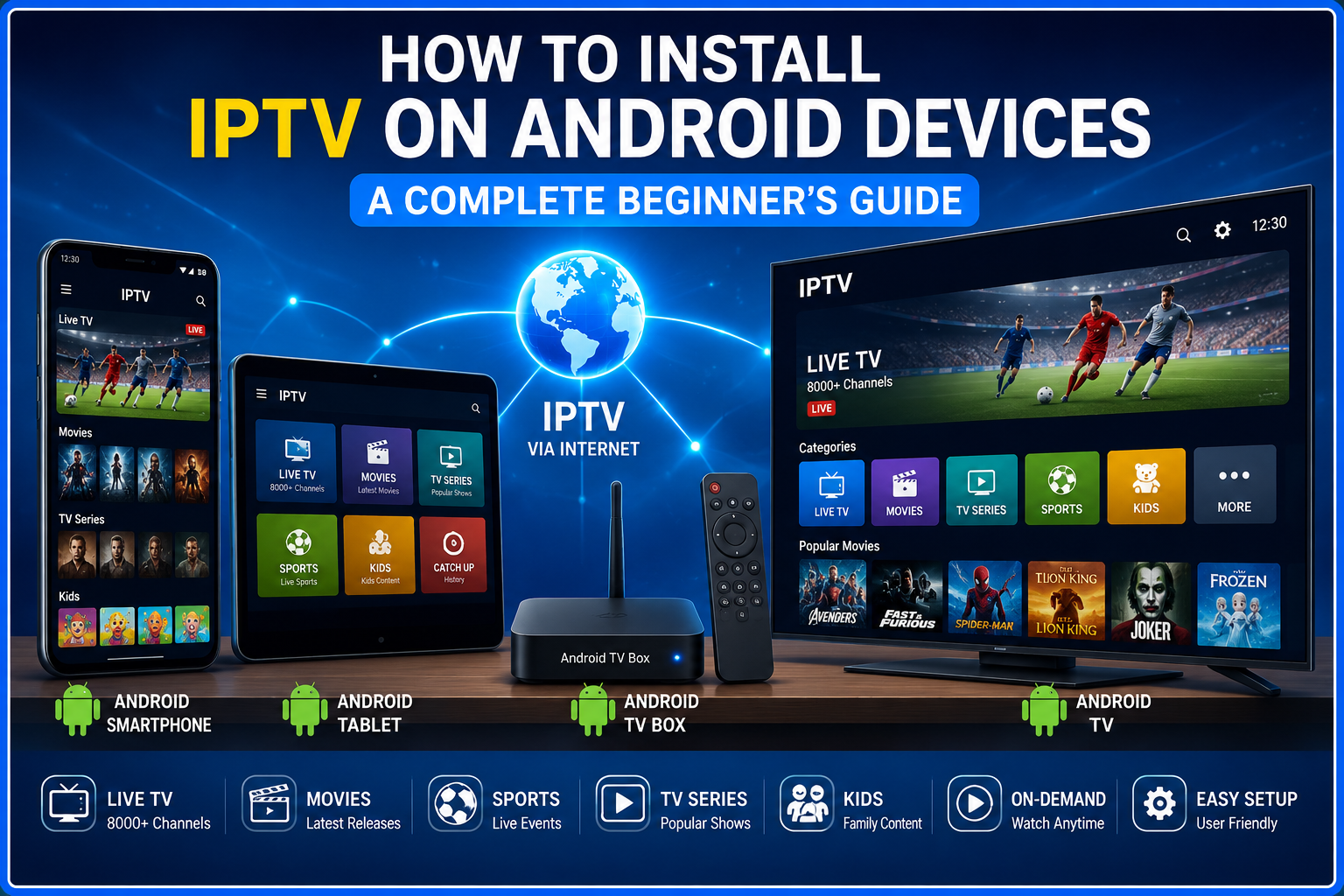
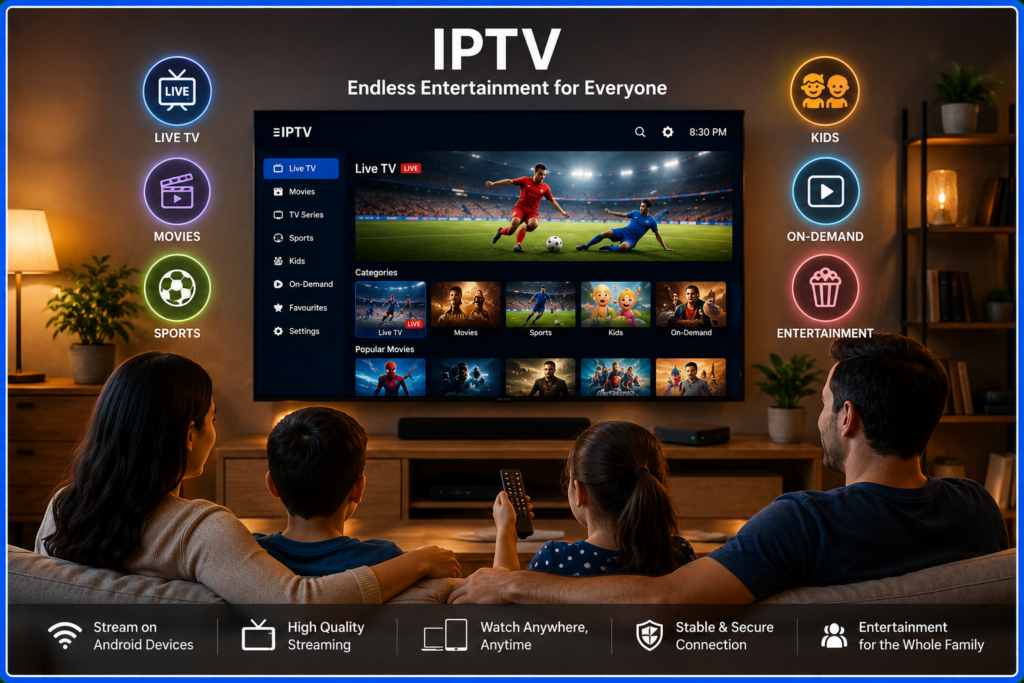
IPTV (Internet Protocol Television) has become one of the most popular ways to watch live TV channels, movies, TV shows, and on-demand content over the internet. Unlike traditional cable or satellite television, IPTV delivers entertainment through your internet connection, allowing you to stream content on various devices, including Android smartphones, tablets, Android TV, and Android TV boxes.
If you're new to IPTV, the installation process may seem confusing at first. Fortunately, setting up IPTV on an Android device is straightforward once you know the right steps.
In this comprehensive guide, you'll learn how to install IPTV on Android devices, choose the right IPTV player, configure your subscription, and troubleshoot common issues for the best viewing experience.
What Is IPTV?
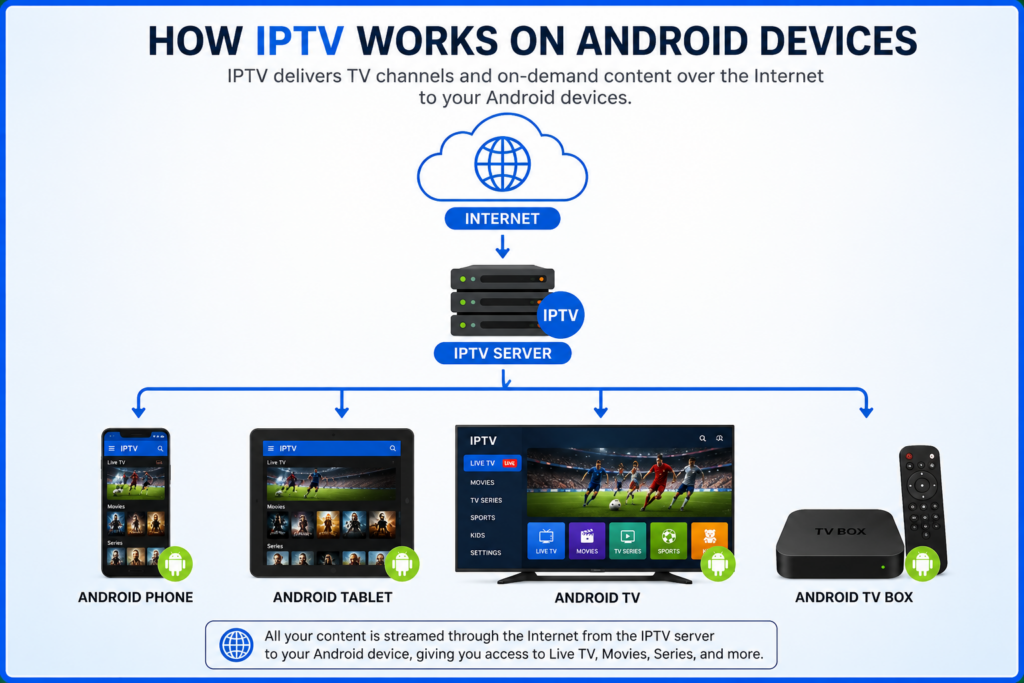
IPTV stands for Internet Protocol Television, a technology that delivers television content through internet networks instead of traditional cable or satellite systems.
With IPTV, you can enjoy:
- Live television channels
- Movies
- TV series
- Sports events
- Catch-up TV
- Video on Demand (VOD)
The actual content comes from your IPTV service provider, while an IPTV player app displays and organizes the channels.
What You Need Before Installing IPTV
Before starting the installation, make sure you have the following:
- A stable internet connection
- An Android smartphone, tablet, Android TV, or TV Box
- An active IPTV subscription
- IPTV playlist information (M3U URL or Xtream Codes)
- An IPTV player application
Having these ready will make the setup process quick and hassle-free.
Which Android Devices Support IPTV?
One of the biggest advantages of IPTV is its compatibility with Android devices.
You can install IPTV on:
- Android smartphones
- Android tablets
- Android TV
- Android TV Boxes
- Google TV devices
- Android-based projectors
As long as the device runs a reasonably recent Android version and has internet access, it should support IPTV applications.
Step 1: Choose an IPTV Player
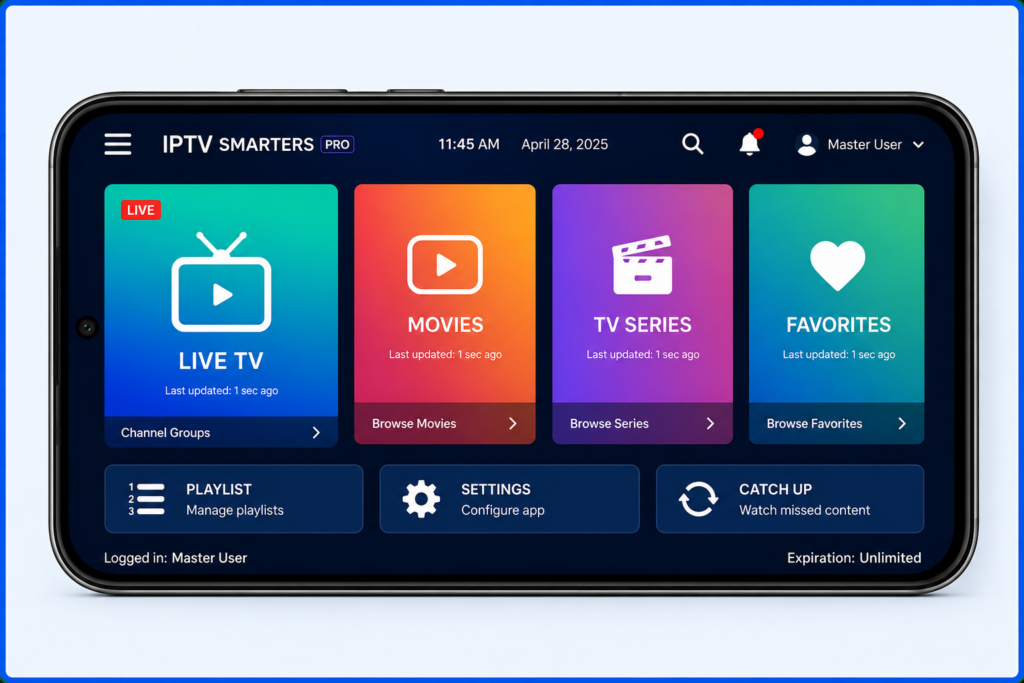
An IPTV player is an application that loads and displays your IPTV subscription.
Some popular IPTV players include:
- IPTV Smarters Pro
- TiviMate
- XCIPTV Player
- Televizo
- Perfect Player
- OTT Navigator
Remember that these apps generally do not provide TV channels. They only play content from your IPTV provider.
Choose a player that matches your device and offers features such as:
- Easy navigation
- Electronic Program Guide (EPG)
- Favorites
- Multiple playlists
- Catch-up support
- External video player support
Step 2: Download the IPTV App
For most Android devices:
- Open the Google Play Store.
- Search for your preferred IPTV player.
- Tap Install.
- Wait for the installation to complete.
- Launch the application.
If the app is unavailable in your region, some providers may offer installation through an APK file. Only download APK files from trusted sources to reduce security risks.
Step 3: Obtain Your IPTV Login Details
After subscribing to an IPTV service, you'll typically receive one of the following:
Option 1: M3U Playlist URL
This is a web link that contains your channel list.
Example:
Option 2: Xtream Codes Login
This usually includes:
- Server URL
- Username
- Password
Many users prefer Xtream Codes because it's easier to set up and often supports additional features like EPG and VOD.
Step 4: Add Your IPTV Subscription
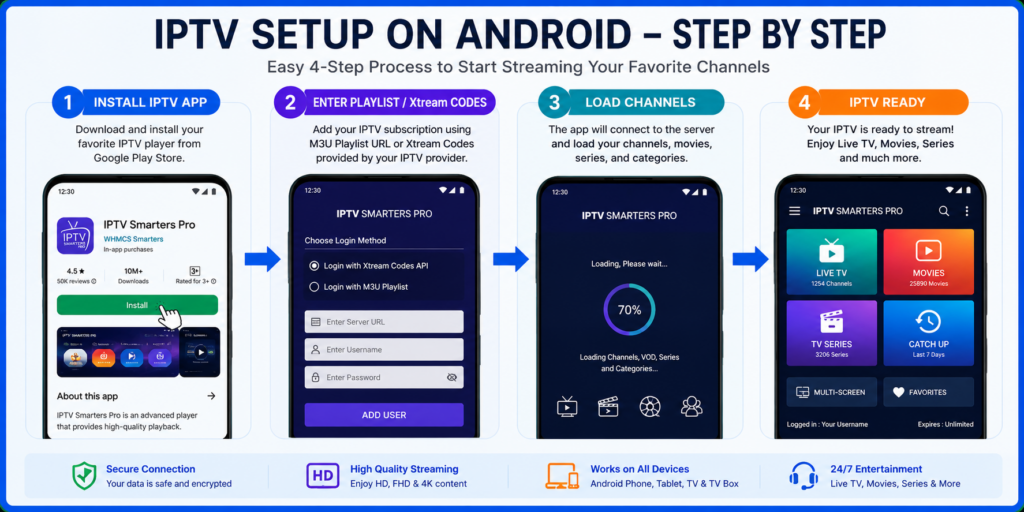
Open your IPTV player and select the login method.
Using an M3U Playlist
- Choose Add Playlist.
- Select M3U URL.
- Enter your playlist URL.
- Save the settings.
- Allow the app to load the channels.
Using Xtream Codes
- Select Xtream Codes Login.
- Enter:
- Server URL
- Username
- Password
- Tap Login.
- Wait while the application imports your content.
Depending on your subscription size, loading may take a few moments.
Step 5: Start Watching IPTV
Once the channels finish loading, you'll typically see categories such as:
- Live TV
- Movies
- TV Series
- Sports
- Kids
- News
- Entertainment
Simply browse the categories and tap a channel or title to begin streaming.
How to Install IPTV on Android TV
The installation process for Android TV is almost identical.
- Open the Play Store.
- Install your preferred IPTV player.
- Launch the app.
- Enter your IPTV credentials.
- Load the playlist.
- Begin watching.
Using a remote control, you can easily navigate channels and menus.
How to Install IPTV Using an APK File
Sometimes an IPTV application isn't available in the Play Store.
In that case:
- Download the APK from the app's official website.
- Enable Install Unknown Apps in your Android settings.
- Locate the downloaded APK.
- Tap to install.
- Open the application.
- Enter your IPTV subscription details.
Always verify that the APK comes from a trusted developer to minimize security risks.
Tips for Better IPTV Streaming
For the best experience:
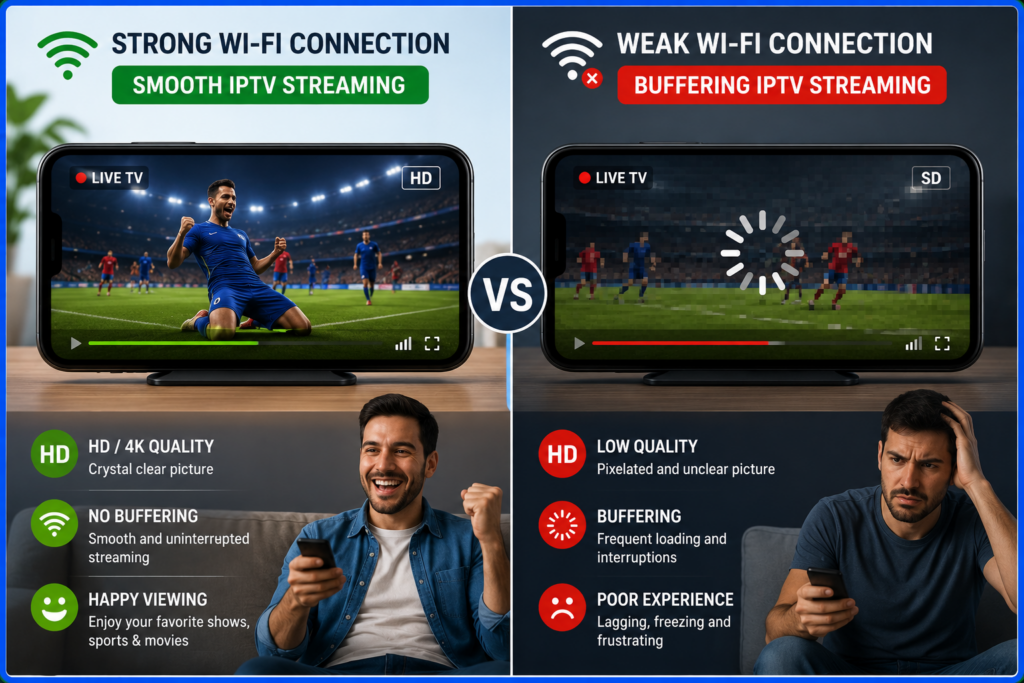
- Use a fast and stable internet connection.
- Connect through Wi-Fi 5 GHz or Ethernet when possible.
- Keep your IPTV app updated.
- Restart your router occasionally.
- Close unnecessary background apps.
- Ensure your Android device has enough free storage.
- Use a reliable IPTV provider.
Small improvements in network quality can significantly reduce buffering and improve playback.
Common IPTV Installation Problems
Playlist Not Loading
Possible causes include:
- Incorrect playlist URL
- Expired subscription
- Server maintenance
- Internet connection issues
Double-check your login information before contacting your IPTV provider.
Buffering
Buffering may result from:
- Slow internet speeds
- Network congestion
- Weak Wi-Fi signal
- Busy IPTV servers
Improving your network connection often resolves the issue.
Login Failed
If your credentials don't work:
- Verify your username and password.
- Confirm the server URL is correct.
- Ensure your subscription is active.
- Remove extra spaces when copying credentials.
App Keeps Crashing
Try these solutions:
- Update the application.
- Clear the app cache.
- Restart your device.
- Reinstall the app.
- Check for Android system updates.
Safety Tips
When installing IPTV apps:
- Download apps from trusted sources.
- Avoid unknown APK websites.
- Keep Android security updates installed.
- Never share your IPTV account publicly.
- Use strong passwords for your accounts.
These practices help protect your device and personal information.
Frequently Asked Questions
Is IPTV free on Android?
Many IPTV player apps are free to download, but you'll usually need a separate IPTV subscription to access live channels and premium content.
Can I use IPTV on my Android phone?
Yes. IPTV works well on Android smartphones, tablets, Android TV, and TV boxes.
Do I need a fast internet connection?
Yes. A stable connection is essential for smooth streaming, especially for HD and 4K content.
Which login method is better?
Both M3U playlists and Xtream Codes work well. Xtream Codes is often easier to configure and may provide additional features like EPG integration.
Can I install multiple IPTV apps?
Yes. Android allows multiple IPTV player apps to be installed, enabling you to compare features or manage different subscriptions.
Best Practices for Long-Term Performance
To keep your IPTV experience running smoothly:
- Update your IPTV player regularly.
- Remove unused apps to free storage.
- Reboot your device occasionally.
- Maintain a strong Wi-Fi signal or use Ethernet for TVs and TV boxes.
- Renew your IPTV subscription before it expires.
- Back up your playlist information so you can quickly restore your setup if needed.
Conclusion
Installing IPTV on Android devices is a straightforward process that opens the door to a flexible and convenient entertainment experience. By selecting a reliable IPTV player, entering your subscription details correctly, and maintaining a stable internet connection, you can enjoy live TV, movies, sports, and on-demand content on your Android smartphone, tablet, or TV.
Following the steps and best practices in this guide will help you complete the setup confidently while minimizing common issues like buffering or login errors. With the right combination of hardware, internet connectivity, and a reputable IPTV service, your Android device can become a powerful entertainment hub.