How to Watch IPTV on an Amazon Fire TV Stick
Amazon Fire TV Stick has become one of the most popular streaming devices for watching movies, TV shows, sports, and live television. One of its biggest advantages is that it supports IPTV (Internet Protocol Television), allowing users to stream live TV channels and on-demand content through an internet connection instead of traditional cable or satellite.
Whether you're completely new to IPTV or have just purchased your first Fire TV Stick, this guide will walk you through everything you need to know—from installing an IPTV player to adding your IPTV subscription and solving common issues.
Let's get started.
What Is IPTV?
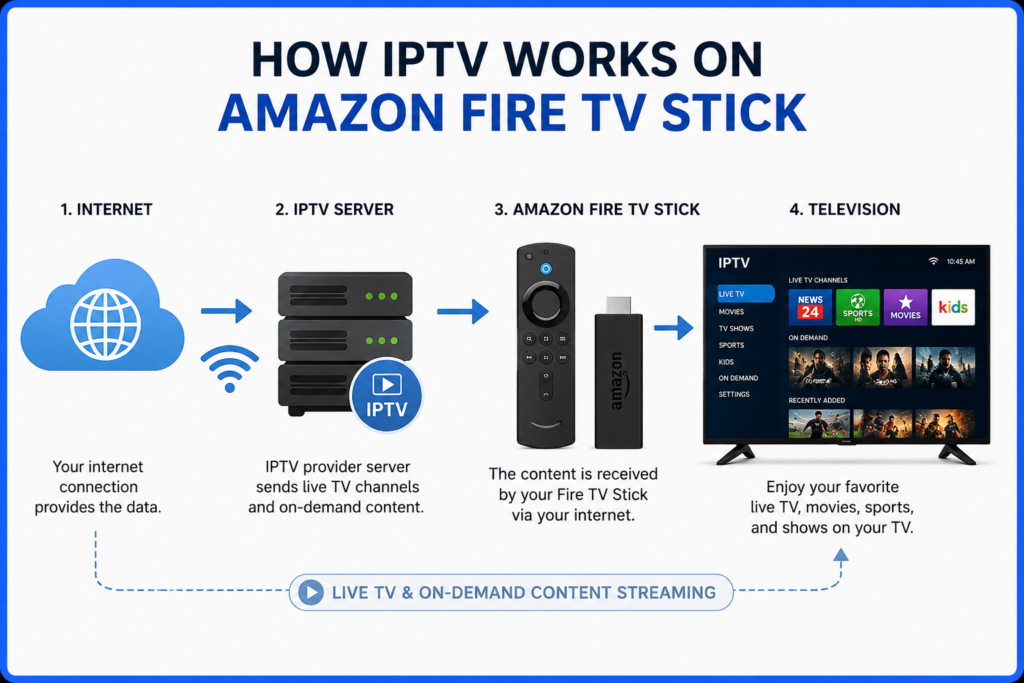
IPTV (Internet Protocol Television) is a technology that delivers television content over the internet rather than through cable or satellite networks.
Instead of relying on traditional broadcasting, IPTV streams content directly to your device using your internet connection.
Most IPTV services provide access to:
- Live TV channels
- Movies
- TV series
- Sports events
- Catch-up TV
- Video-on-Demand (VOD)
Unlike streaming platforms such as Netflix, IPTV often combines live television with extensive on-demand libraries.
Why Use an Amazon Fire TV Stick for IPTV?
The Amazon Fire TV Stick is one of the best devices for IPTV because it is affordable, easy to use, and supports many IPTV applications.
Some advantages include:
- Easy installation
- Compact and portable
- Supports Full HD and 4K streaming
- Works with Wi-Fi
- Voice control using Alexa
- Supports numerous IPTV player apps
- Regular software updates
For beginners, the Fire TV Stick offers one of the simplest ways to start watching IPTV.
What You'll Need Before Getting Started
Before setting up IPTV, make sure you have:
- An Amazon Fire TV Stick
- A stable internet connection
- An active IPTV subscription from a reputable provider
- IPTV login details (M3U URL, Xtream Codes, or Portal URL)
- An IPTV player app
Understanding IPTV Players
An IPTV player is simply an application that plays IPTV streams. It does not provide TV channels by itself.
You'll still need a subscription from an IPTV provider.
Popular IPTV players include:
- IPTV Smarters Pro
- TiviMate
- XCIPTV Player
- Sparkle TV
- Perfect Player
- OTT Navigator
Each app offers a slightly different interface, but the setup process is generally similar.
How to Prepare Your Fire TV Stick
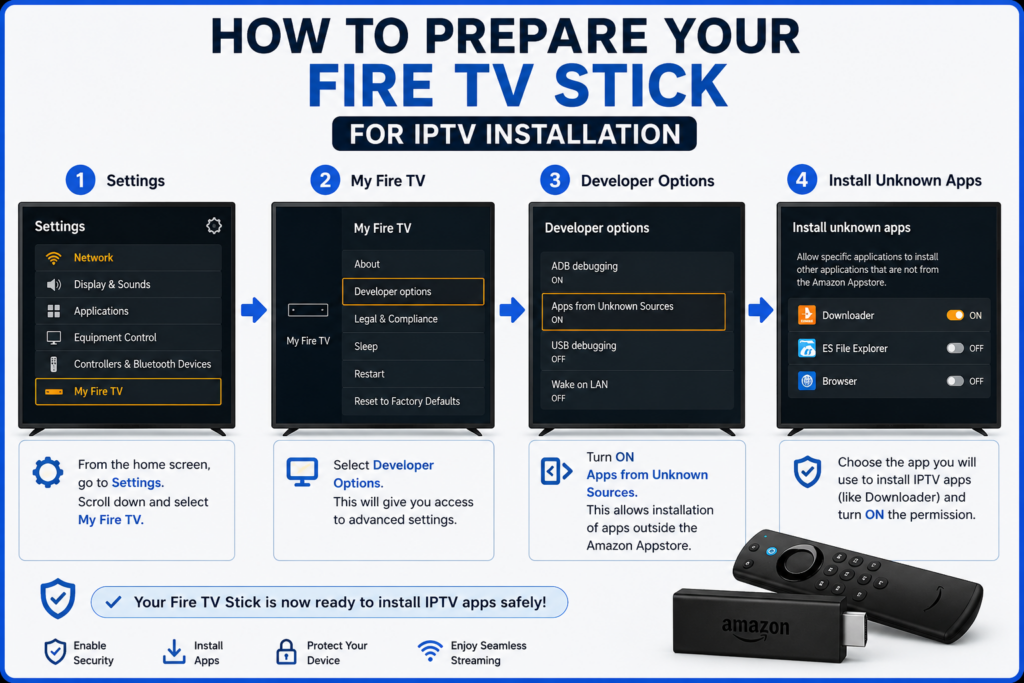
Some IPTV apps are available through the Amazon Appstore, while others may need to be installed from outside the official store (often called “sideloading”).
To prepare your Fire TV Stick:
- Open Settings.
- Go to My Fire TV.
- Select Developer Options.
- Enable permissions for installing apps from trusted sources if required by your Fire OS version.
- Install any necessary installer utility if your chosen IPTV player requires sideloading.
Always download apps from trusted sources to reduce security risks.
How to Install an IPTV Player
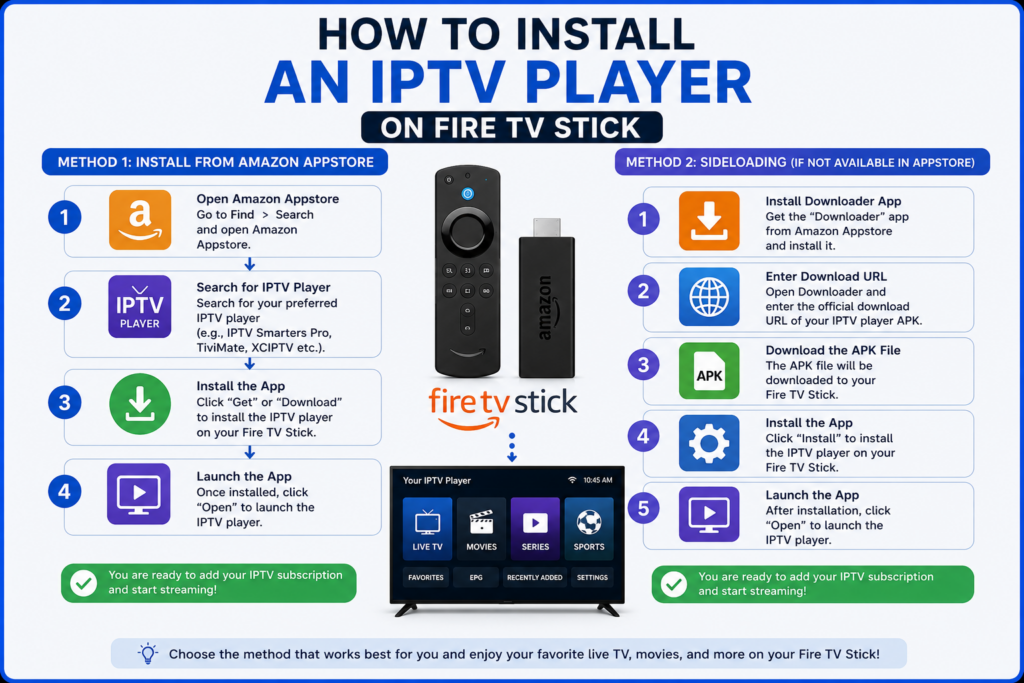
The installation process is straightforward.
Method 1: Install from the Amazon Appstore
- Open the Appstore.
- Search for your preferred IPTV player.
- Select the app.
- Click Download or Get.
- Wait for installation to finish.
Method 2: Install from an External Source
If the app isn't available in the Appstore:
- Install a trusted installer utility.
- Enter the download address provided by the app developer.
- Download the APK.
- Install the application.
- Open the app.
Always verify you're downloading software from the official developer.
How to Add Your IPTV Subscription
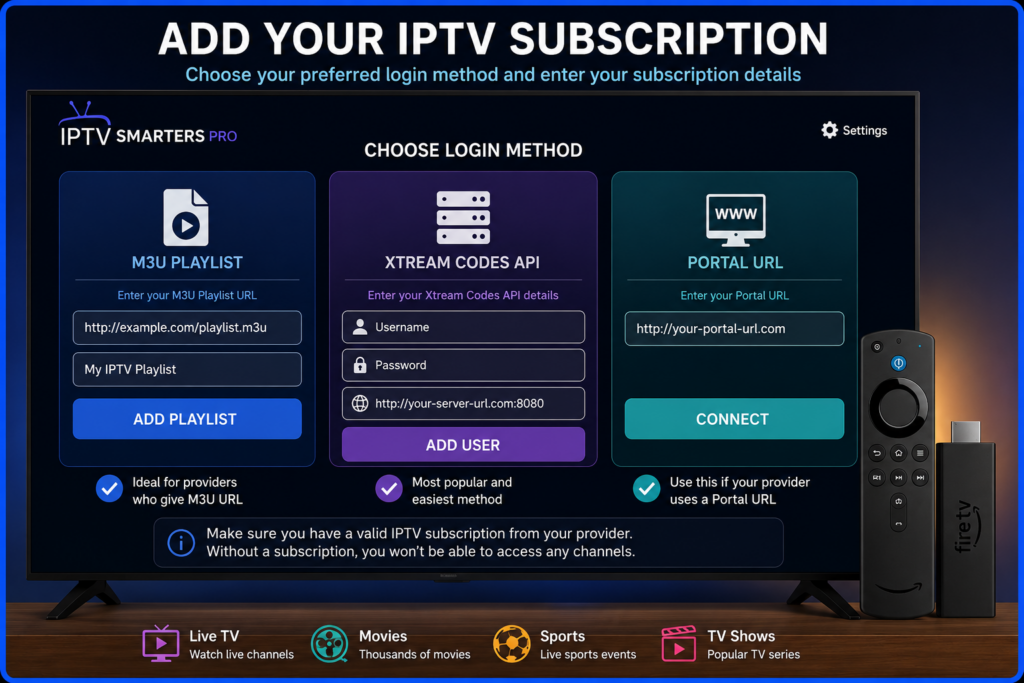
Once your IPTV player is installed:
Open the app.
Most IPTV services support one of these login methods:
M3U Playlist URL
Enter:
- Playlist URL
- Playlist name
The app will automatically load channels.
Xtream Codes API
Enter:
- Username
- Password
- Server URL
This is one of the easiest setup methods.
Portal URL
Some IPTV providers use a portal address instead of an M3U playlist.
Simply enter the portal URL provided by your IPTV service.
Organizing Your IPTV Experience
Many IPTV apps allow you to:
- Mark favorite channels
- Hide unwanted categories
- Create custom channel groups
- Enable parental controls
- Sort channels
- Resume recently watched content
These features make navigation much easier.
Best Settings for Smooth Streaming
To improve playback quality:
- Use a fast Wi-Fi connection
- Connect to the 5 GHz network if available
- Restart your router occasionally
- Close unnecessary background apps
- Keep your Fire TV software updated
- Use Ethernet (via adapter) for maximum stability if possible
Common IPTV Problems and Solutions
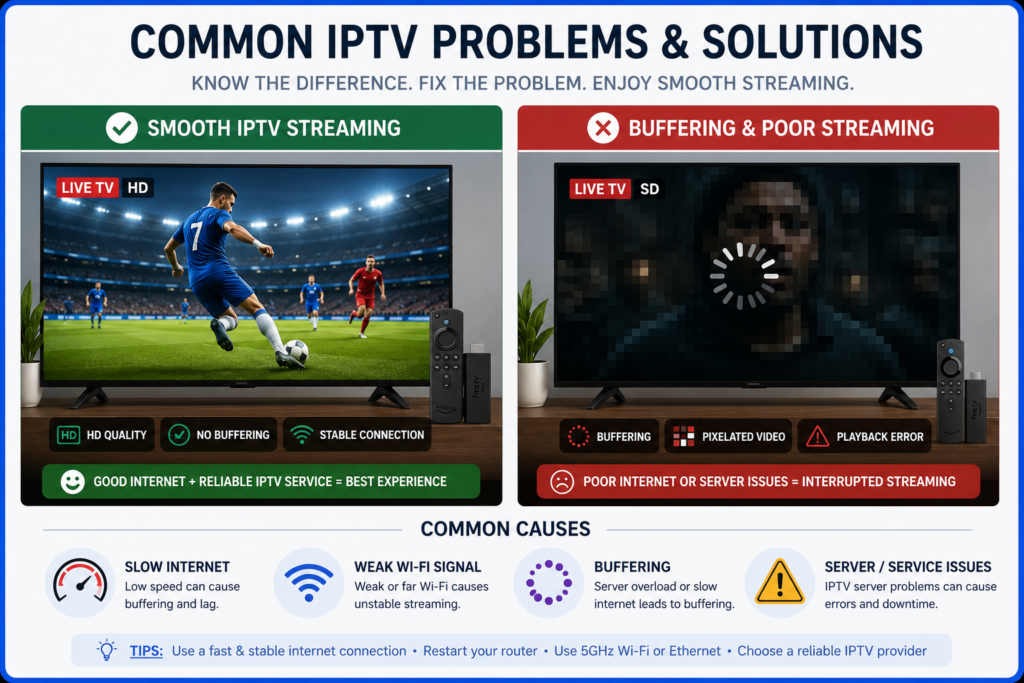
Buffering
Possible causes:
- Slow internet
- Busy Wi-Fi network
- IPTV server congestion
Solutions:
- Restart your router.
- Reduce other internet usage.
- Try a wired connection if available.
- Check your internet speed.
Channels Not Loading
Possible reasons:
- Incorrect login information
- Expired subscription
- IPTV server issues
Double-check your credentials and contact your IPTV provider if necessary.
App Crashes
Try:
- Restarting the Fire TV Stick
- Clearing the app cache
- Updating the IPTV app
- Reinstalling the application
Audio or Video Sync Issues
Restart playback or switch to another media player within the IPTV app if supported.
Tips for Better IPTV Performance
To get the best viewing experience:
- Use reliable internet service.
- Keep apps updated.
- Restart your Fire TV Stick occasionally.
- Avoid overloading your Wi-Fi network.
- Choose high-quality IPTV providers.
- Use modern Fire TV Stick models for better performance.
Is IPTV Legal?
IPTV technology itself is completely legal.
However, legality depends on whether the IPTV provider has the proper rights and licenses to distribute the content.
To stay on the safe side:
- Choose licensed IPTV services.
- Avoid suspiciously cheap subscriptions offering thousands of premium channels without authorization.
- Follow the copyright laws in your country.
Frequently Asked Questions (FAQs)
Can I watch IPTV on any Fire TV Stick?
Yes. Most Fire TV Stick models support IPTV apps, although newer models generally provide better performance.
Do I need a cable connection?
No. IPTV only requires an internet connection.
Can I use free IPTV apps?
Yes. Many IPTV player apps are free to download. However, you'll usually need a separate IPTV subscription to access live channels and premium content.
Which IPTV login method is easiest?
Xtream Codes is often the quickest because you only need a server URL, username, and password.
Does IPTV support live sports?
Yes, many IPTV services include live sports, though available content depends on your provider and its licensing.
Final Thoughts
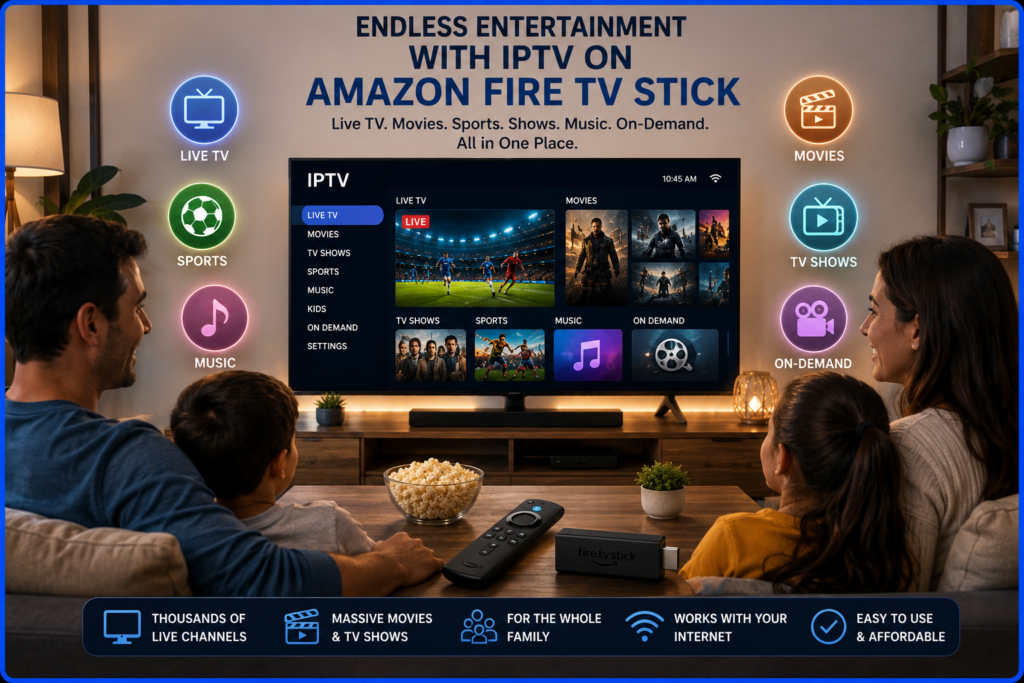
Watching IPTV on an Amazon Fire TV Stick is a simple and convenient way to enjoy live television and on-demand entertainment from a single device. By installing a trusted IPTV player, entering your subscription details, and optimizing your network settings, you can create a smooth and enjoyable streaming experience.
Always use reputable IPTV services that respect copyright laws, keep your apps updated, and maintain a stable internet connection for the best results. With the right setup, your Fire TV Stick can become a versatile entertainment hub for the whole family.