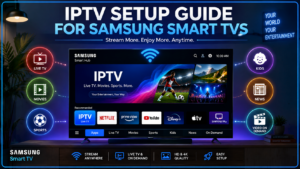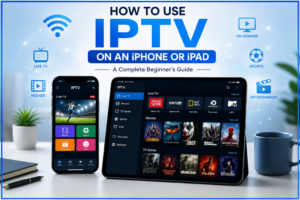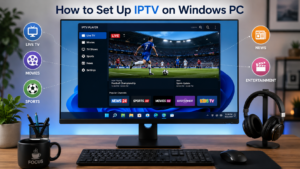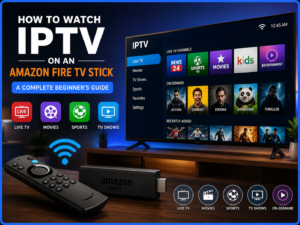
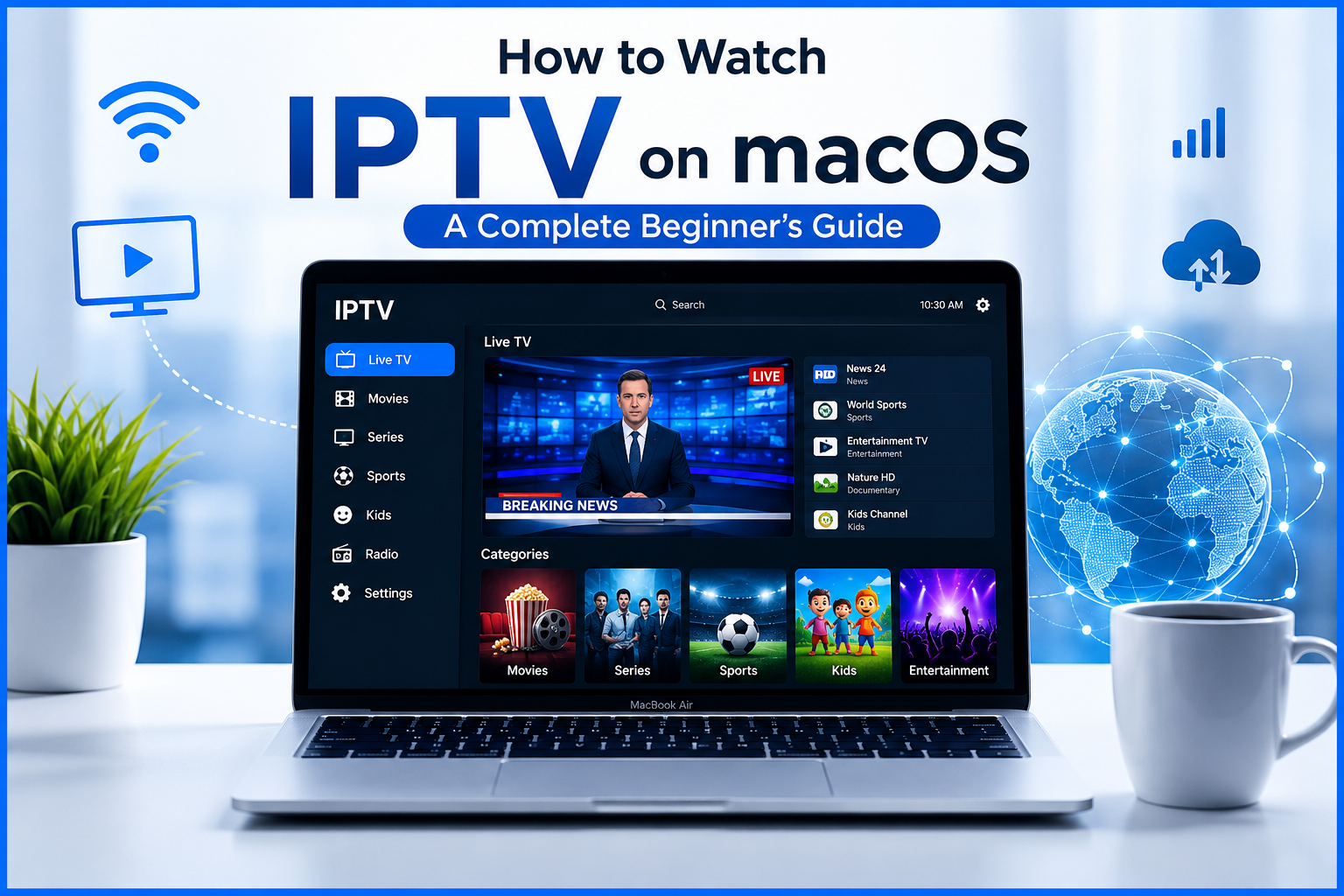
IPTV (Internet Protocol Television) has become one of the most popular ways to watch live TV channels, movies, TV series, sports, and on-demand content over the internet. If you're a Mac user, you'll be happy to know that setting up IPTV on macOS is simple and doesn't require advanced technical knowledge.
Whether you own a MacBook Air, MacBook Pro, iMac, or Mac Studio, this guide will walk you through everything you need to know about watching IPTV on macOS, from choosing a compatible IPTV player to troubleshooting common issues.
Table of Contents
- What Is IPTV?
- Can You Watch IPTV on macOS?
- Requirements for Watching IPTV on macOS
- Best IPTV Players for macOS
- How to Set Up IPTV on macOS
- Using an M3U Playlist
- Using Xtream Codes Login
- IPTV Features Available on macOS
- Tips for Better IPTV Streaming
- Common IPTV Problems and Solutions
- Is IPTV Legal?
- Frequently Asked Questions
- Final Thoughts
What Is IPTV?
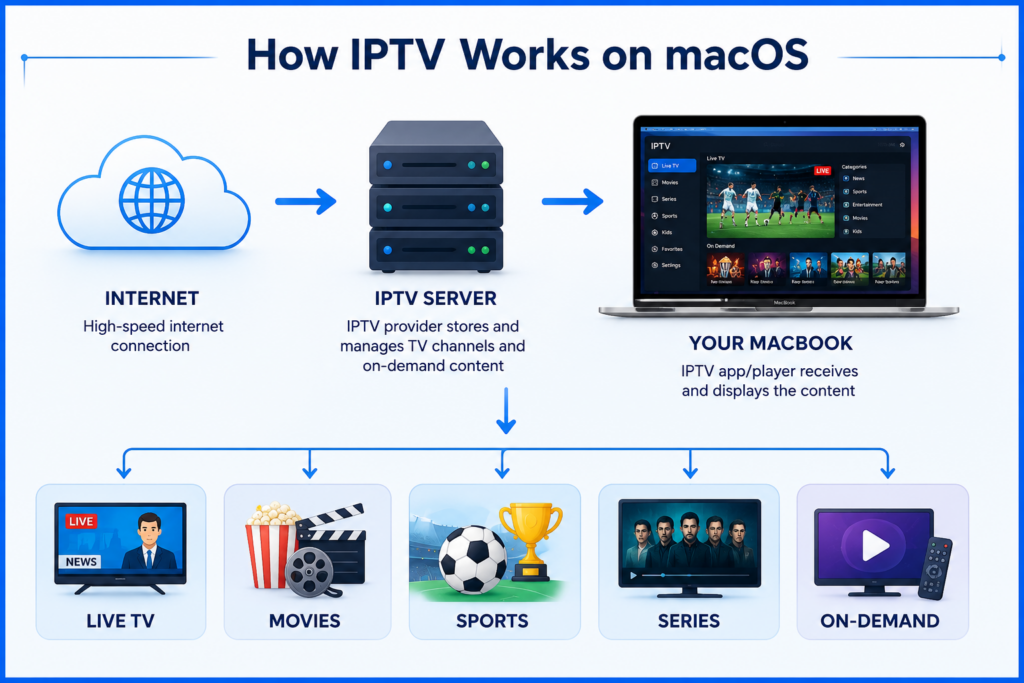
IPTV (Internet Protocol Television) is a technology that delivers television content through an internet connection instead of traditional cable or satellite services.
With IPTV, users can enjoy:
- Live TV channels
- Movies
- TV shows
- Sports events
- Video on Demand (VOD)
- Catch-up TV (if supported)
Unlike traditional television services, IPTV offers greater flexibility because you can stream content on multiple devices, including Macs.
Can You Watch IPTV on macOS?
Yes.
macOS fully supports IPTV through compatible media players and IPTV applications. Most IPTV services provide either:
- M3U Playlist URL
- Xtream Codes API
- Portal URL (for supported apps)
Once you receive your IPTV subscription details from your provider, you simply enter them into an IPTV player and start watching.
Requirements for Watching IPTV on macOS
Before setting up IPTV, make sure you have the following:
1. A Reliable Internet Connection
For smooth streaming, your internet speed should be approximately:
| Streaming Quality | Recommended Speed |
| SD | 5 Mbps |
| HD | 10 Mbps |
| Full HD | 20 Mbps |
| 4K UHD | 30–50 Mbps |
A stable Wi-Fi or wired Ethernet connection provides the best experience.
2. IPTV Subscription
You'll need an active IPTV subscription from a trusted provider.
Typically, your provider will send:
- M3U URL
- Username
- Password
- Server URL
- EPG link (optional)
3. IPTV Player
macOS doesn't include a built-in IPTV player, so you'll need to install one.
Best IPTV Players for macOS
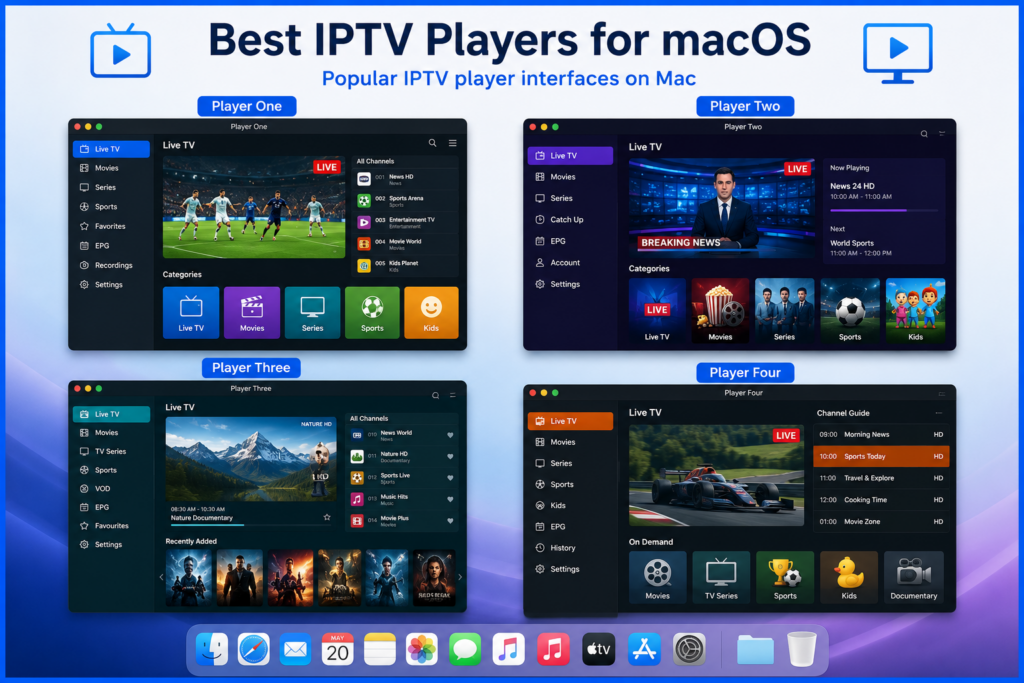
Here are some popular IPTV players compatible with macOS.
VLC Media Player
Pros:
- Free
- Open-source
- Lightweight
- Supports M3U playlists
Best for beginners.
IPTV Smarters Pro (If Available)
Features include:
- Live TV
- Movies
- Series
- Catch-up
- Multi-screen support
- EPG integration
Suitable for users whose IPTV providers support Xtream Codes.
GSE Smart IPTV
Popular features:
- M3U support
- Xtream Codes
- EPG
- Chromecast support
- User-friendly interface
Kodi
Kodi is a powerful media center that supports IPTV through various add-ons.
Best for advanced users who want extensive customization.
How to Set Up IPTV on macOS
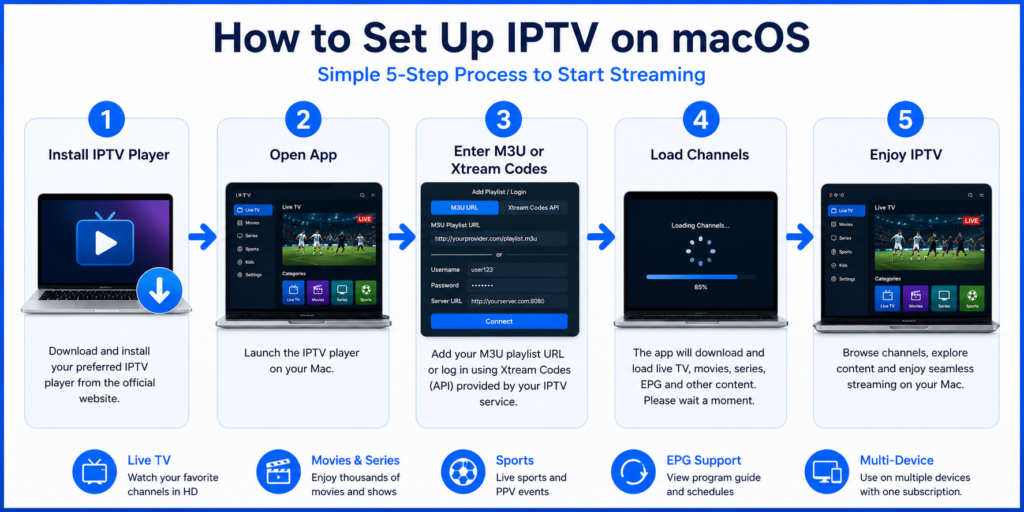
Setting up IPTV is straightforward.
Step 1: Install an IPTV Player
Download and install your preferred IPTV application.
Popular options include:
- VLC
- GSE Smart IPTV
- Kodi
- IPTV Smarters (where supported)
Step 2: Open the Application
Launch the IPTV player after installation.
Step 3: Enter IPTV Credentials
Depending on your provider, you'll use either:
Option A: M3U Playlist
Paste your M3U URL.
OR
Load a local M3U playlist file.
Option B: Xtream Codes
Enter:
- Username
- Password
- Server URL
Then click Login.
Step 4: Wait for Content to Load
The application will download:
- Live TV
- Movies
- TV Series
- Categories
- Channel logos
- EPG
This usually takes a few moments.
Step 5: Start Watching
Browse the available categories and begin streaming your favorite content.
Using an M3U Playlist
Many IPTV providers supply an M3U playlist URL.
Typical steps include:
- Copy the playlist URL.
- Open your IPTV player.
- Select “Open Network Stream” or “Add Playlist.”
- Paste the URL.
- Save.
- Wait for channels to load.
Your channels should now be available.
Using Xtream Codes Login
Some IPTV services offer Xtream Codes access, which simplifies setup.
You'll generally need:
- Username
- Password
- Server URL
After entering these details, the app automatically imports:
- Live channels
- Movies
- Series
- EPG
- Categories
IPTV Features Available on macOS
Most IPTV applications offer a range of useful features.
These commonly include:
- Live television
- Electronic Program Guide (EPG)
- Video on Demand
- TV series library
- Favorite channels
- Search function
- Multi-language support
- External subtitles
- Channel grouping
- Recently watched history
Feature availability depends on both the IPTV player and your service provider.
Tips for Better IPTV Streaming
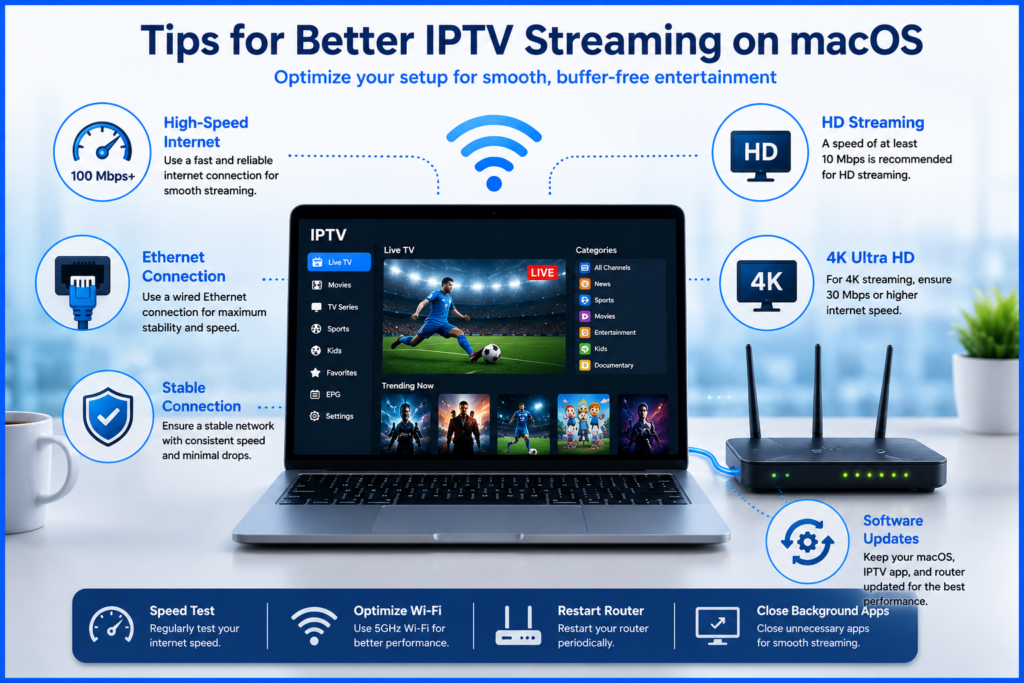
To enjoy smoother playback:
Use High-Speed Internet
A stable connection reduces buffering.
Close Background Applications
Freeing up system resources can improve streaming performance.
Keep Software Updated
Update:
- macOS
- IPTV player
- Browser (if applicable)
Regular updates often improve compatibility and security.
Use Ethernet When Possible
A wired connection is generally more stable than Wi-Fi, especially for HD and 4K content.
Restart Occasionally
Restarting your Mac and router can help resolve temporary network issues.
Common IPTV Problems and Solutions
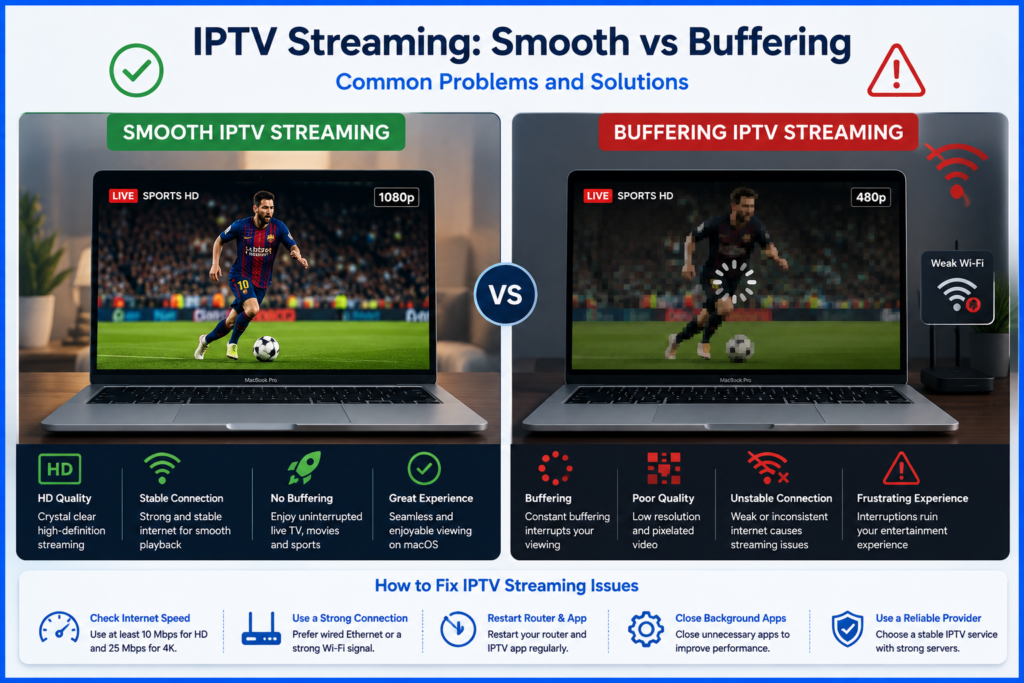
Buffering
Possible causes:
- Slow internet
- Network congestion
- Busy IPTV servers
Solution:
- Restart your router.
- Lower the streaming quality if available.
- Use a wired connection.
Playlist Not Loading
Possible causes:
- Incorrect M3U URL
- Expired subscription
- Server maintenance
Solution:
- Verify the playlist URL.
- Confirm your subscription is active.
- Contact your IPTV provider if needed.
Login Failed
Possible causes:
- Incorrect username or password
- Incorrect server URL
Solution:
Double-check the credentials provided by your IPTV service.
No EPG
Possible causes:
- Missing or incorrect EPG URL
- Provider doesn't support EPG
Solution:
Request the correct EPG URL from your provider and add it in your IPTV player if supported.
Is IPTV Legal?
IPTV technology itself is legal. Many legitimate services use IPTV to deliver television content over the internet.
However, legality depends on the content being streamed. Always use IPTV providers that have the proper rights or licenses to distribute the channels and content they offer. Accessing copyrighted content without authorization may violate the law in your jurisdiction.
Frequently Asked Questions
Can I watch IPTV on a MacBook?
Yes. IPTV works on MacBook Air, MacBook Pro, iMac, Mac mini, Mac Studio, and other macOS devices using compatible IPTV software.
Does macOS have a built-in IPTV player?
No. You'll need to install a third-party IPTV player that supports M3U playlists or Xtream Codes.
Can I use VLC for IPTV?
Yes. VLC supports M3U playlists and is one of the easiest free options for watching IPTV on macOS.
Why is my IPTV buffering?
Common reasons include slow internet, unstable Wi-Fi, network congestion, or server issues with your IPTV provider.
Can I watch IPTV in 4K on macOS?
Yes, provided:
- Your IPTV provider offers 4K channels.
- Your internet connection is fast enough.
- Your Mac hardware and IPTV player support 4K playback.
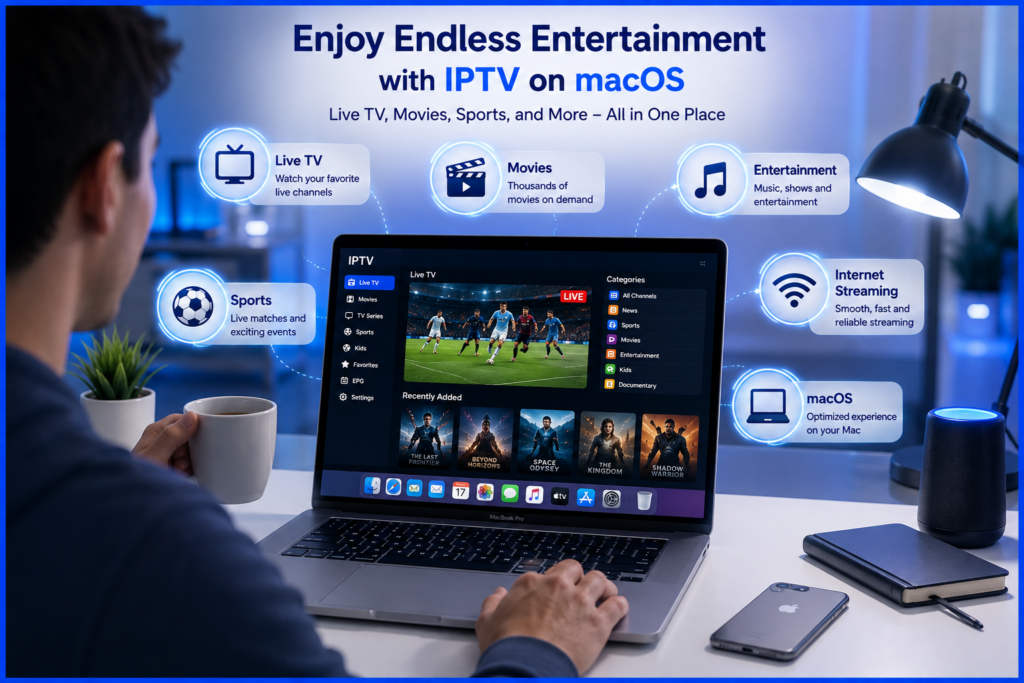
Final Thoughts
Watching IPTV on macOS is a convenient way to enjoy live TV, movies, sports, and on-demand entertainment from your Mac. With a compatible IPTV player, a reliable internet connection, and a subscription from a reputable provider, setup can be completed in just a few minutes.
Whether you prefer the simplicity of an M3U playlist or the convenience of Xtream Codes, macOS offers a smooth and flexible IPTV experience. By following the setup steps and optimization tips in this guide, you can enjoy stable, high-quality streaming while making the most of your Mac's capabilities.