Watching television has changed dramatically over the past decade. Instead of relying on traditional cable or satellite services, millions of users now enjoy their favorite channels through IPTV (Internet Protocol Television). If you own an iPhone or iPad, setting up IPTV is surprisingly simple and allows you to watch live TV, movies, sports, and on-demand content wherever you have an internet connection.
Whether you're completely new to IPTV or you've already subscribed to an IPTV service, this guide will walk you through everything you need to know about using IPTV on an iPhone or iPad.
What Is IPTV?
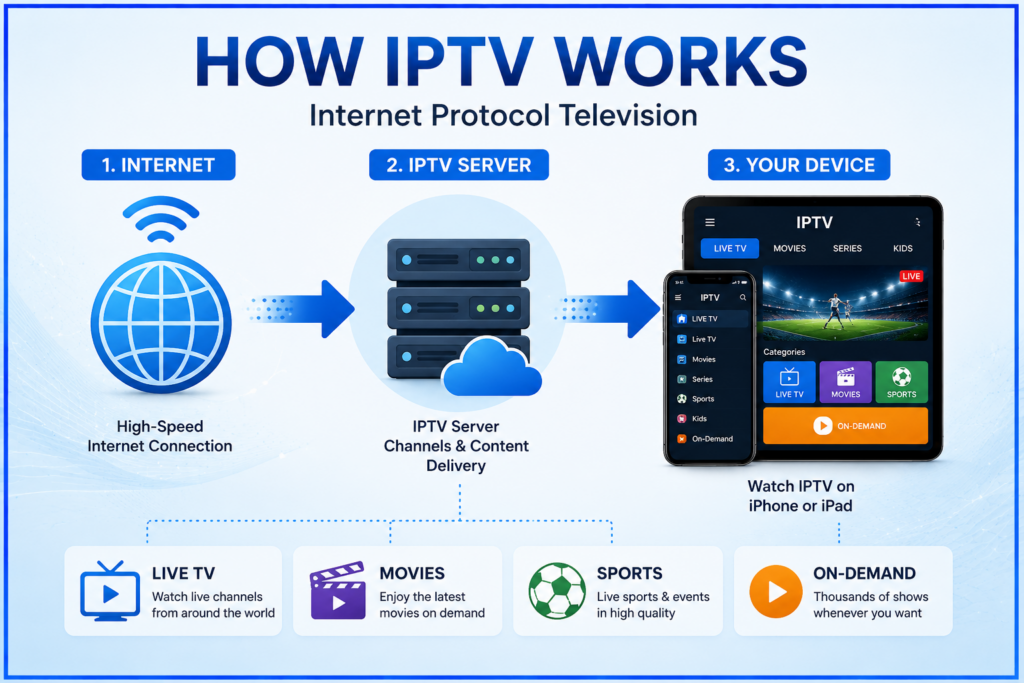
IPTV (Internet Protocol Television) is a technology that delivers television content over the internet instead of through traditional cable or satellite networks.
Unlike conventional TV services, IPTV allows users to stream content directly on compatible devices such as:
- iPhone
- iPad
- Smart TVs
- Android devices
- Windows PCs
- Mac computers
- Streaming devices
Instead of connecting a cable box, you simply install an IPTV player and log in using the subscription details provided by your IPTV service.
Can You Watch IPTV on an iPhone or iPad?
Yes.
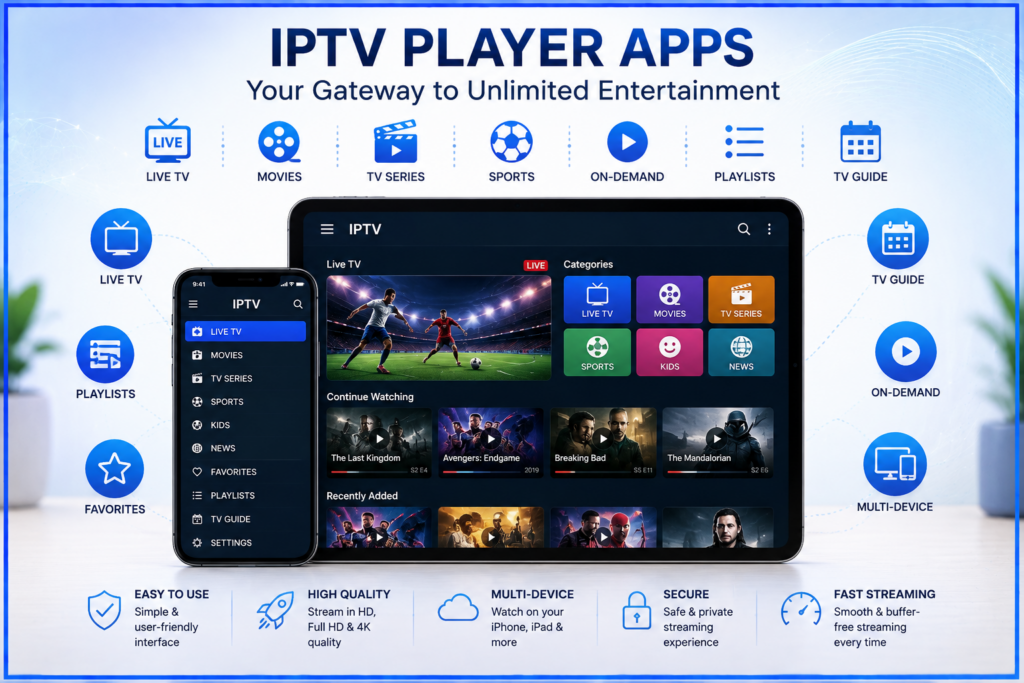
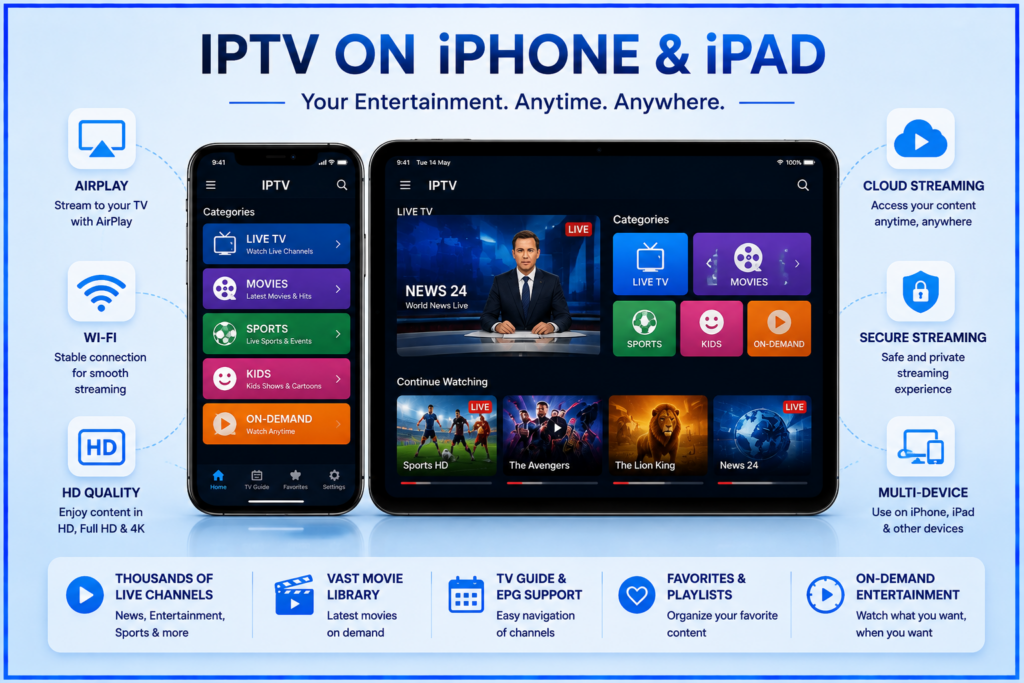
Both iPhones and iPads support IPTV through dedicated applications available in the App Store. These apps allow you to access IPTV playlists, live channels, video-on-demand libraries, and electronic program guides (EPG).
Popular IPTV players support:
- Live TV
- Movies
- TV series
- Catch-up TV (if provided)
- EPG
- Favorites
- Multiple playlists
The exact features depend on both the IPTV app and your IPTV provider.
What You'll Need Before Getting Started
Before setting up IPTV, make sure you have the following:
1. A Reliable Internet Connection
Streaming IPTV requires stable internet.
Recommended speeds:
| Streaming Quality | Recommended Speed |
| SD | 5 Mbps |
| HD | 10 Mbps |
| Full HD | 20 Mbps |
| 4K UHD | 30–50 Mbps |
Wi-Fi generally provides the best experience, although 5G mobile data also works well.
2. An IPTV Subscription
You'll need an IPTV provider that supplies one of these:
- M3U Playlist URL
- Xtream Codes API
- Username
- Password
- Server URL
These credentials are required for most IPTV players.
3. An IPTV Player App
An IPTV player is different from an IPTV subscription.
The player displays your channels, while your IPTV provider supplies the content.
Best IPTV Apps for iPhone and iPad
Several IPTV apps are available for iOS devices. Some of the most popular options include:
- IPTV Smarters Player Lite
- GSE Smart IPTV
- Smarters Player Lite
- LillyPlayer
- Flex IPTV
Different apps support different login methods, so choose one that's compatible with your IPTV provider.
How to Install an IPTV App
Setting up IPTV begins with installing a compatible player.
Step 1
Open the App Store.
Step 2
Search for your preferred IPTV player.
Step 3
Tap Get.
Step 4
Wait for the installation to complete.
Step 5
Open the app.
How to Set Up IPTV Using an M3U Playlist
Many IPTV providers use M3U playlists.
Follow these steps:
Step 1
Launch your IPTV app.
Step 2
Choose:
Add Playlist
or
Load Playlist
Step 3
Select:
M3U URL
Step 4
Enter:
- Playlist Name
- M3U URL
Step 5
Tap Save.
The app will automatically load your channels.
How to Set Up IPTV Using Xtream Codes
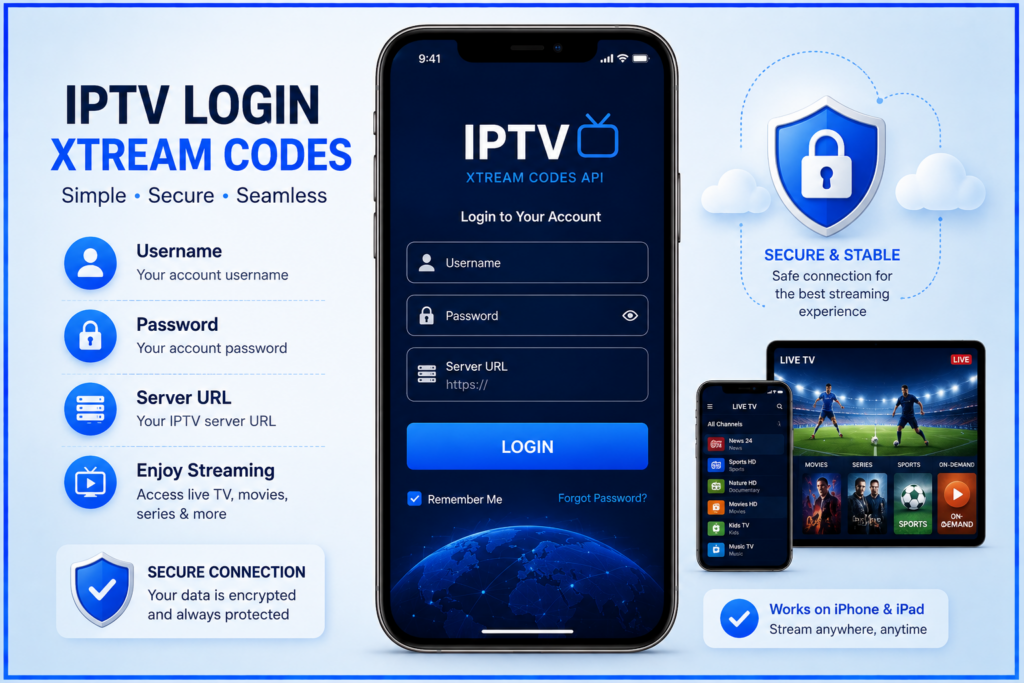
Many modern IPTV services prefer Xtream Codes because they're easier to configure.
You'll need:
- Username
- Password
- Server URL
Setup Steps
Open the IPTV player.
Choose:
Xtream Codes Login
Enter:
- Username
- Password
- Server URL
Tap Login.
The app will synchronize your IPTV subscription automatically.
Organizing Your IPTV Experience
Most IPTV apps allow you to customize your viewing experience.
Useful features include:
- Favorite channels
- Recently watched
- Search function
- Category filters
- TV guide
- Channel groups
Using these features makes navigating hundreds of channels much easier.
Watching IPTV on Mobile Data
Yes, IPTV works on mobile networks.
However, keep these considerations in mind:
Pros:
- Watch anywhere
- Great for travel
- No Wi-Fi required
Cons:
- Uses significant data
- Network congestion may affect quality
- Battery drains faster
If possible, connect to Wi-Fi for longer viewing sessions.
Tips for Better Streaming Quality
To improve IPTV performance on iPhone or iPad:
- Use a fast Wi-Fi connection.
- Close unnecessary background apps.
- Keep iOS updated.
- Update your IPTV app regularly.
- Restart the app if channels stop loading.
- Avoid weak public Wi-Fi networks.
- Position yourself closer to the router if using Wi-Fi.
Common IPTV Problems and Solutions
Channels Not Loading
Possible causes:
- Incorrect playlist URL
- Expired subscription
- Server maintenance
- Internet issues
Solution:
Verify your IPTV credentials and internet connection.
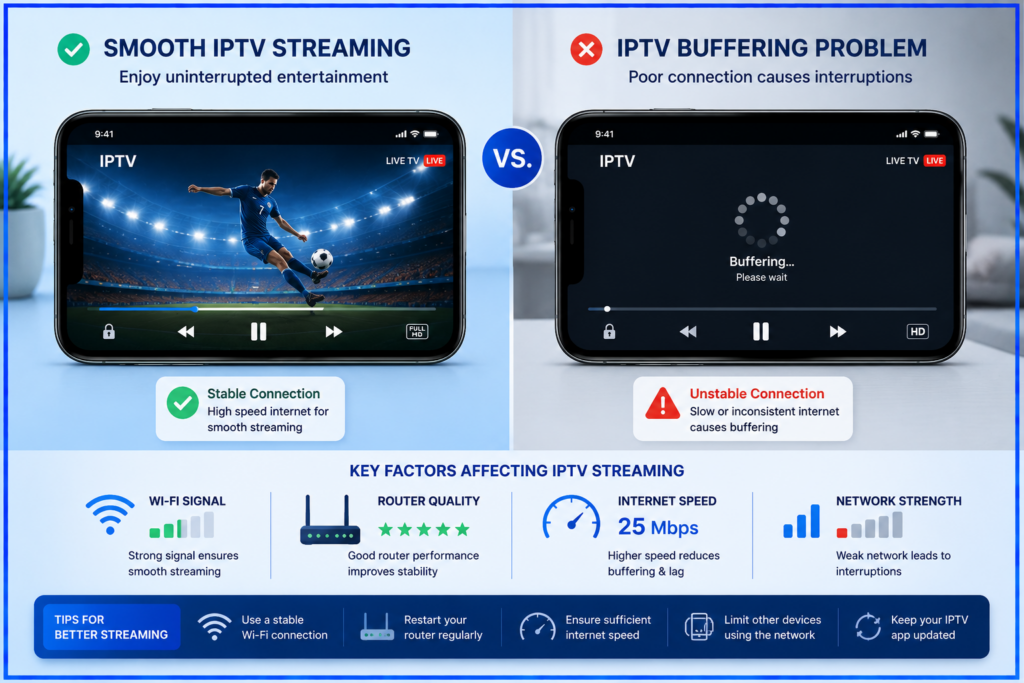
Buffering
Buffering is usually caused by:
- Slow internet
- Busy Wi-Fi
- ISP congestion
- Server overload
Try:
- Switching to 5 GHz Wi-Fi
- Restarting your router
- Reducing other network usage
Login Errors
Double-check:
- Username
- Password
- Server URL
Even small typing mistakes can prevent login.
Playlist Won't Refresh
Try:
- Reloading the playlist
- Restarting the app
- Logging in again
- Updating the app
Is IPTV Legal?
IPTV technology itself is legal.
Many legitimate businesses use IPTV to deliver television content over the internet.
However, legality depends on whether the IPTV provider has the proper rights and licenses to distribute the content they offer. Before subscribing, make sure you choose a provider that operates legally in your country and respects applicable copyright laws.
Is IPTV Safe on iPhone and iPad?
Generally, yes—provided you follow a few best practices:
- Download IPTV apps only from the Apple App Store.
- Use reputable IPTV providers.
- Keep your device updated with the latest version of iOS.
- Avoid downloading unofficial configuration files or apps from unknown websites.
- Protect your Apple ID with a strong password and two-factor authentication.
Frequently Asked Questions (FAQs)
Can I watch IPTV on both my iPhone and iPad?
Yes. If your IPTV provider allows multiple devices or connections, you can use the same subscription on both devices.
Do I need a jailbreak to use IPTV?
No. IPTV apps available on the App Store work without jailbreaking your iPhone or iPad.
Can I use AirPlay with IPTV?
Many IPTV apps support AirPlay, allowing you to stream content from your iPhone or iPad to a compatible TV or Apple TV.
Does IPTV work on cellular data?
Yes. IPTV can stream over 4G or 5G mobile networks, but it may consume a large amount of data depending on the video quality.
Why are some channels missing?
Missing channels are typically related to your IPTV provider's playlist or subscription package rather than the IPTV player itself.
Final Thoughts
Using IPTV on an iPhone or iPad is one of the easiest ways to enjoy live television, movies, sports, and on-demand content wherever you go. With a compatible IPTV player, a reliable internet connection, and a legitimate IPTV subscription, you can start streaming in just a few minutes.
For the best experience, keep your IPTV app and iOS updated, use a stable Wi-Fi connection whenever possible, and choose a reputable IPTV provider that offers legally licensed content. By following the steps and tips in this guide, you'll be well-equipped to enjoy a smooth and flexible IPTV viewing experience on your Apple devices.