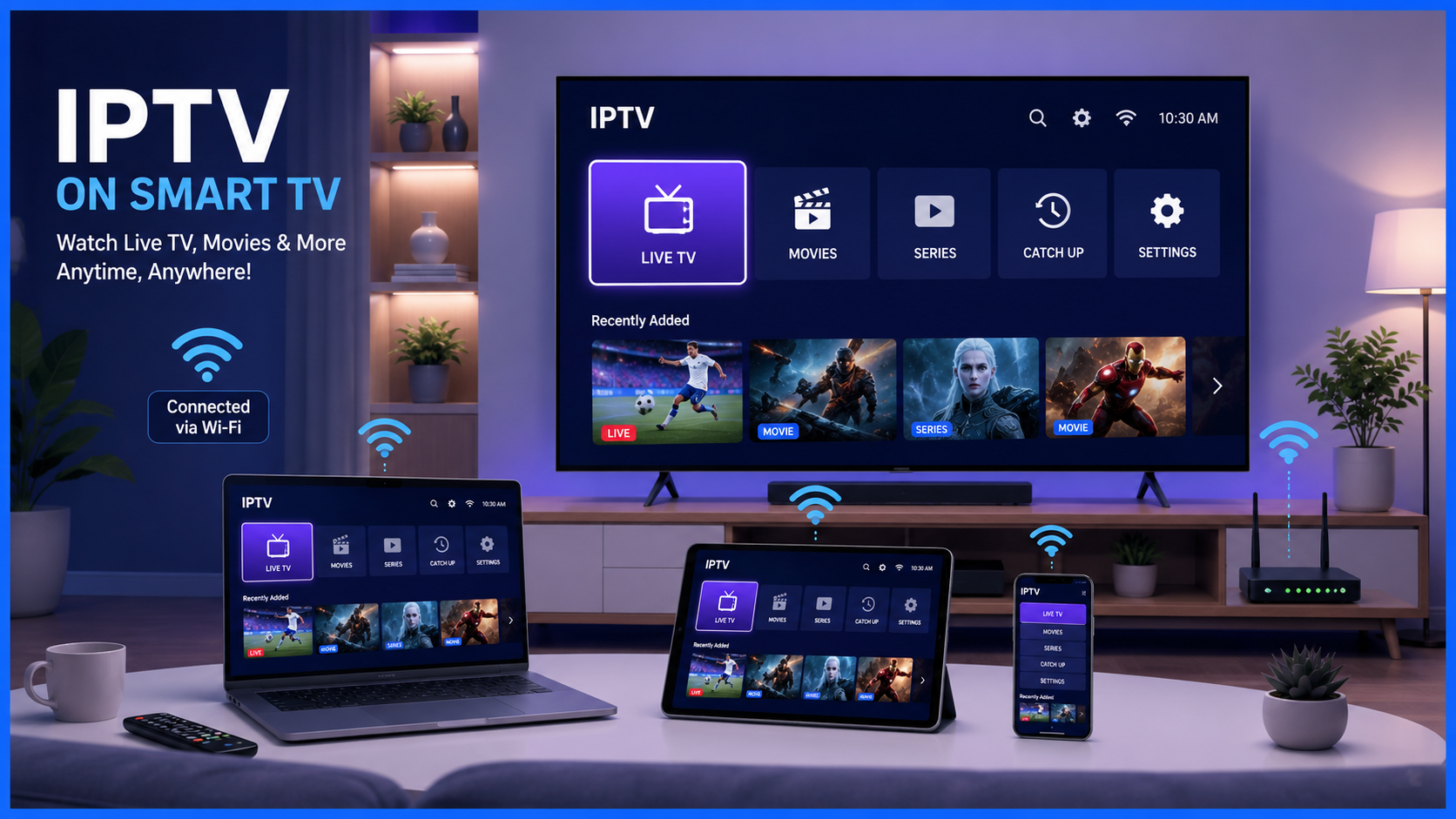
How to Set Up IPTV on a Smart TV
Smart TVs have transformed home entertainment by allowing users to stream movies, TV shows, and live channels without additional hardware. One of the most popular ways to access live television over the internet is through IPTV (Internet Protocol Television).
If you're wondering how to set up IPTV on a Smart TV, you're in the right place. This comprehensive guide will walk you through everything you need to know—from understanding IPTV to installing an IPTV player and configuring your subscription.
Whether you own a Samsung, LG, Android TV, Google TV, or another smart television, the setup process is straightforward and only takes a few minutes.
What Is IPTV?
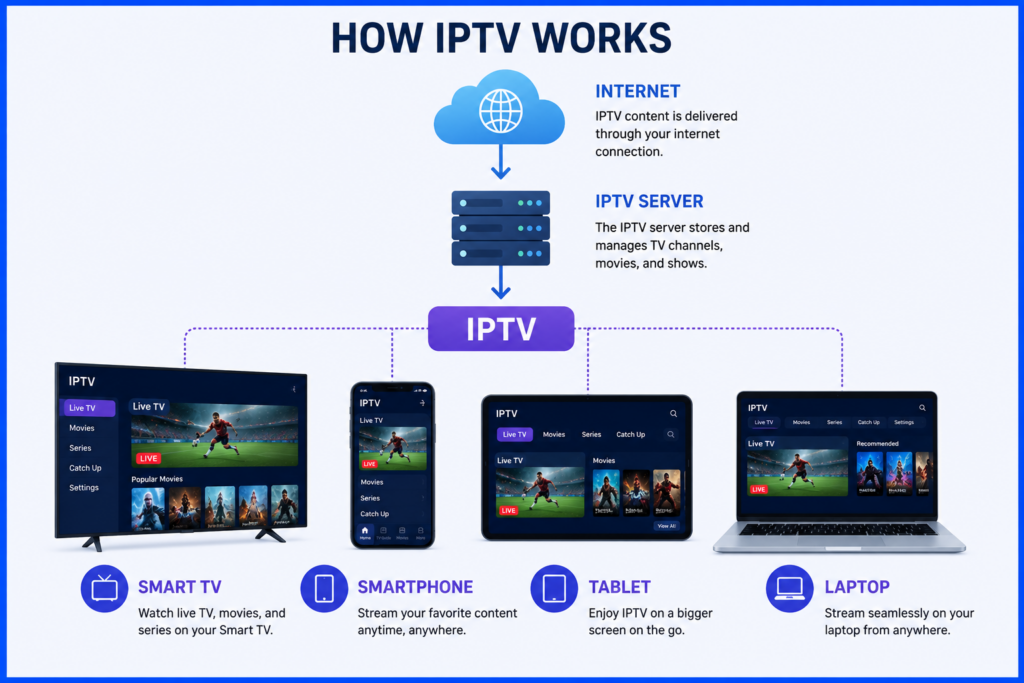
IPTV (Internet Protocol Television) delivers television content through an internet connection instead of traditional cable or satellite services.
Instead of receiving TV signals through antennas or coaxial cables, IPTV streams channels, movies, and on-demand content over broadband internet.
Most IPTV services offer:
- Live TV channels
- Movies
- TV series
- Catch-up TV
- Video on Demand (VOD)
- Electronic Program Guide (EPG)
Unlike streaming platforms that focus mainly on on-demand content, IPTV combines live television with digital streaming.
What You Need Before Setting Up IPTV
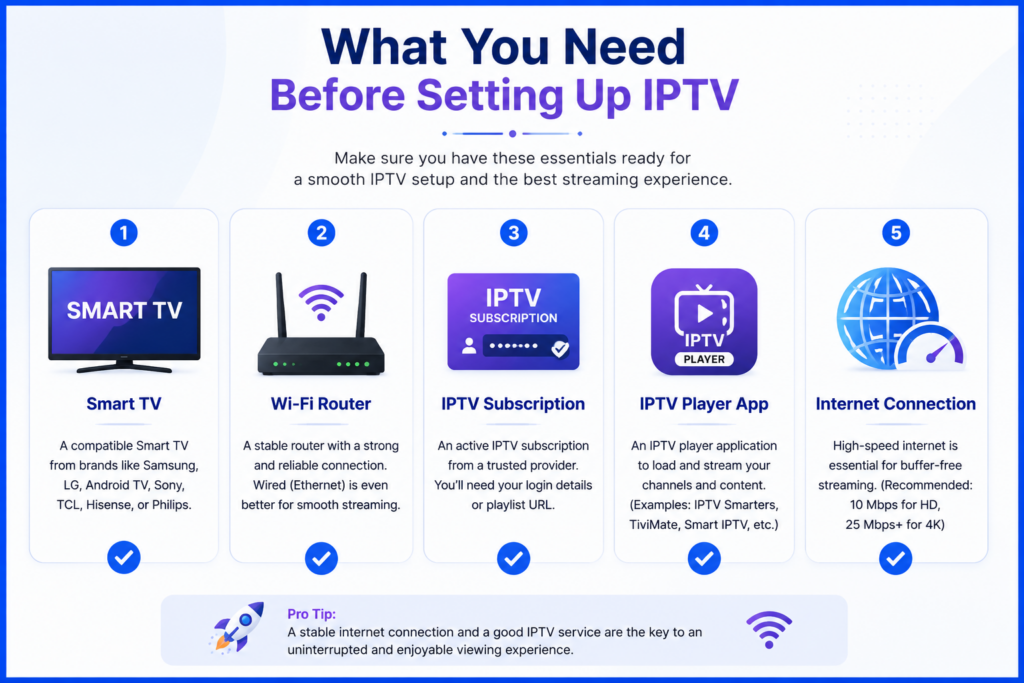
Before starting the installation, make sure you have the following:
1. A Smart TV
Supported brands include:
- Samsung Smart TV
- LG Smart TV
- Android TV
- Google TV
- Sony Smart TV
- TCL Smart TV
- Hisense Smart TV
- Philips Smart TV
2. A Stable Internet Connection
Recommended internet speeds:
| Streaming Quality | Recommended Speed |
| SD | 5 Mbps |
| HD | 10 Mbps |
| Full HD | 15 Mbps |
| 4K UHD | 25 Mbps or higher |
For the best experience, connect your TV using Ethernet if possible.
3. An IPTV Subscription
You'll need a subscription from an IPTV provider that supplies:
- M3U Playlist URL
- Xtream Codes API
- Username
- Password
- Server URL
Keep these details ready before beginning the setup.
4. An IPTV Player App
Most IPTV services do not provide their own TV application.
Instead, you'll install an IPTV player such as:
- IPTV Smarters Pro
- Smart IPTV
- SmartOne IPTV
- TiviMate (Android TV)
- IBO Player
- Flix IPTV
- SET IPTV
- OTT Navigator
These apps act as media players and require your IPTV subscription information.
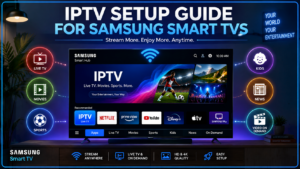
How to Set Up IPTV on Samsung Smart TV
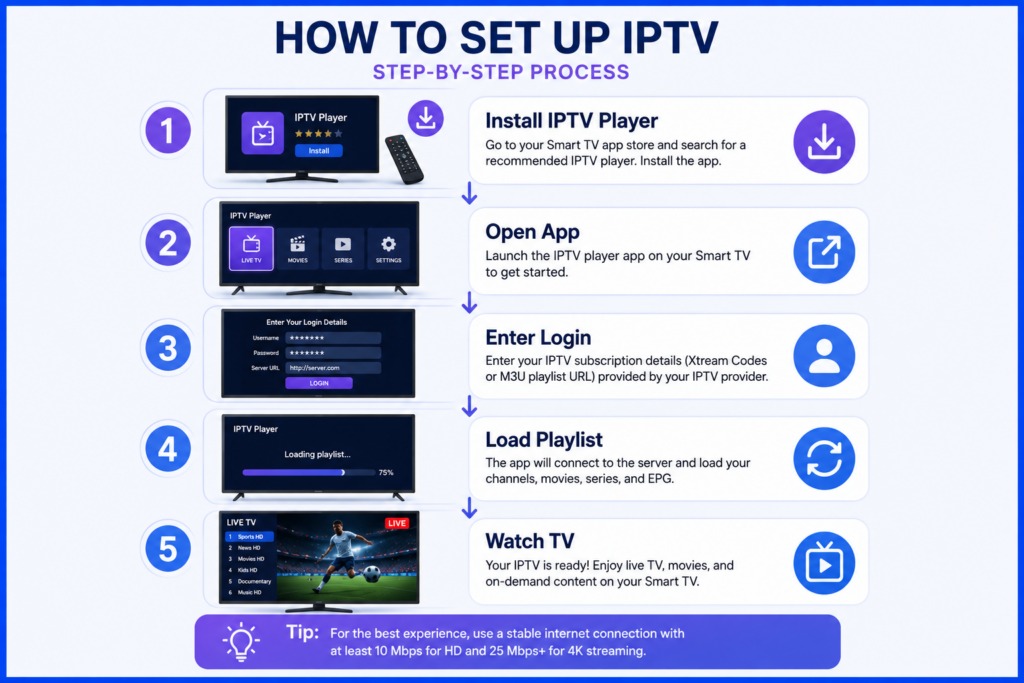
Samsung Smart TVs use the Tizen operating system.
Step 1: Open the App Store
Press the Home button and open the Apps section.
Step 2: Search for an IPTV Player
Install your preferred IPTV player.
Examples include:
- Smart IPTV
- SmartOne IPTV
- IBO Player
- IPTV Smarters (if available)
Step 3: Open the App
Launch the application after installation.
Step 4: Add Your IPTV Subscription
Depending on the app, enter either:
- M3U Playlist URL
or
- Xtream Codes Login
which includes:
- Username
- Password
- Server URL
Step 5: Save and Refresh
The app will load:
- Live channels
- Movies
- TV series
- EPG
You're now ready to watch IPTV.
How to Set Up IPTV on LG Smart TV
LG televisions run webOS.
The process is almost identical:
- Open LG Content Store
- Install an IPTV player
- Launch the app
- Enter your IPTV credentials
- Wait for channels to load
Most modern IPTV players support LG Smart TVs.
How to Set Up IPTV on Android TV or Google TV
Android-based Smart TVs provide the widest compatibility.
Step 1
Open Google Play Store.
Step 2
Search for an IPTV player.
Popular choices include:
- IPTV Smarters Pro
- TiviMate
- OTT Navigator
- XCIPTV
Step 3
Install the application.
Step 4
Launch the app.
Step 5
Choose one of the login methods:
- Xtream Codes
- M3U Playlist
- Local Playlist
Step 6
Enter your IPTV details.
Step 7
Wait while your playlist downloads.
After synchronization, your content will appear automatically.
M3U Playlist vs Xtream Codes
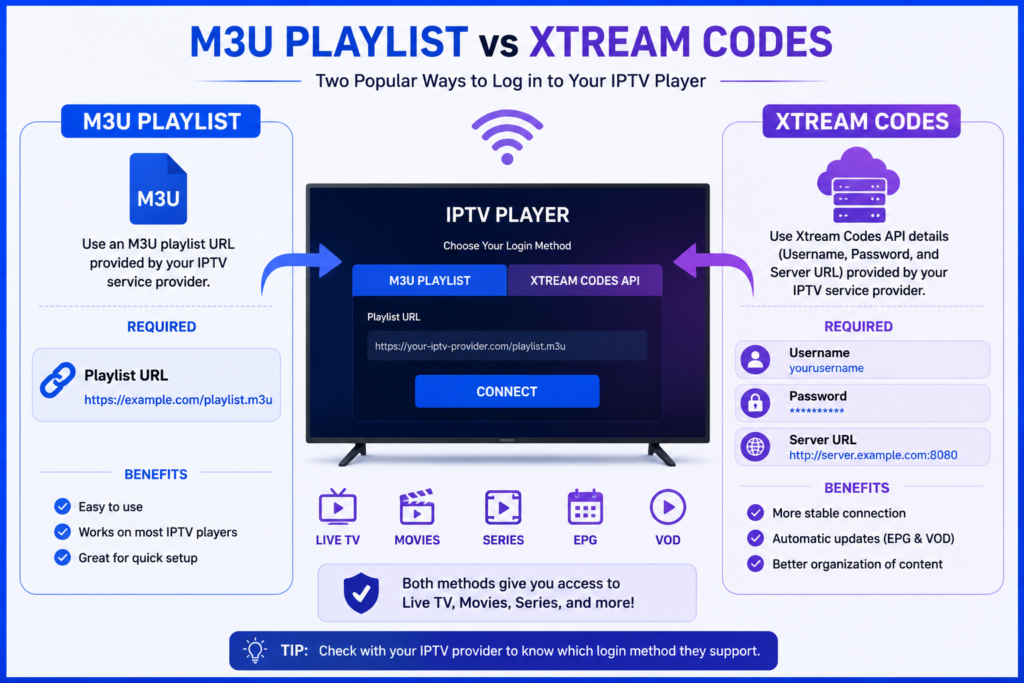
Most IPTV providers support both methods.
M3U Playlist
Requires:
- Playlist URL
Pros:
- Easy to use
- Compatible with most apps
Cons:
- Manual updates may be required
Xtream Codes
Requires:
- Username
- Password
- Server URL
Pros:
- Faster setup
- Better organization
- Automatic content updates
- Supports EPG more easily
Most users prefer Xtream Codes for its convenience.
How to Configure the EPG (TV Guide)
The Electronic Program Guide displays:
- Current programs
- Upcoming shows
- Channel schedules
Many IPTV players automatically load the EPG.
If not, you'll need the EPG URL provided by your IPTV service.
After adding it, refresh the guide to populate program information.
Tips for Better IPTV Performance
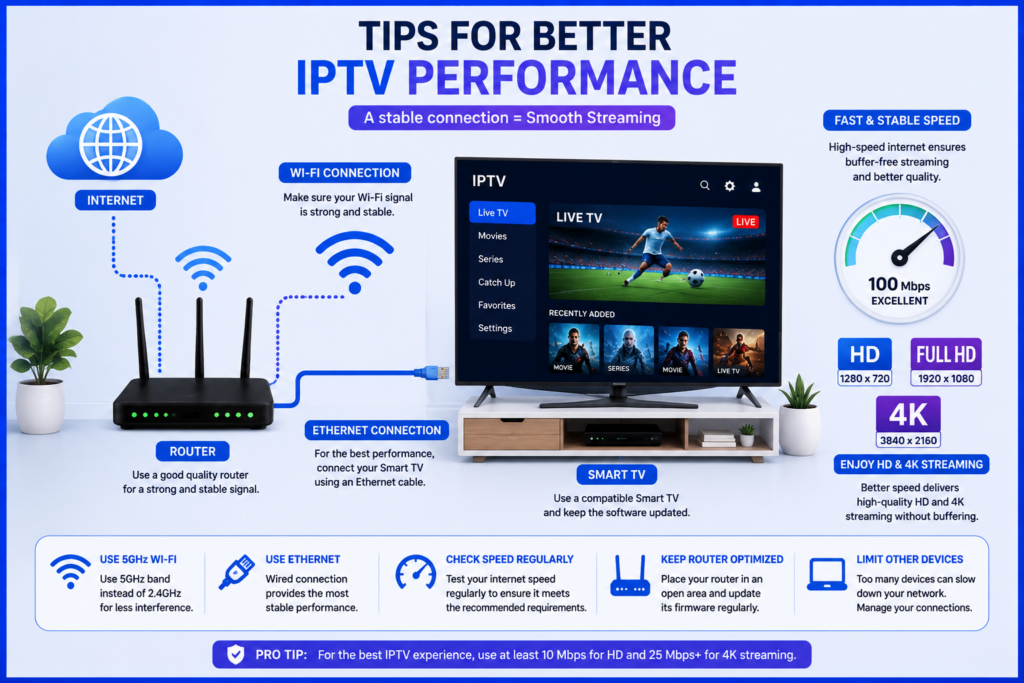
Improve your streaming experience with these tips:
- Use a wired Ethernet connection when possible.
- Ensure your internet speed meets the recommended requirements.
- Close unused apps running on your Smart TV.
- Keep your IPTV player updated.
- Restart your router occasionally.
- Avoid downloading large files while streaming.
- Place your Wi-Fi router close to the TV if using wireless.
These simple steps can reduce buffering and improve playback quality.
Common IPTV Setup Problems and Solutions
| Problem | Possible Solution |
| Buffering | Improve internet speed or use Ethernet |
| Login failed | Double-check username, password, and server URL |
| Playlist not loading | Verify the M3U URL is correct and active |
| No channels | Refresh the playlist or contact your IPTV provider |
| Missing EPG | Re-enter the EPG URL and update the guide |
| App crashes | Update or reinstall the IPTV player |
Most issues can be resolved by checking your internet connection and ensuring your subscription details are entered correctly.
Is IPTV Legal?
IPTV itself is a legitimate technology used by many licensed television providers.
However, legality depends on the content being streamed. Always choose IPTV services that have the proper rights and licenses to distribute their channels and content. Using authorized providers helps ensure compliance with local laws and supports content creators.
Frequently Asked Questions (FAQ)
Can I use IPTV on any Smart TV?
Yes. Most modern Smart TVs support IPTV through compatible IPTV player applications.
Do I need a streaming device?
No. If your Smart TV supports IPTV apps, no additional device is required.
Which IPTV player is best?
Popular options include IPTV Smarters Pro, TiviMate (Android TV), SmartOne IPTV, IBO Player, and OTT Navigator. The best choice depends on your TV's operating system and personal preferences.
Can I install IPTV without an app?
Generally, no. Most Smart TVs require an IPTV player application to access IPTV playlists or Xtream Codes.
Why does my IPTV keep buffering?
Buffering is commonly caused by a slow or unstable internet connection, Wi-Fi interference, network congestion, or issues with the IPTV service itself. Using a wired Ethernet connection and ensuring sufficient internet speed can help improve performance.
Final Thoughts
Setting up IPTV on a Smart TV is easier than many people expect. With a compatible television, a reliable internet connection, an IPTV player, and a valid subscription from a licensed provider, you can enjoy live TV, movies, series, and on-demand content from a single interface.
By following the steps in this guide and using best practices such as maintaining a stable internet connection and keeping your apps updated, you can enjoy a smooth and reliable IPTV experience on your Smart TV.