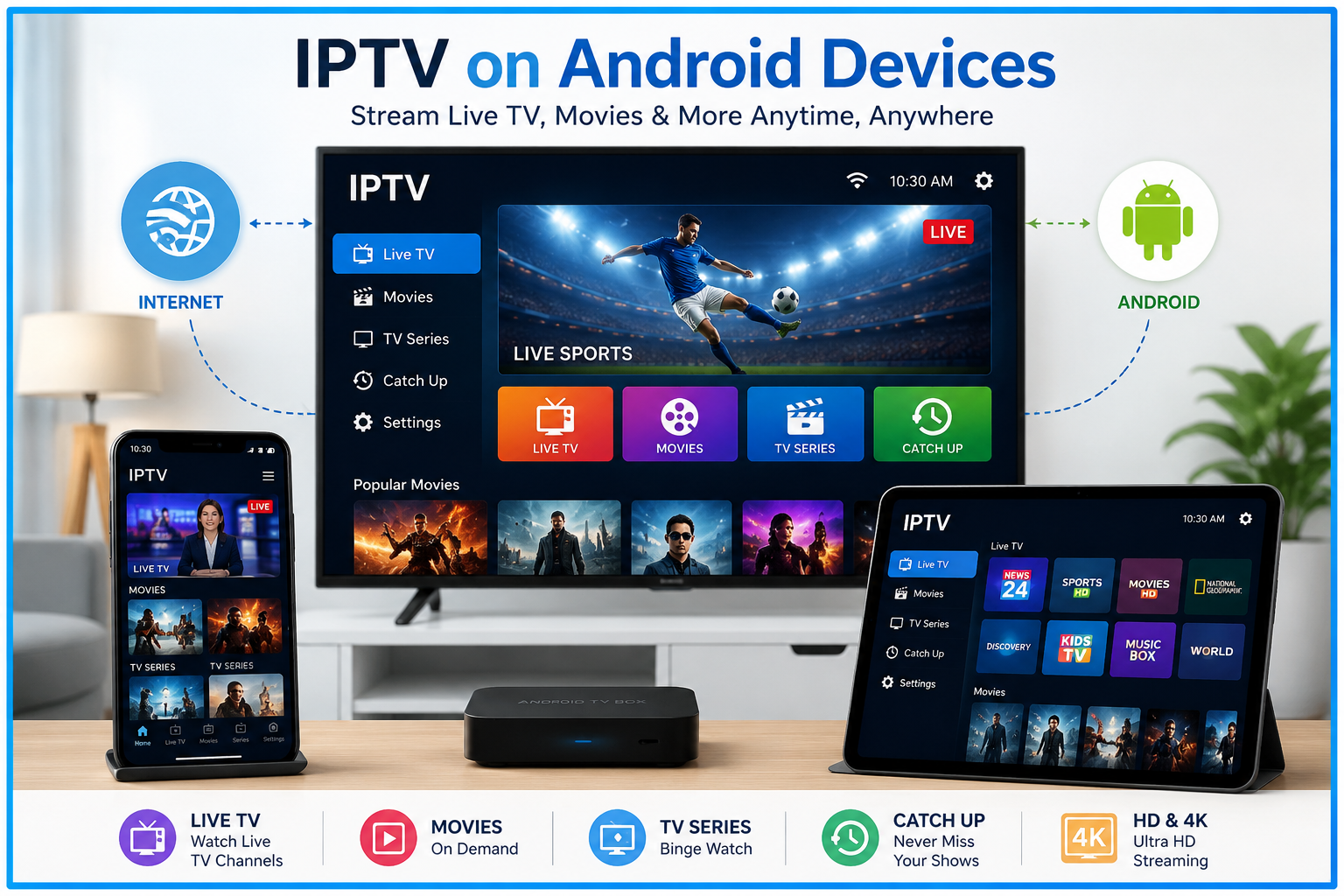
Android devices have become one of the most popular platforms for watching IPTV because they are affordable, flexible, and easy to use. Whether you own an Android smartphone, tablet, Android TV, or TV box, setting up IPTV only takes a few minutes when you know the right steps.
In this comprehensive guide, you'll learn what IPTV is, what you need before installation, how to install IPTV on different Android devices, how to configure your IPTV service, and how to solve common problems.
What Is IPTV?
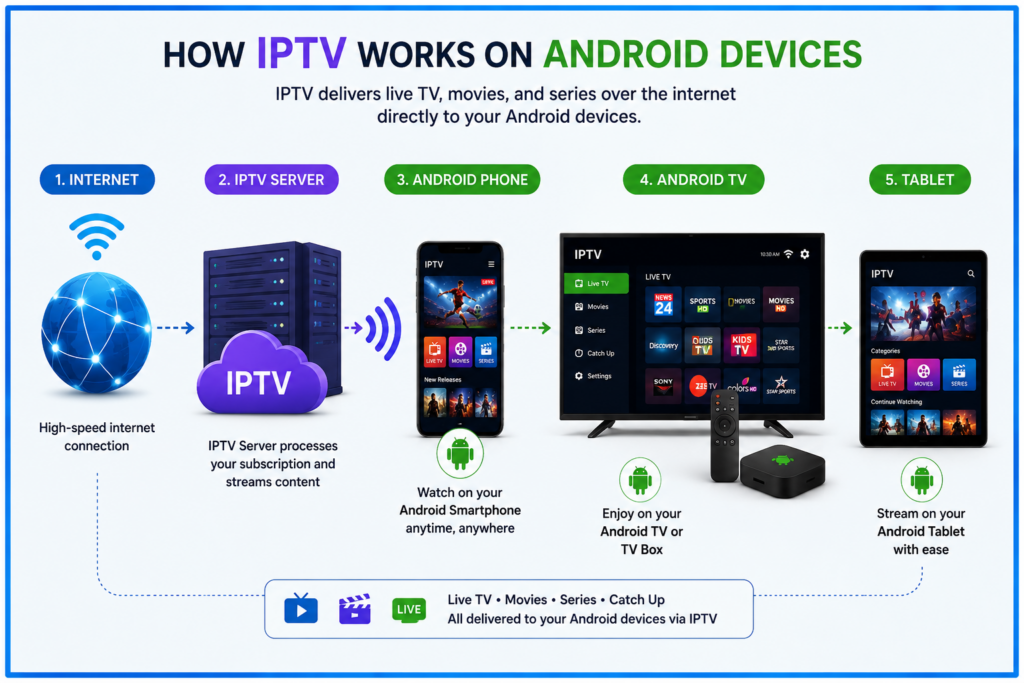
IPTV (Internet Protocol Television) is a technology that delivers television channels, movies, and video content through an internet connection instead of traditional cable or satellite services.
Unlike conventional TV services, IPTV allows users to stream live television, Video on Demand (VOD), catch-up TV, and other multimedia content directly over the internet.
Most IPTV providers give users one of the following:
- M3U Playlist URL
- Xtream Codes Login
- Portal URL
- Username and Password
These credentials are entered into an IPTV player app installed on your Android device.
Why Use Android for IPTV?
Android is one of the best platforms for IPTV because it offers:
- Easy installation of IPTV applications
- Wide compatibility with IPTV services
- Affordable Android TV boxes
- Excellent streaming performance
- Support for HD, Full HD, and 4K playback
- Frequent software updates
- Access to the Google Play Store
Whether you're using a phone or an Android TV, the installation process is very similar.
What You'll Need Before Installing IPTV
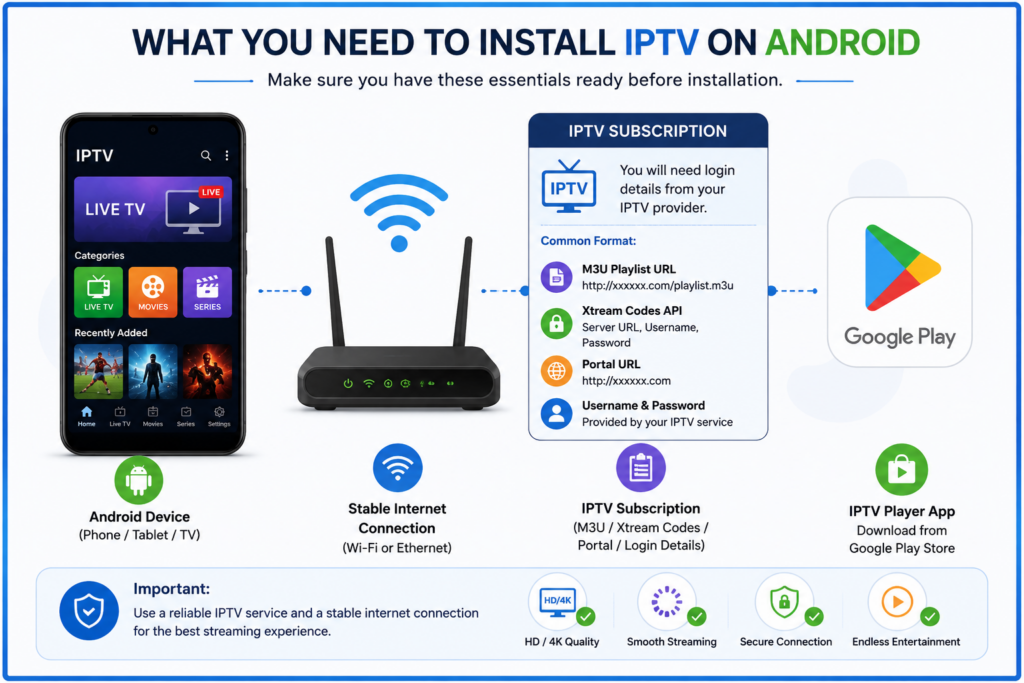
Before beginning the installation, make sure you have:
1. A Stable Internet Connection
For smooth streaming, your internet should generally provide:
| Video Quality | Recommended Speed |
| SD | 5 Mbps |
| HD | 10 Mbps |
| Full HD | 20 Mbps |
| 4K UHD | 30–50 Mbps |
A stable connection is often more important than peak download speed.
2. IPTV Subscription
You'll need an IPTV provider that supplies login credentials such as:
- M3U URL
- Xtream Codes API
- Username
- Password
- Server URL
Keep these details available before installing the app.
3. Android Device
This guide works for:
- Android smartphones
- Android tablets
- Android TV
- Android TV Box
- Google TV devices
Best IPTV Apps for Android
Several IPTV player apps are available for Android. Your provider may recommend a specific one.
Popular choices include:
- IPTV Smarters Pro
- TiviMate
- OTT Navigator
- XCIPTV Player
- Perfect Player IPTV
- Televizo IPTV Player
These apps do not usually include channels themselves. They are media players that require credentials from your IPTV provider.
How to Install IPTV on Android Smartphones and Tablets
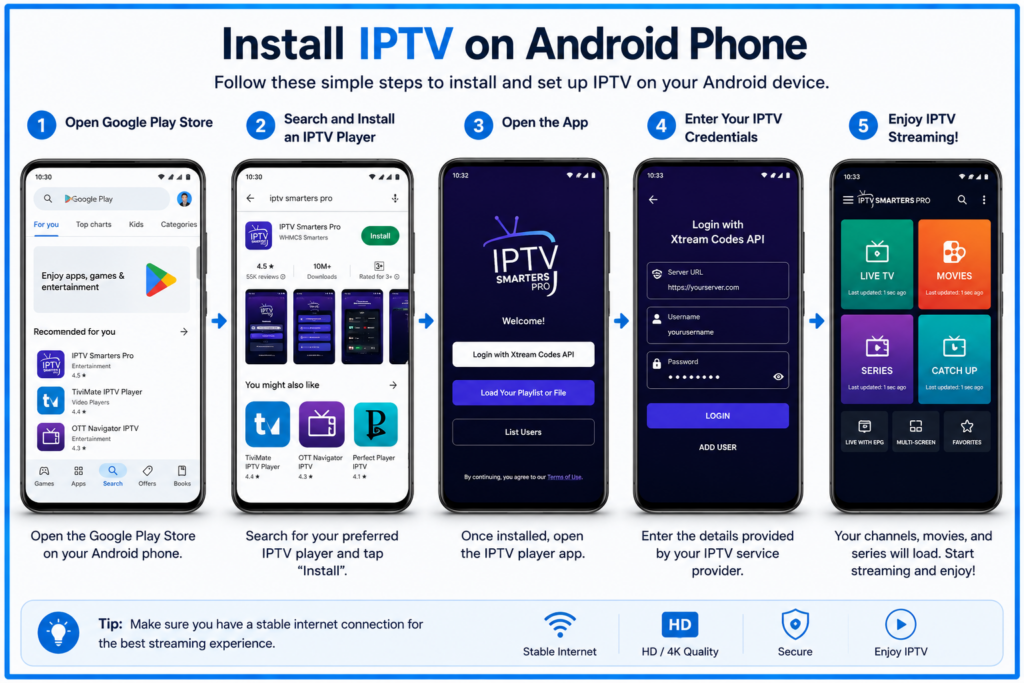
Follow these steps:
Step 1: Open Google Play Store
Launch the Play Store on your Android device.
Step 2: Search for an IPTV Player
Search for your preferred IPTV player.
Examples:
- IPTV Smarters
- Televizo
- OTT Navigator
Install the application.
Step 3: Open the App
After installation finishes:
- Open the IPTV application.
- Accept any required permissions.
Step 4: Add Your IPTV Account
Choose the login method provided by your IPTV service.
Common options include:
Option 1: Xtream Codes API
Enter:
- Server URL
- Username
- Password
Tap Login.
Option 2: M3U Playlist
Paste:
- M3U URL
or
Upload an M3U playlist file.
Step 5: Wait for Content to Load
The application will download:
- Live TV channels
- Movies
- TV series
- Electronic Program Guide (EPG), if available
The first sync may take a few minutes.
How to Install IPTV on Android TV or Android TV Box
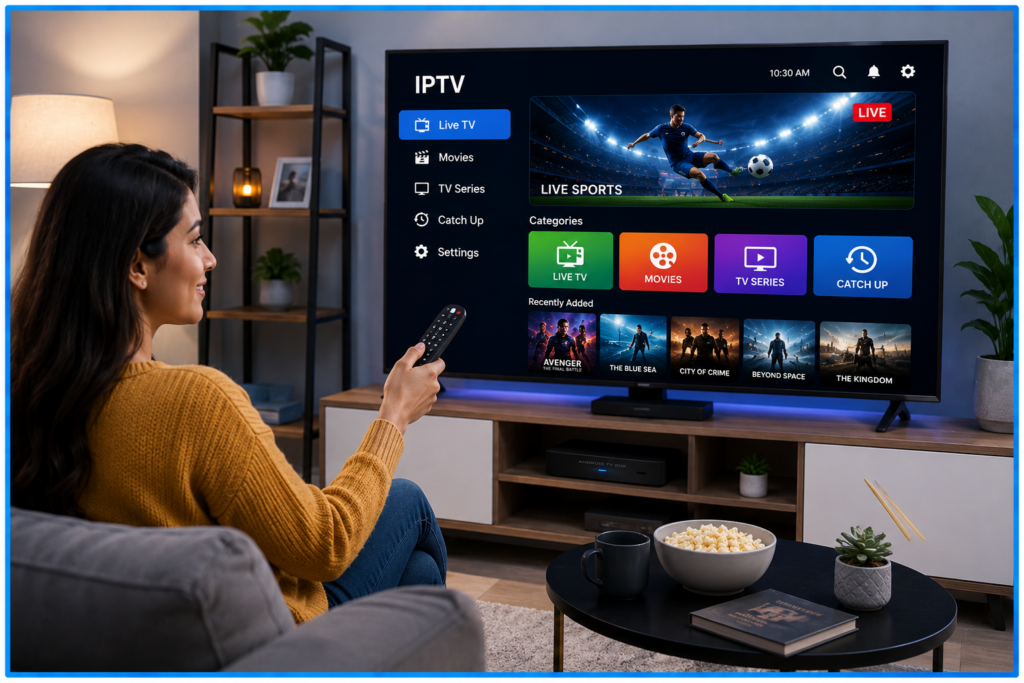
The process is similar but optimized for remote control navigation.
Step 1
Open Google Play Store.
Step 2
Search for an IPTV player.
Popular options include:
- TiviMate
- IPTV Smarters Pro
- Televizo
Step 3
Install the app.
Step 4
Launch the application.
Step 5
Enter your IPTV credentials.
Most providers recommend using:
- Xtream Codes Login
- M3U Playlist
Step 6
Allow the app to import channels.
Once completed, you can browse:
- Live TV
- Movies
- TV Shows
- Favorites
- Categories
How to Install IPTV Using an APK File
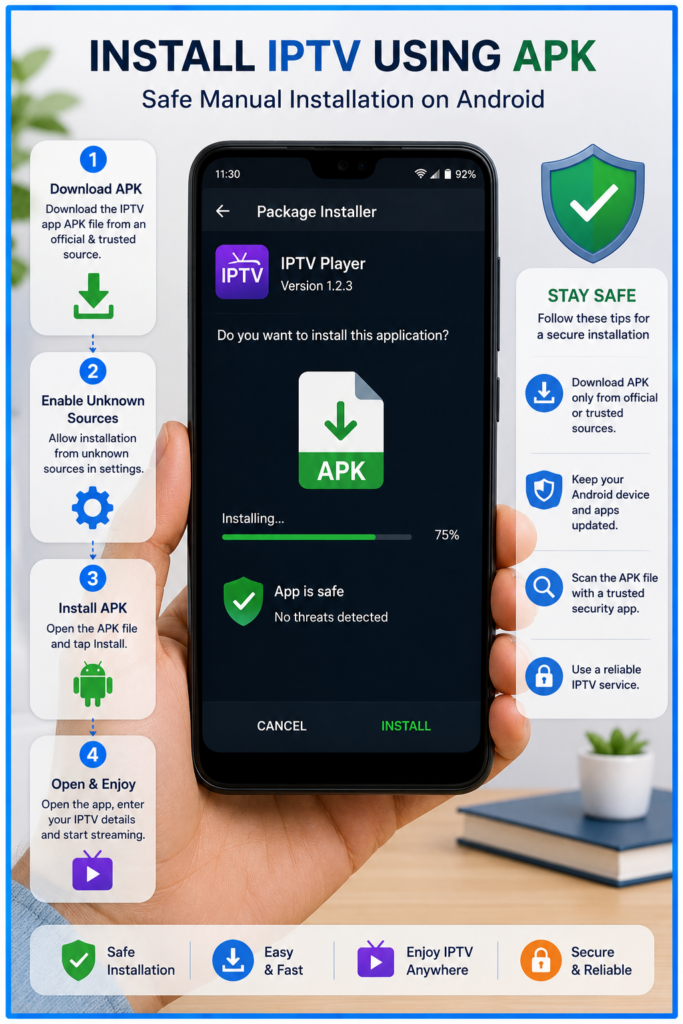
Sometimes an IPTV app isn't available in the Google Play Store. In that case, you may need to install it manually.
Step 1
Download the APK file only from the app developer's official website or another trusted source.
Step 2
Enable Install Unknown Apps (or Unknown Sources, depending on your Android version).
Step 3
Locate the downloaded APK using your file manager.
Step 4
Tap the APK file and follow the installation prompts.
Step 5
Open the app and enter your IPTV account details.
Only install APK files from trusted sources to reduce security risks.
Configuring IPTV Settings
After installation, you can improve your experience by adjusting settings such as:
Video Player
Choose between:
- Built-in Player
- VLC
- MX Player (if supported)
EPG (Electronic Program Guide)
Import your provider's EPG URL to display channel schedules.
Favorites
Save frequently watched channels for quick access.
Parental Controls
Many IPTV players let you restrict access to certain channels or content.
Playback Quality
Adjust video quality based on your internet speed to minimize buffering.
Common IPTV Installation Problems and Solutions
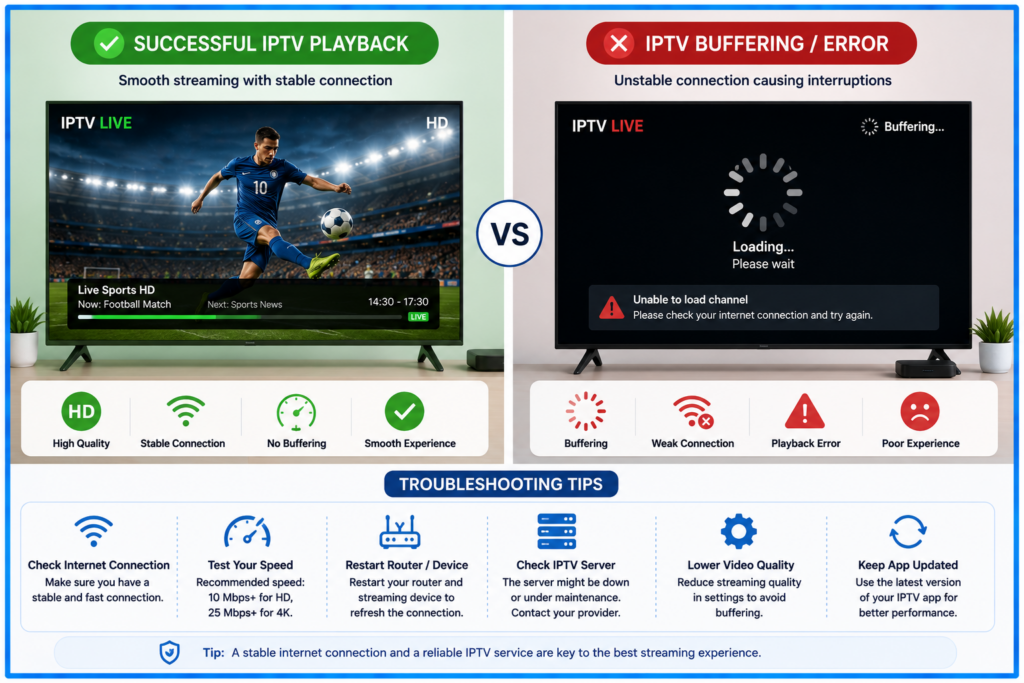
App Won't Install
Possible causes:
- Android version is outdated
- Insufficient storage
- APK file is corrupted
Solution: Update Android, free up storage, or download the APK again from a trusted source.
Login Failed
Possible causes:
- Incorrect username or password
- Incorrect server URL
- Subscription expired
Solution: Verify your credentials and contact your IPTV provider if necessary.
Channels Not Loading
Possible causes:
- Slow internet
- Invalid playlist
- Server maintenance
Solution: Restart the app, check your internet connection, and confirm your playlist or server details.
Buffering
Possible causes:
- Weak Wi-Fi signal
- Network congestion
- Overloaded IPTV server
Solution: Use a stable Wi-Fi connection or Ethernet (when available), close background downloads, and reduce playback quality if needed.
Tips for a Better IPTV Experience
To enjoy smoother streaming:
- Use high-speed, stable internet.
- Keep your IPTV app updated.
- Restart your device occasionally.
- Use Ethernet instead of Wi-Fi when possible.
- Close unnecessary background applications.
- Keep sufficient free storage on your device.
Is IPTV Safe to Install on Android?
Installing an IPTV player from a trusted source is generally safe. However:
- Download apps only from reputable developers or official sources.
- Keep your Android device updated.
- Avoid installing modified or unknown APK files.
- Use IPTV services that you have the rights to access and that comply with applicable laws in your region.
Frequently Asked Questions (FAQs)
Can I install IPTV on any Android phone?
Yes. Most Android smartphones and tablets support IPTV player apps, provided they meet the app's minimum Android version requirements.
Do I need a Google Play Store account?
Only if you're downloading an app from the Play Store. APK installation can be used when appropriate, but it should come from a trusted source.
Which login method is best?
Xtream Codes is often simpler because it automatically imports playlists and channel information. If your provider only offers an M3U playlist, that works well too.
Can I watch IPTV on Android TV for free?
The IPTV player app may be free, but accessing TV channels usually requires credentials from an IPTV service unless you're using freely available and authorized streams.
Why is my IPTV buffering?
Buffering can result from slow or unstable internet, Wi-Fi interference, overloaded servers, or device performance limitations.
Final Thoughts
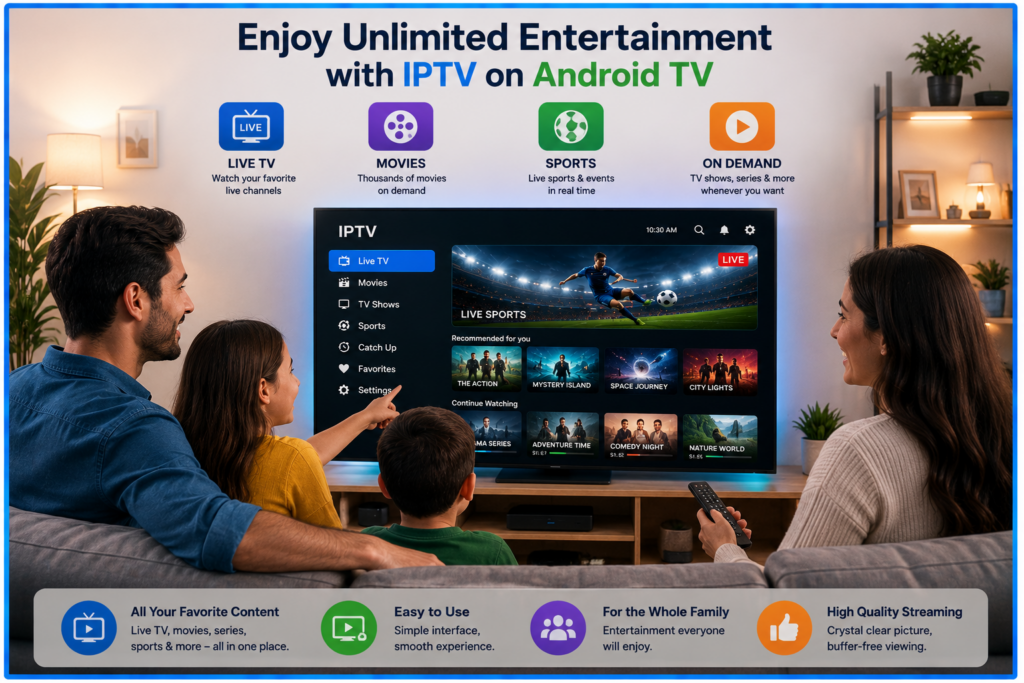
Installing IPTV on Android devices is straightforward once you have the right app and valid service credentials. Whether you're using an Android phone, tablet, TV, or TV box, the setup process usually involves installing an IPTV player, entering your login information, and allowing the app to load your content.
For the best viewing experience, use a reliable internet connection, keep your apps updated, and choose reputable software sources. With the correct setup, Android provides a flexible and convenient platform for enjoying live TV, movies, and on-demand content.